

Open an event to people outside
The same three switches your colleagues get, plus the seven things you can ask a stranger, terms, and consent — and one message that will look like a bug.
External participant settings starts with the same three controls the internal side has — Visible to external participants, Allow external user self-registration, and Limit external registration window — and then adds three groups your colleagues never see.
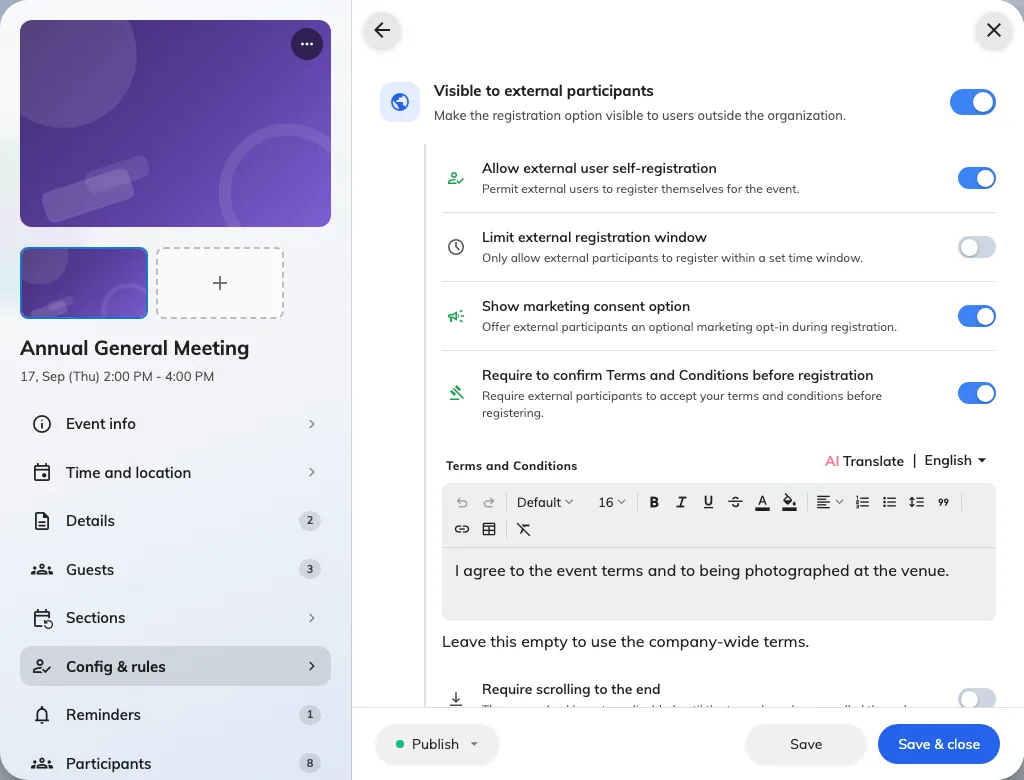
The external side: which details are asked for, and the terms they agree to.
Required registration information
Seven built-in questions, each set to Required, Optional or Hidden: mobile number, company name, job title, department, dietary requirements, accessibility needs and emergency contact.
Ask for what you will actually use. Every required field is another reason somebody abandons the form, and an emergency contact on a one-hour webinar reads as intrusive rather than thorough.
Terms and conditions
Require guests to accept your terms before registering. Leave the text empty and the event uses your company’s default, which is usually what you want — write your own only when this event genuinely differs.
Require scrolling to the end keeps the agree box disabled until the terms have actually been scrolled through. Use it where somebody has to be able to say the terms were put in front of people.
Marketing consent
Offers guests an optional opt-in during registration. Optional is the point — it is a tick box they may leave alone, not a condition of attending.
The registration window
External sign-ups are the ones worth closing early — catering, badges and security lists all need a number before the day. That is exactly what the separate window is for: close guests off on the Wednesday and leave your colleagues able to join on the Friday.
Check it worked
Open the event’s public link in a private browser window, signed in to nothing. That is your guests’ view, and it is the only honest test.