

Take attendance as an assistant
Working the door: scanning passes, what each result means, finding somebody by name, and what to do when the signal drops.
Open the event on the day and press Take attendance. The camera comes up and you point it at each guest’s pass.
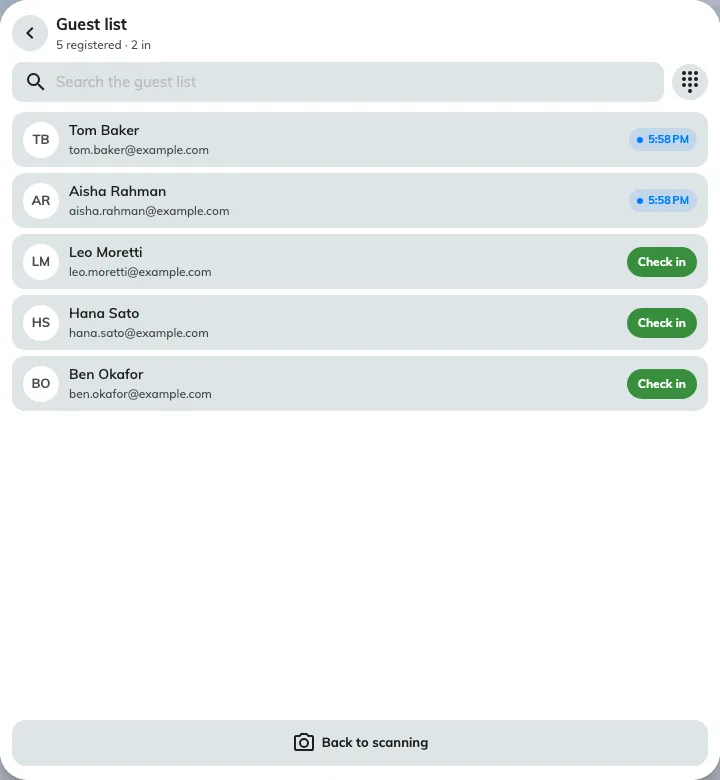
The same door screen an assistant sees, with the running count at the top.
Before the doors open
Open the scanner while you still have a good signal. It loads the guest list once, up front — which is what lets it keep working if the network drops later.
Check the session chip at the top. On an event with several sections it decides which one you are checking people into; Whole event covers all of them.
What each result means
| It says | Do this |
|---|---|
| Checked in | Nothing — they are in |
| Checked in at time | Nothing. They already came through; the first time stands |
| Not registered | Search Guest list by name before turning anybody away |
| Wrong event | A real pass for something else. Ask them to open My events and pick today’s |
| Not in this session | Check the session chip is right, then tell them which section they are booked on |
| Registration cancelled | Their place was withdrawn. Check in anyway if the organiser says so — otherwise ask them |
When a phone will not cooperate
Ask them to turn their screen brightness up. That fixes more failed scans than anything else.
If it still will not read, use Guest list, find them by name, and check them in from there. The record is identical.
If the network drops
Keep going. You will see Checked in · offline and a count of what is waiting to sync, and it will catch up on its own when the signal returns. Nobody gets counted twice.
If you check in the wrong person
Undo reverses it, as long as they had not already been checked in. If they had, their original arrival time is kept and there is nothing to undo.