‹
製品
製品
機能
接続
‹
ソリューション
業種から探す
デバイスパートナーから探す
役員室、ホットデスク、貸出備品はそれぞれ別ポリシーを持てます。予約ウィンドウ、承認、チェックインは割り当てたポリシー上に — 誰かの受信箱のうわさではありません。
職場に近い問題を選んでください。各カードが一度設定してリソースに割り当てるポリシーの目的に対応します。
Check-in policy
Booking window policy
Authorization policy
Approval policy
Confidentiality policy
Channel policy
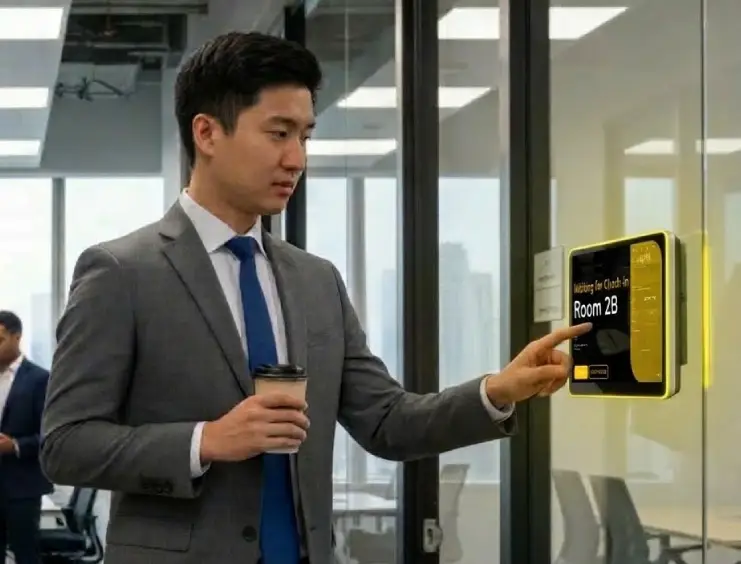
Ghost bookings waste prime space. A check-in policy makes people confirm within a window — or releases the room automatically when no one arrives, including via occupancy sensors.
ヒント:在室センサーとチェックインを組み合わせると、タップ不要で完全自動検知が可能です。
読む:予約済みで空の部屋When everyone shares one horizon, prime slots disappear early. Date-range limits on the policy cap advance booking, session length and total hours — with longer windows for staff groups where you need them.
ヒント:ほとんどのオフィスリソースでは14〜30日の事前予約期間が適切です。
読む:教職員と学生は別ウィンドウが必要Not every resource should be open to everyone. Authorization on the policy defines who can book, who can read the schedule, and who is blocked — by user or group.
ヒント:透明性のために「閲覧のみ」を使用しましょう。ユーザーは会議室の使用状況を確認できますが、予約はできません。
For costly or high-capacity rooms, add an approval step. Reviewers approve or reject — with conditional triggers so routine bookings still go through instantly.
ヒント:条件付き承認を使用して、収容率や時間のしきい値を超える予約のみを確認しましょう。通常の予約はスムーズに処理されます。
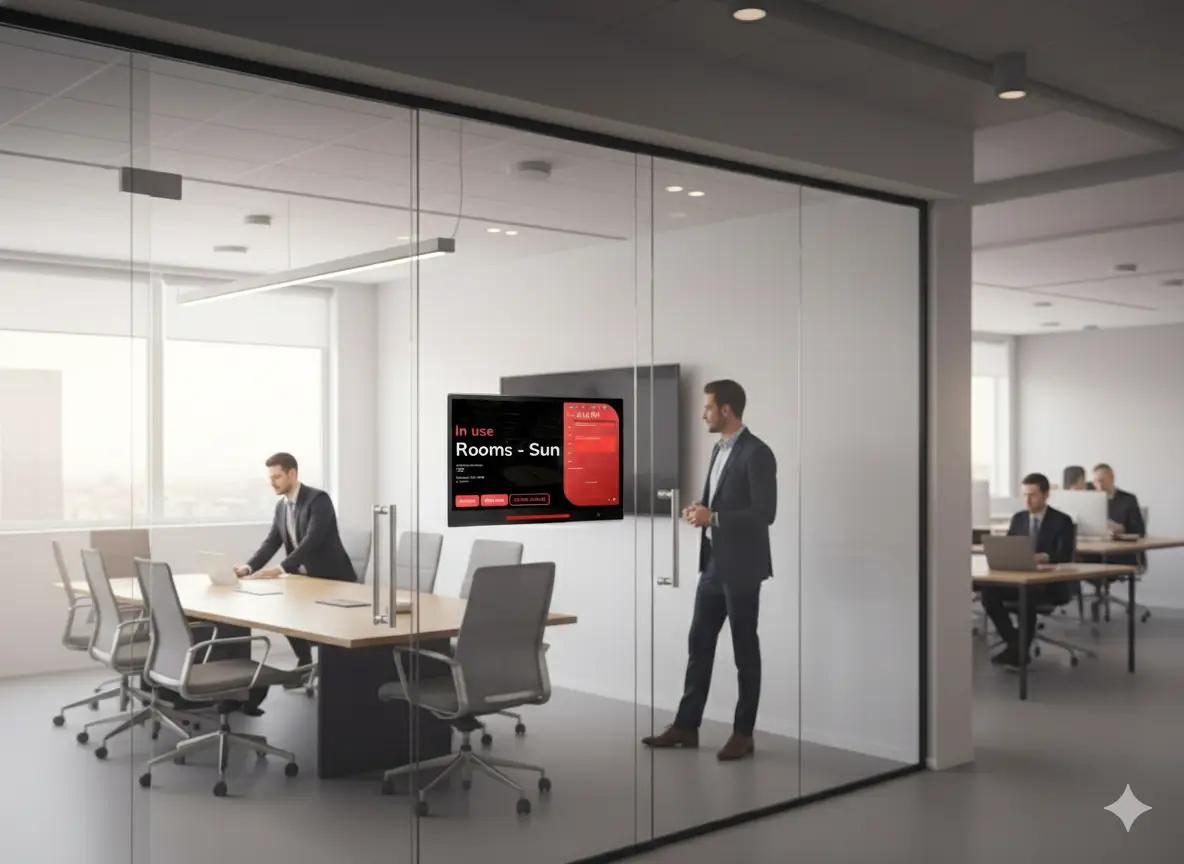
Room panels and signage can expose sensitive topics. Confidentiality settings control what non-participants see — from organiser only to fully hidden.
ヒント:「主催者名のみ表示」は、プライバシーと部屋の検索のバランスが取れた良い選択です。
Offision supports the user app, admin console, booking panels and floor displays. Channel settings on the policy enable or disable each interface per resource.
ヒント:事前予約が必要な人気の会議室では、ウォークインパネルを無効にしましょう。
Policies are reusable templates. Create one per purpose, attach them to resources, then use groups and overrides where one room needs an exception.
Beyond the six common pains, policies also carry overlap rules, walk-in-only mode, terms and conditions, and sensor automation.
Allow or block recurring, all-day and multi-day bookings per policy — so labs and hot desks behave differently.
Restrict a resource to on-site walk-in booking — advance reservations disabled entirely.
Allow overlapping bookings, block within the same policy, or block globally — your call per resource type.
Require users to accept terms or a custom message before a booking confirms.
Give organizers, booking managers or specific groups exceptions to the default policy.
Auto check-in when presence is detected and auto check-out when the room empties.
Need help matching policies to your rooms, desks or campus rules?
A resource booking policy is a reusable template of rules for how a room, desk or piece of equipment may be booked — check-in, advance windows, authorization, approval, confidentiality and channels. You create policies in the admin console and assign one to each resource.
Yes. Create a policy per purpose — check-in for open meeting rooms, a short student window for study spaces, authorization for the boardroom — and assign each to the resources that need it.
Restrictive settings such as disabling recurring or all-day booking apply conservatively. Time and date limits follow each resource's own policy.
Overrides let specific groups or booking managers bypass a default limit — for example a longer advance window for staff on the same room where students stay on seven days.
Yes. Conditional approval triggers on duration, capacity, recurrence, all-day bookings or attached services — routine bookings confirm instantly; only the exceptions need review.


©2026 ONES Software Ltd. All rights reserved.

 Neat デバイス
 Crestron