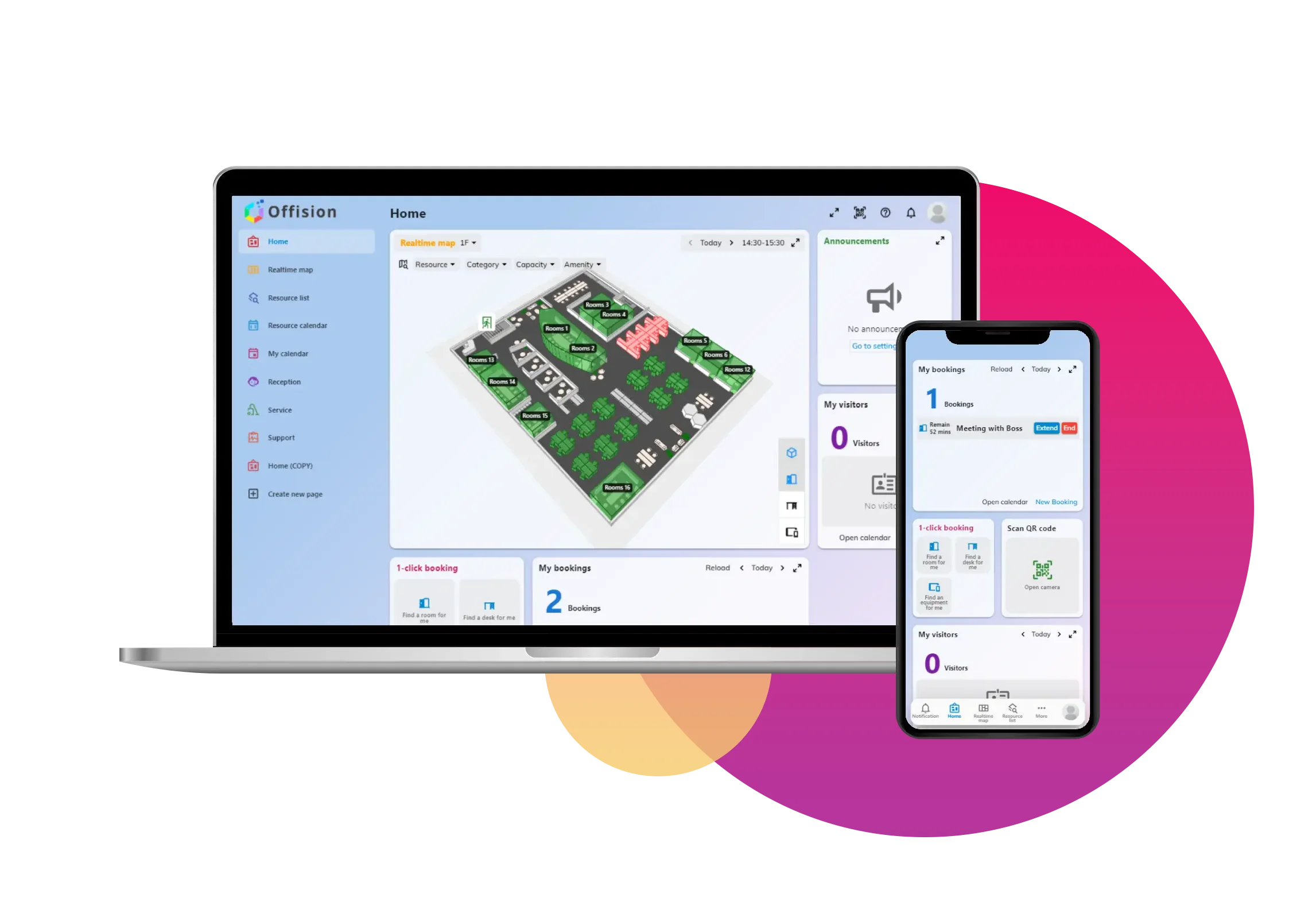
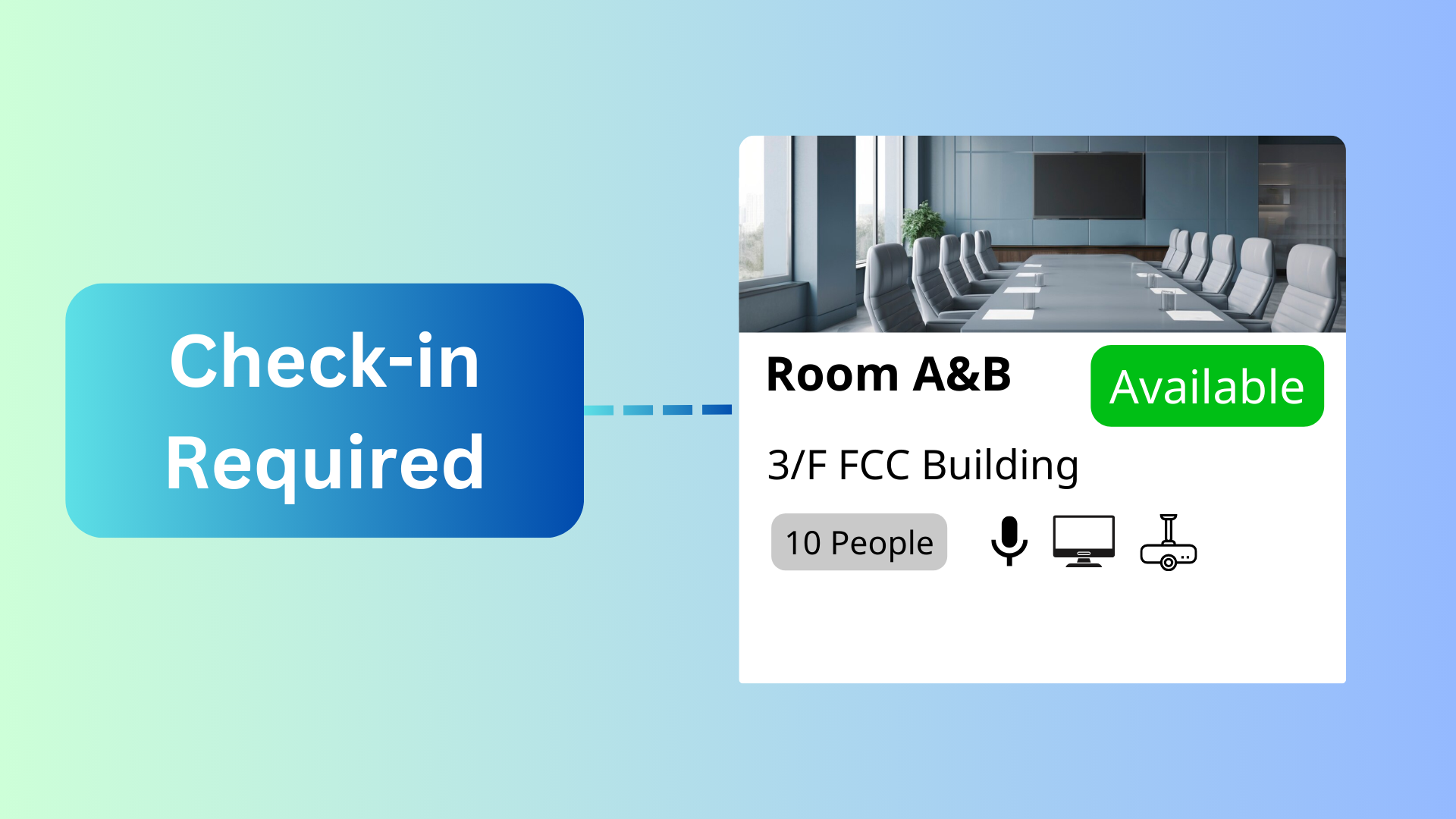
The **Manage Resource Check-In Requirements for Bookings ** feature in Offision allows admins to configure if a resource needs check-in. No-shows are auto-released after the waiting period, freeing resources for others.
洞察與最佳實踐,協助您優化工作空間
The **Manage Resource Check-In Requirements for Bookings ** feature in Offision ensures efficient resource usage by allowing administrators to configure check-in requirements for bookings. This feature prevents resources from being blocked by no-shows and automatically releases them for other users when bookings are not confirmed within the designated check-in period.
Key highlights of the feature:
Customizable Check-In Settings:
Admins can configure whether a resource requires check-in or not. Resources without check-in requirements will be automatically marked as checked-in at the booking start time.
No-Show Management:
If a resource requires check-in and the user doesn’t check-in within the predefined waiting period, the booking is marked as a no-show.
Auto-Release of Resources:
No-show bookings are automatically canceled, and the resource is released for others to book, ensuring maximum usage.
No-Show Booking List:
All no-show bookings are logged for tracking, helping admins analyze booking behavior and resource utilization.
This feature helps streamline resource availability, minimizes resource wastage caused by no-shows, and creates a more efficient booking system for users.
Prevents Resource Wastage:
Customizable Options:
Improved Resource Utilization:
Automatic Process:
No-Show Tracking:
User Accountability:
Enhanced User Experience:
The **Manage Resource Check-In Requirements for Bookings ** feature in Offision is essential for ensuring efficient resource usage and minimizing no-shows. While it offers significant benefits such as automatic cancellations and better resource management, careful setup and user communication are crucial to maximizing its effectiveness.
請依照以下步驟操作
Navigate to "Basic policy" and create / edit a policy
Navigate to “Basic” tab and enable “Require check-in”
Navigate to the "Room," "Desk," and "Equipment" to create / edit resources
Set the policy to the resources
Navigate to "Basic policy" and create / edit a policy
Navigate to “Basic” tab and enable “Require check-in”
Navigate to the "Room," "Desk," and "Equipment" to create / edit resources
Set the policy to the resources
備受全球機構信賴
加入數百間使用 Offision 提升工作空間管理效率的企業

 Neat 裝置
 Crestron