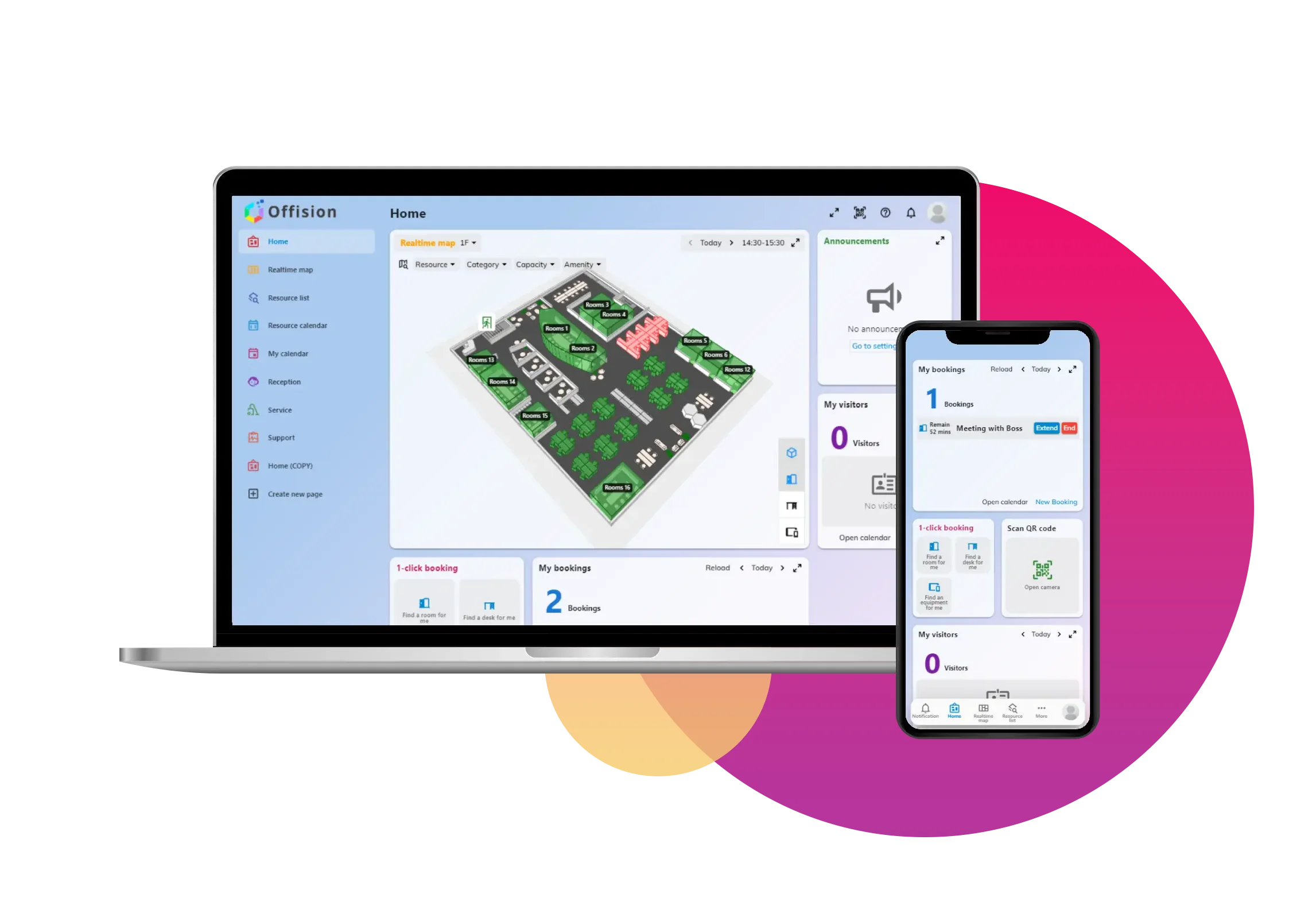
The booking service functionality in Offision helps admins manage resources effectively by allowing them to set up and customize services. Here’s a detailed workflow for creating booking services:
Access Services Module
- Only admins can add or modify booking services. Navigate to the Services module in Offision to begin.
Select a Service Type
- Choose from the following service types based on your requirements:
- After booking: The service starts only after the booking ends.
- Between booking: The service runs concurrently with the booking.
- Before booking: The service starts prior to the booking.
- Before and after booking only: The service starts both before and after the booking.
- Before booking until end of booking: The service starts before the booking and continues till it ends.
- From booking start to after booking ends: The service starts with the booking and continues after it ends.
- Before booking start to after booking ends: The service starts before the booking, runs concurrently, and extends beyond the end.
Assign the Service to a Room
- Assign it to the room where the service will be available.
Group Multiple Services
- If a resource provides multiple services, create a service group to streamline management.
User Booking Selection
- When users create a booking, they’ll see the services listed in the booking form and can select the ones they need.
Automatic Time Blocking
- Offision automatically blocks the resource for preparation time based on the selected service(s), ensuring seamless scheduling.
This workflow ensures that every booking is well-prepared, reducing conflicts and improving operational efficiency.
Pros of Using This Feature
Efficient Resource Management
- Assigning services to specific rooms and resources helps optimize their usage and avoids scheduling conflicts.
Customizable Service Options
- A variety of service types allow flexibility to meet different operational needs, from preparation to post-event cleanup.
Streamlined User Experience
- Users can easily select from predefined services while creating bookings, saving time and reducing confusion.
Time Blocking for Preparation
- The system automatically blocks time for preparation, ensuring adequate time for the service to be completed without affecting subsequent bookings.
Service Grouping
- Grouping multiple services under one resource simplifies management and makes it easier for users to select the right combination.
Improved Scheduling Accuracy
- Automated workflows ensure that all service times align with bookings, reducing errors in scheduling and resource availability.
Scalable for Multiple Resources
- Works seamlessly for a single room or multiple resources, making it suitable for small to large-scale setups.
User-Friendly Interface
- The intuitive design of Offision ensures that both admins and users can navigate the booking services with ease.
By implementing this feature, Offision provides a robust solution for managing resources, ensuring smooth operations, and enhancing user satisfaction.



 Neat 裝置
 Crestron