
Track & Resolve Issues Efficiently
Comprehensive ticketing system for workplace device management Report issues, assign support staff, and track resolutions with real-time notifications and location awareness
Issue Tracking System
Offision Ticket Management
Powerful Ticketing Features
Everything you need to manage, track, and resolve device issues across your workplace
Easy Issue Reporting
Users can quickly report device issues with detailed descriptions, photos, and automatic location tagging from any room panel or mobile device
Smart Staff Assignment
Automatically assign tickets to available support staff based on expertise, location, and workload. Manual assignment is also available for managers
Real-Time Notifications
Technical staff receive instant notifications with issue details and exact location Stay informed with push notifications, email alerts, and in-app updates
Location Awareness
Technicians get precise location information including building, floor, room name, and interactive floor maps to quickly locate the issue
Ticket Lifecycle Management
Track every ticket through its complete lifecycle with clear status indicators
Monitor Display Malfunction
Conference Room 4A, Floor 3
The right monitor is showing flickering display and occasional black screens during presentations.

Issue Reported
When a user reports an issue, a new ticket is automatically created with all relevant details. The system captures the location, device information, and user description
- Automatic ticket creation with unique ID
- Location automatically captured from device
- Priority level auto-assigned based on issue type
- Immediate notification sent to support team
- Photo and video attachments supported
Monitor Display Malfunction
Conference Room 4A, Floor 3
Being Worked On
Once a technician is assigned and begins work, the ticket moves to In Progress. The reporter can track real-time updates and the technician's location
- Technician assigned with expertise matching
- Real-time location tracking for technician
- Live status updates and comments
- Estimated time of arrival shown
- In-app chat between reporter and technician
Monitor Display Malfunction
Conference Room 4A, Floor 3
Replaced faulty HDMI cable and updated display drivers. Monitor now functioning normally.
Issue Fixed
When the technician completes the fix, they mark the ticket as resolved with a summary. The original reporter is notified to confirm the resolution
- Resolution summary documented
- Before/after photos can be attached
- Time to resolution tracked
- Reporter notified for confirmation
- Satisfaction survey sent
Monitor Display Malfunction
Conference Room 4A, Floor 3
Confirmed & Archived
After the reporter confirms the fix or after a set period, the ticket is closed and archived All data is retained for analytics and future reference
- Full ticket history preserved
- Data fed into analytics dashboard
- Searchable for similar issues
- Used for technician performance metrics
- Contributes to predictive maintenance
Supported Issue Types
Report and track any workplace device or facility issue with categorized ticketing
Display Issues
Monitor malfunctions, flickering screens, resolution problems, and connection issues
Audio/Video Equipment
Conference cameras, microphones, speakers, and video conferencing system problems
Network & Connectivity
WiFi issues, ethernet problems, VPN connectivity, and network access requests
Computer & Devices
Desktop computers, laptops, keyboards, mice, and peripheral device issues
Access & Security
Door access, badge readers, security systems, and room access control issues
Facilities & Environment
Lighting, HVAC, furniture, and general room environment issues
Complete Visibility & Control
Manage all tickets from a centralized dashboard View status, assign staff, track metrics, and generate reports with powerful analytics
- Real-time ticket overview
- Staff workload management
- Resolution time analytics
- Custom reporting tools
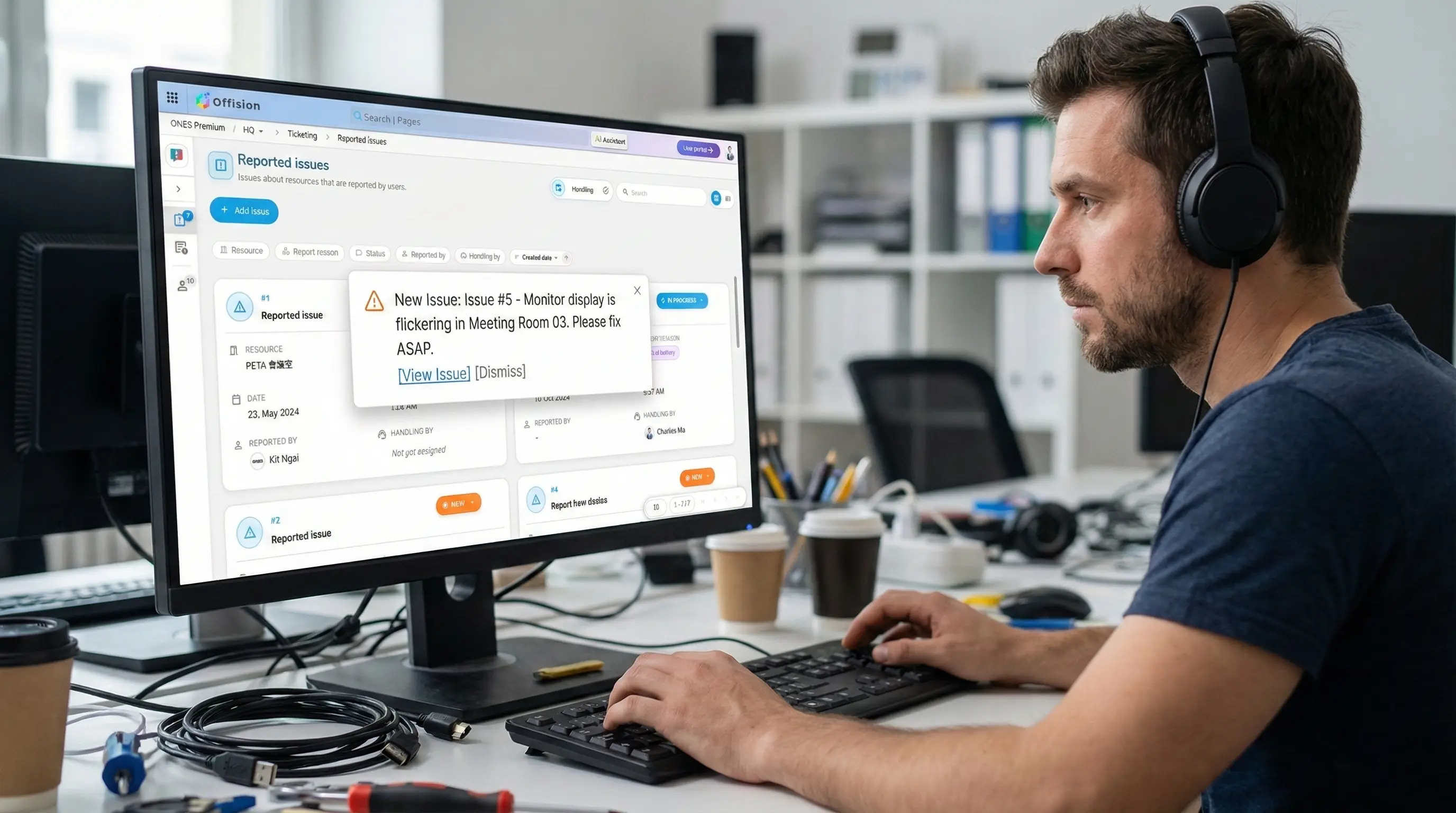
Real-World Scenarios
See how organizations use our ticketing system to resolve issues quickly
Conference Room Monitor Issue
A user notices the main display in the boardroom is flickering during an important presentation prep
Video Conference System Failure
The meeting room camera stops working 10 minutes before an important client call
Ready to Streamline Your IT Support?
Start tracking and resolving device issues faster with our comprehensive ticketing system