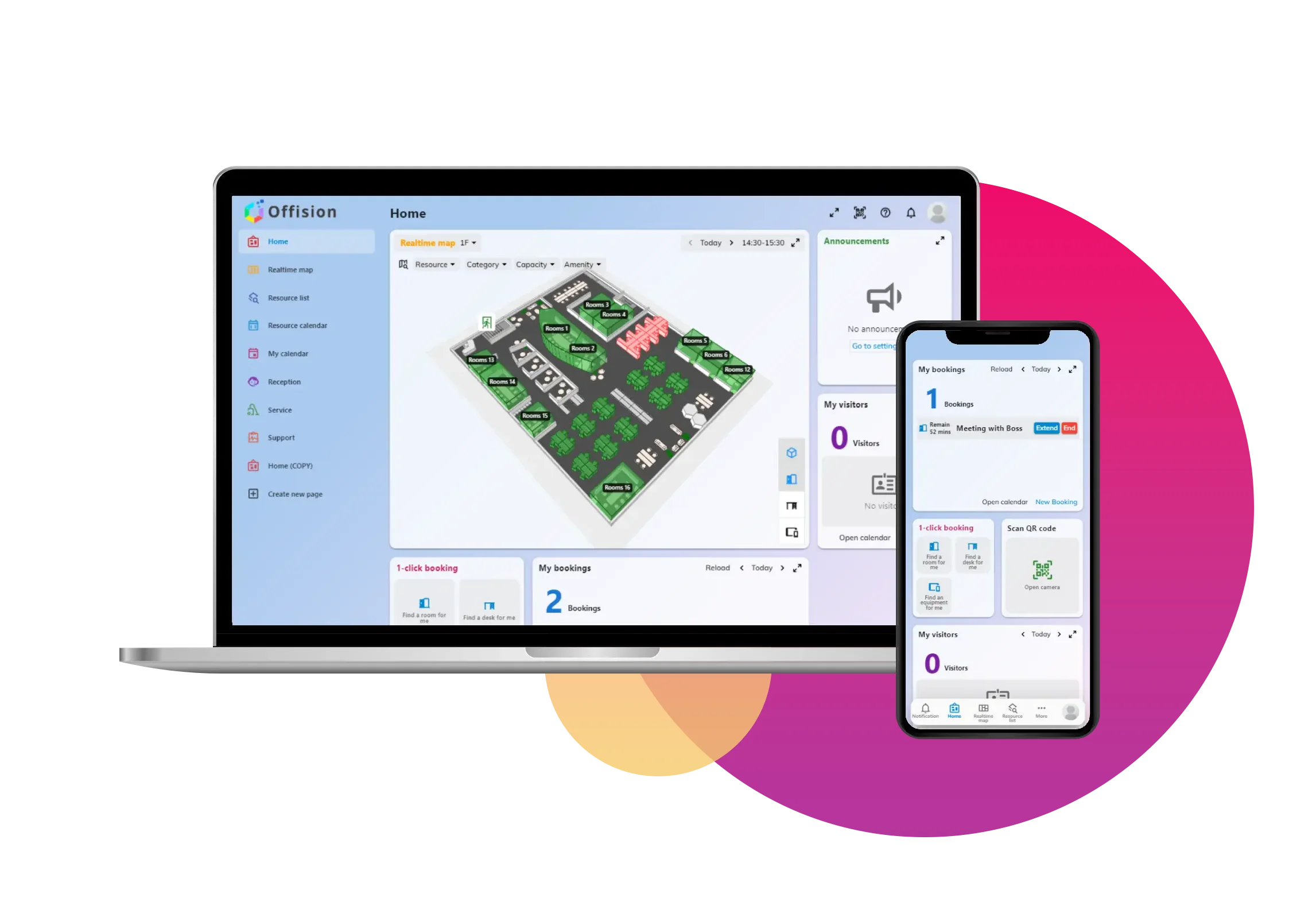
Using Offision’s real-time map to create a booking is designed to be intuitive and efficient. Follow this detailed step-by-step guide to ensure a smooth booking process:
Step 1: Select Location, Date, and Time
- Begin by clicking on the desired location to select a floor.
- Use the time and date picker to view the availability of resources on that floor.
Step 2: Choose an Available Resouce
- Look for resources marked in green, which indicate availability.
- Click on the desired resource directly on the floor plan to proceed.
Step 3: Open the Booking Form
- Click "Book this room" to access the booking form.
- Alternatively, click "Schedule" to open the resource’s calendar view. From there, click the desired time slot to open the booking form.
Step 4: Fill Out the Booking Form
- Provide meeting details, such as:
- Meeting Title: If left blank, the system will auto-fill with "Untitled Booking."
- Privacy Settings: Mark the booking as private to hide details from other users (except attendees and system admins).
- Attendees: Add email addresses to automatically send invitations.
- Online Meeting Link: Generate a virtual meeting link to include in the invites.
- Additional Services: Select any optional services provided for the meeting.
- Meeting Notes: Attach notes that will be sent with the invitation email.
- If there are any conflicts (e.g., overlapping bookings), Offision will notify you and prevent submission until the conflict is resolved.
Step 5: Submit and Confirm
- After completing the form, click Submit.
- You will receive an email notification confirming the booking. The booking will also appear in your "My Bookings Schedule" for easy reference.
Additional Features to Enhance Productivity
- Automatic Attendee Invitations: Add attendees’ email addresses, and Offision will send out invitations as soon as you submit the booking.
- Service Notifications: If you select additional services, Offision will automatically inform the relevant staff.
- Conflict-Free Booking: The system ensures no overlapping reservations are allowed, letting you manage bookings without errors.
By following these steps, you can efficiently create bookings, manage meeting details, and ensure smooth communication with attendees and service staff. Offision’s real-time map makes room scheduling fast, intuitive, and conflict-free.

 Neat
Neat
 Crestron