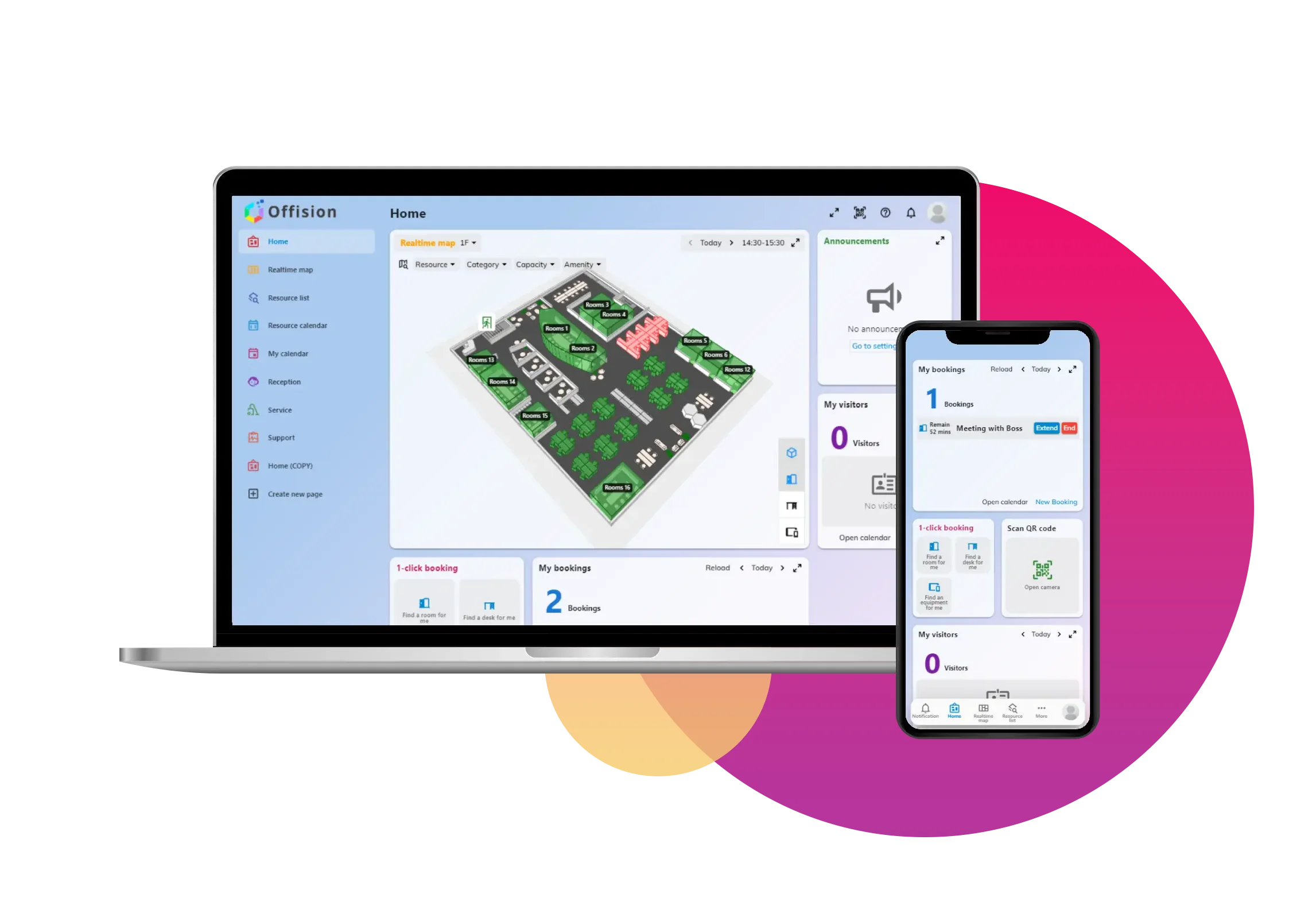
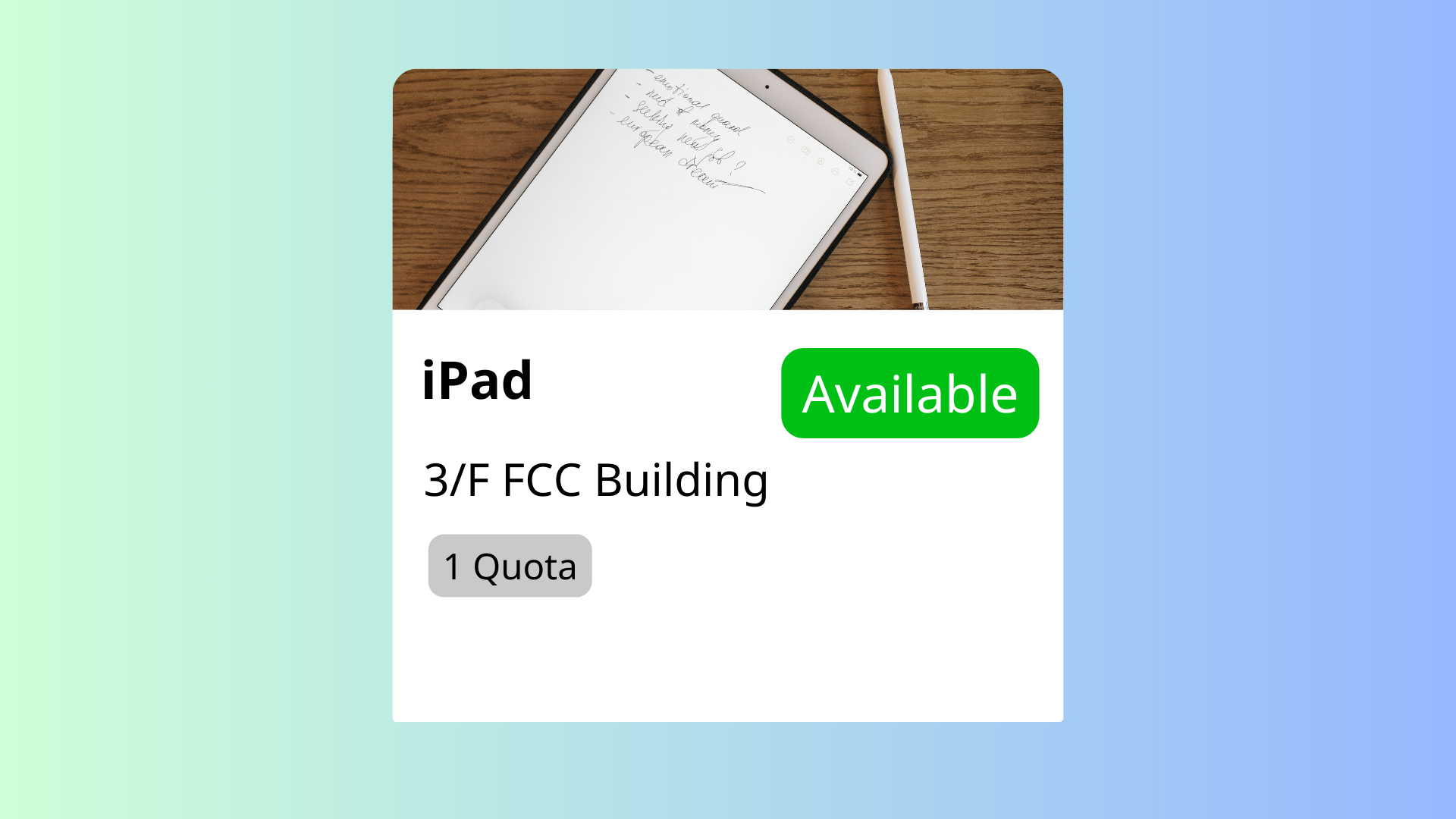
The Add Other Resources feature in Offision enables administrators to create and manage any type of bookable resource for users. This flexible feature is designed to accommodate diverse organizational needs, making it easier for users to reserve resources efficiently.
Core Capabilities:
Create Bookable Resources
- Admins can add any type of resource—whether it’s tools, shared spaces, or unique items—into the system for users to book.
Input Resource Details
- Provide key information about the resource, such as specifications, features, location, or availability.
- Users can search and filter resources based on these attributes.
Assign Resources to Floor Plans
- Resources can be linked to specific locations on floor plans, giving users a clear understanding of where to find or access the booked item.
This feature is ideal for managing non-standard resources, such as training equipment, shared tools, or items unique to specific industries. By providing detailed resource information and visual organization, Offision ensures users can easily book and utilize the resources they need without confusion or delays.
Key Benefits:
- Flexible resource management for diverse organizational needs.
- Enhances user convenience with detailed information and search filters.
- Improves resource utilization through clear organization and availability tracking.
Pros
Flexibility for Any Resource
- Supports the creation of diverse resource types, from tools and supplies to specialized equipment or shared spaces.
- Adapts to unique organizational needs and workflows.
Improved Resource Management
- Centralizes all bookable resources in one system, making it easy for admins to track and manage availability.
- Reduces manual effort by automating bookings and updates.
Enhanced User Experience
- Users can search and filter resources based on specific attributes like features, specifications, or location.
- Clear and detailed resource information helps users make informed booking decisions.
Visual Organization with Floor Plans
- Assigning resources to floor plans helps users easily locate items.
- Useful for large offices, multi-floor buildings, or complex facilities.
Optimized Resource Utilization
- Provides visibility into available resources, ensuring nothing is overlooked or underutilized.
- Reduces resource wastage by streamlining bookings.
Streamlined Booking Processes
- Users can book resources quickly without needing to check availability manually.
- Real-time updates reduce the risk of double bookings or conflicts.
Supports Unique Requirements
- Suitable for managing non-standard or industry-specific resources.
- Helps organizations offer tailored booking options for their users.
Scalable for Any Organization
- Works for small teams, coworking spaces, or large enterprises with extensive resource inventories.
- Handles both standard and custom resource configurations.
Error Reduction
- Automated availability tracking minimizes the risk of double bookings or conflicts.
- Ensures users always have access to the resources they’ve reserved.
Professional and User-Friendly
- Organized resource listings and floor plans enhance the professional look of the system.
- Builds user trust by ensuring clear and accurate information.
The Add Other Resources feature in Offision provides an adaptable and efficient solution for managing diverse bookable resources. While it requires ongoing maintenance and attention to detail, its ability to streamline bookings, improve resource utilization, and provide flexibility makes it an essential tool for modern organizations.

 Neat
Neat
 Crestron