

Connect a badge printer to your reception desk
Printing visitor badges at the desk — the app a printer can only be reached from, putting a Brother QL on the network, and connecting it from More actions on the Reception page, on Windows, a Mac, or a phone or tablet.
A visitor checks in at your desk and you hand them a printed badge. The badge itself comes from Offision, but the printer does not: a web page is not allowed to reach hardware on your network, so Offision in a browser tab has no printer to print to. That is why the printer rows on the Reception page look inert until you install the app.
The desktop app can reach it. It talks to a Brother QL label printer straight over the network — no driver, no cable, nothing to install on the printer side — and once you have pointed it at one, it prints every badge you ask for and remembers the printer through restarts.
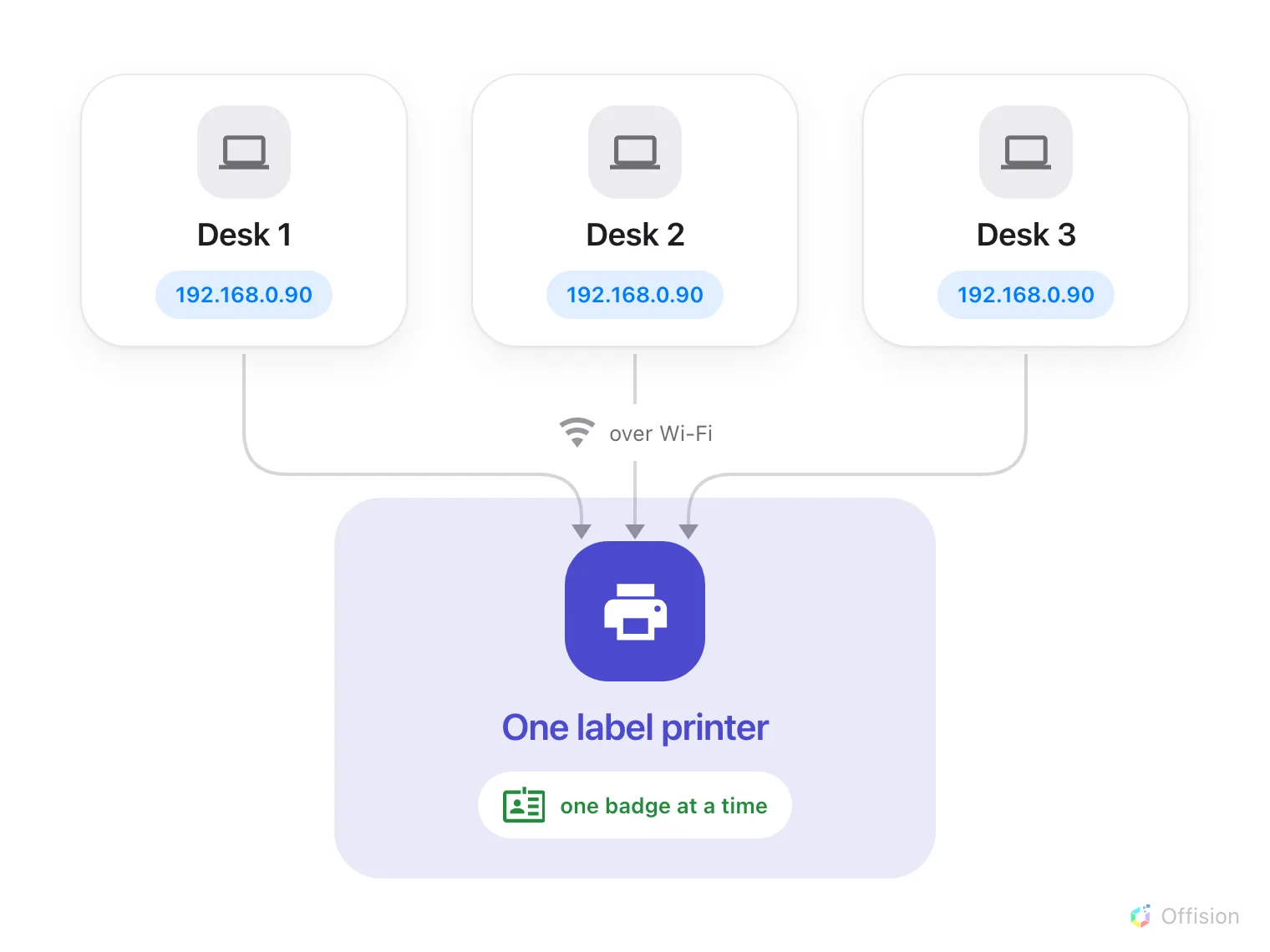
The printer is on the network, not on a cable — so each desk is set up on its own computer, and they all print to the same printer, one label at a time.
1. Install Offision on the desk computer
Take the file for this machine and run it.
offision.exe offision.dmgNeither installer asks for an administrator password. If you want the longer version — what the installer does, what macOS asks on first launch, and why you never have to come back for an update — see Install the Offision desktop app.
An Intel Mac is not covered by the Mac app, and a browser is no substitute here: it is the whole of Offision except the printer. A desk on an Intel Mac needs a different machine, or the screen at the lobby printing instead. Every device that can drive a printer is listed in Which devices can print to a label printer.
The desk does not have to be a computer at all — a phone or tablet prints the same badges, and its store links are further down.
Then sign in, the same way you sign in to Offision anywhere else, and open the Reception page.
2. Put the printer on the network
Offision prints to a Brother QL over the network, so the printer needs to be on your Wi-Fi or plugged into the network — not into the computer. Load a 62 mm DK label roll before you start; the app reads which roll is in there and sizes the badge to it.
Print the printer’s own network settings page from its menu while you are standing at it. The address on that page is what you will need if the app cannot find the printer by itself.
3. Open Connect printer from the Reception page
At the top of the Reception page, open More actions. With the app installed, the menu carries a printer row of its own: it reads No printer found until a printer is set, and Connected once one is.
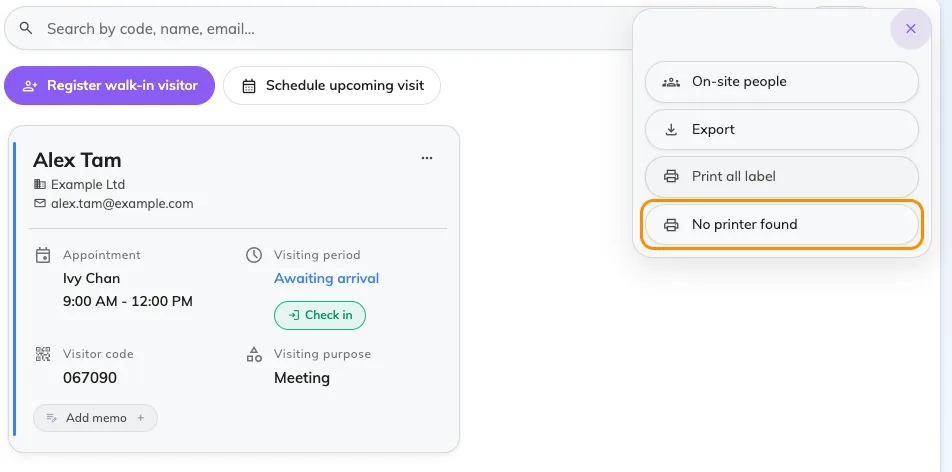
More actions on the Reception page. The printer row reads No printer found until a printer is set.
In a browser that row says Connect printer instead, and opens a page of printer suggestions rather than a connection — which is the fastest way to tell that you are not in the app yet.
Choose the row. Connect printer opens, with an empty Printer list and a large Select a printer tile.
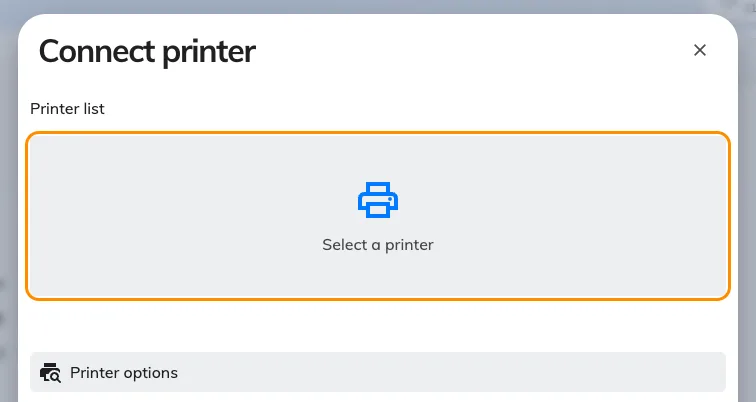
Connect printer, before a printer has been chosen. Printer options underneath lists the models Offision prints to.
Tap Select a printer.
4. Find the printer in Label printing
A window called Label printing opens. This one belongs to the app itself rather than to the page behind it, so it has its own place on your dock or taskbar.
Leave Printer brand on Brother. The other choice, System printer, is a Windows-only fallback for a printer already installed on that PC — on a Mac it lists nothing, whatever is attached.
Under Printers the app scans the network on its own; Scanning… turns into the printer’s name when it finds it. If nothing appears, Rescan, and failing that Add by IP with the address from the printer’s settings page — the field shows the shape it expects, Printer IP, e.g. 192.168.0.90.
Choose the printer. Label paper then fills in by itself — the roll’s width, and whether it prints black only or black & red — read from the printer, not chosen by you. Swap the roll and pick the printer again to re-read it. Print quality trades speed for sharpness and is fine on Normal.
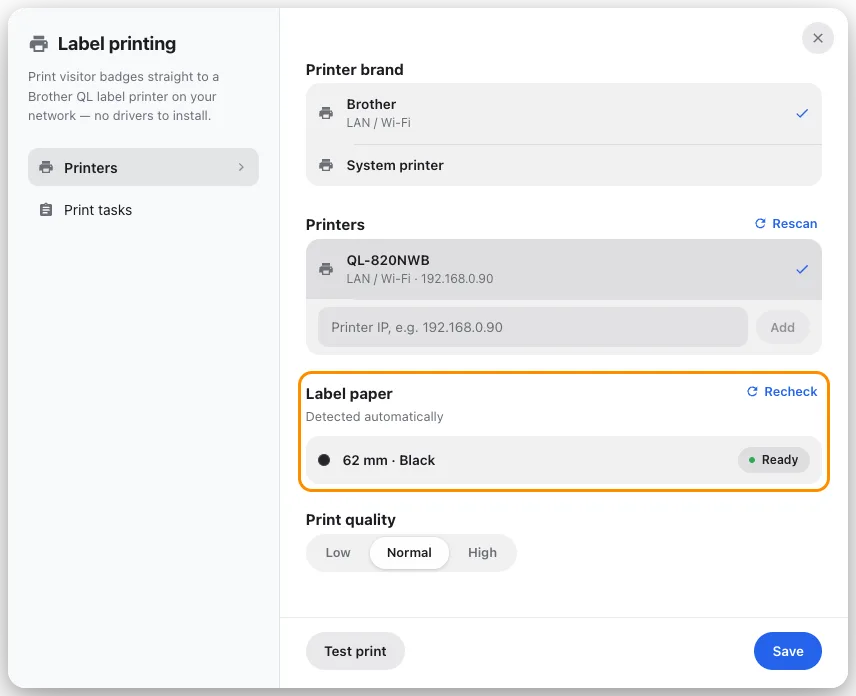
Label printing, with the printer found on the network and its label roll read back from it.
Now Test print. A label should come out within a few seconds — that is the difference between a printer that is genuinely reachable and a name in a list. Then Save. The computer remembers this printer from now on, and finds it again by itself if its address changes.
When a Mac says it can’t reach the printer
Can’t reach the printer on a Mac is almost always macOS rather than the printer: an app has to be allowed onto the local network before it can look for anything on it, and the permission is asked for once, easily missed.
Open System Settings → Privacy & Security → Local Network, switch Offision on there, and check again. A VPN or a firewall on the machine can block it the same way, and so can a printer sitting on a different Wi-Fi network from the computer — a guest network is the usual culprit.
The printer didn’t answer is a different message and a different problem: the printer is reachable but asleep or busy. Wake it and check again.
5. Check it worked
Check a visitor in from the Reception page and watch the label come out. Any visitor’s card can print again on its own, so you do not need a new visitor to test with.
Back in Label printing, Print tasks keeps every label this computer has printed, each with a preview. It is where you reprint one, and the first place to look when someone says their badge never appeared.
If the desk is a phone or tablet
The desk does not have to be a computer. A phone or tablet running the Offision app prints the same badges to the same Brother QL, which is worth knowing for a roaming desk or a second entrance that only opens some mornings.
App Store Google PlayFor a phone with no Play Store, see Install Offision on your phone or tablet.
Three things are different once you are there. More actions carries Printer setting instead, and it opens the app’s own Printer settings sheet straight away — there is no Connect printer step in between. That sheet adds a Connection choice: Auto looks everywhere, and LAN / Wi-Fi or Bluetooth searches one way only, so on a phone the printer may be paired over Bluetooth rather than sitting on the network. And on an iPhone or iPad, AirPrint is the other Brand — pick it only if your printer is not a Brother QL.
Everything else reads the same: the printer scan, Add by IP, the Label paper the app reads back from the roll, and Test print.
What this does not control
What the badge says and how it looks — logo, name, host, validity — is set once for the whole company in the visiting settings, not here. See Change the visitor badge design.
The screen in the lobby prints its own badges from its own printer, set up on the screen and nowhere else. The two know nothing about each other, and turning one off does not affect the other — see Connect a label printer to a signage screen.
A second desk shares the printer happily, but not the setting: repeat this on each computer, pointing every one of them at the same printer.