

Sign in and open your reception desk
What turns an ordinary Offision account into a reception desk — the Receptionist permission and a building assignment, both granted in the admin console — and where the Reception page then appears in the app.
A receptionist is not a special kind of account. You sign in to the ordinary Offision app with an ordinary account, and what makes it a reception desk is two grants an administrator makes in the admin console: the Receptionist permission, and the building whose desk you staff. Once both are in place, a Reception page appears in the app of its own accord — there is nothing to install and nothing to add.
1. Give them the Receptionist permission
This decides whether the Reception page exists for that user at all. Add beside the title takes a user or a whole user group.
Open Receptionist
The Receptionist page. Each row also carries a Location — the next step.
2. Put them on the building’s reception desk
Each building that takes visitors has a reception of its own, and a receptionist sees only the visitors of the buildings they are on. This is the step that is easy to miss, because the permission alone looks like it should be enough — a receptionist whose Location is still blank opens Reception on You have not been assigned to any reception setting in the management console.
Open Visiting locationTick the building to open its panel on the right, choose Edit, then Receptionist in the dialog. Add searches your users and user groups; a building may have several.
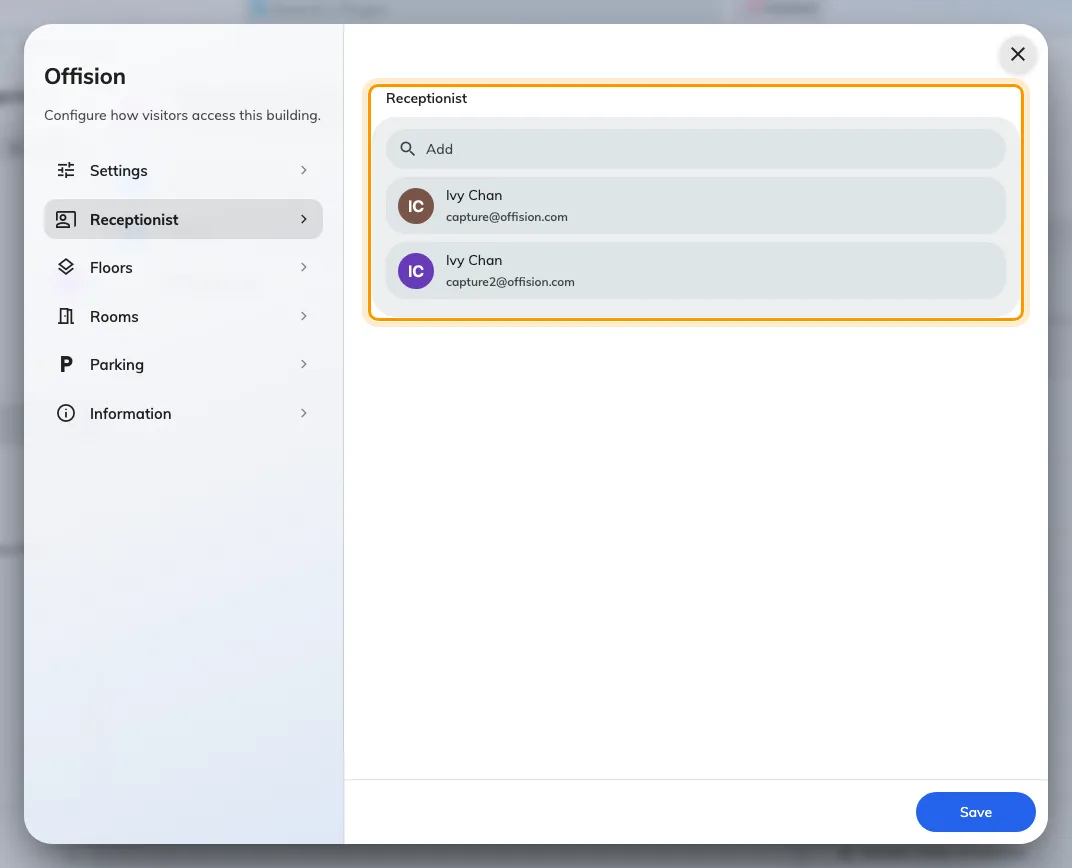
The building's Receptionist page, with the people who staff its desk.
3. Sign in and open Reception
Sign in to the Offision app the way everyone does — the user guide covers it, including the first-time password and a forgotten one. Reception is now one of the pages on the app home: pick it from the menu down the left, or from the page switcher on a phone.
The entry is personal, not company-wide: only accounts holding the Receptionist permission have it at all, so a colleague looking at their own home page will not see what you see — and cannot open your desk by knowing where it is.
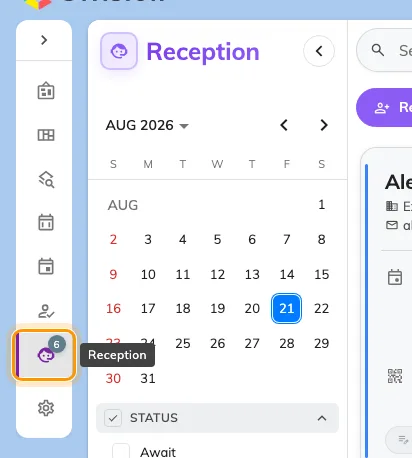
The home menu with Reception — an entry only receptionist accounts have.
4. Check it worked
Reception should open on Today’s visitors for your building — a list, or an empty day, but never an error. The two messages that mean a step above was missed:
- The Reception page is not in the menu at all — the permission from step 1 is missing, or the account signed in is not the one it was granted to.
- You have not been assigned to any reception setting in the management console — the permission is there but the building from step 2 is not.
From here, the day-to-day is the rest of this guide — starting with what the day looks like.