

Run the visitor day from your home page
The Reception page as a working day — the five states a visitor moves through, how to find one person fast, and which action on their card does what, from check-in to check-out to printing the badge again.
Reception shows one day of visitors for the buildings you staff, and the whole job is on this one page: every visitor expected today, everyone already inside, and everyone gone, each carrying the action that moves them along. The date at the top is the day on screen — everything below it, including search and every count, belongs to that day only.
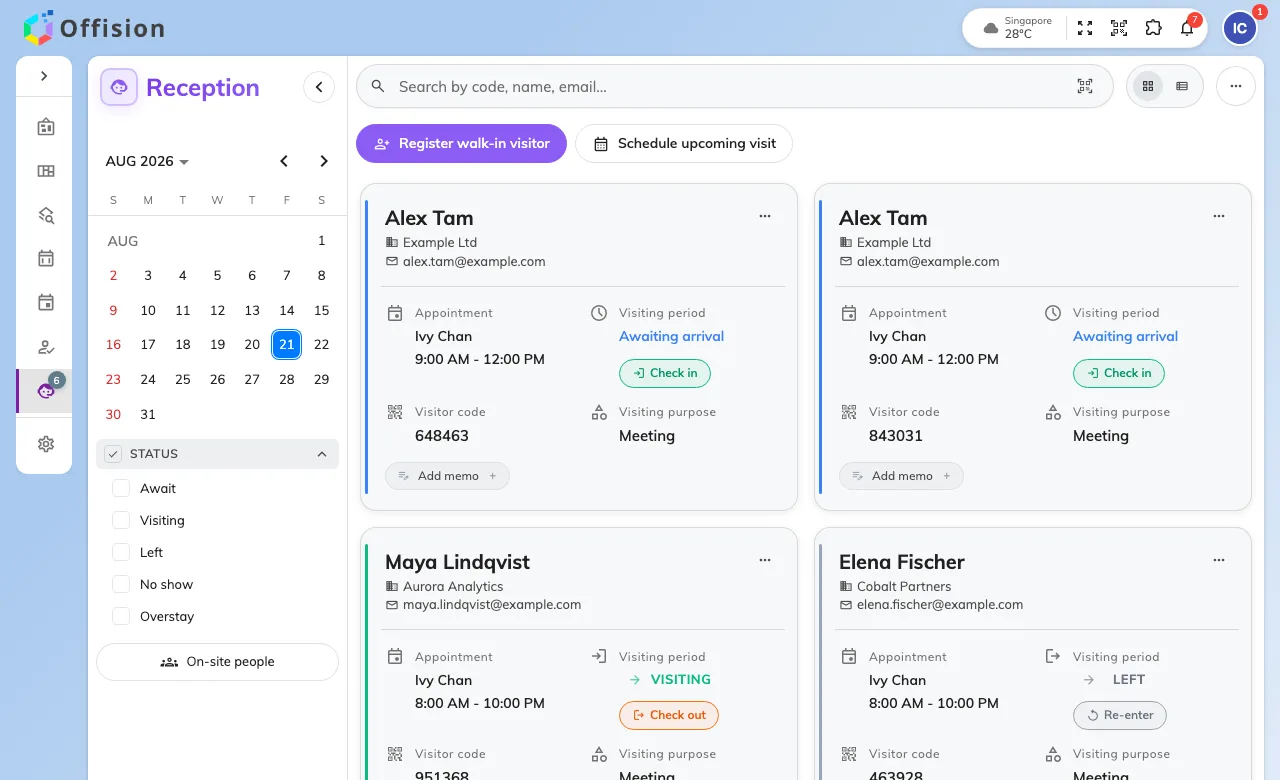
Reception on today, with each visitor's state and next action on their card.
The five states
Every visitor is in exactly one, and the card says which:
- Await — expected, not here yet. The card offers Check in.
- Visiting — in the building. The card offers Check out.
- Left — checked out. Re-enter covers the visitor who returns from lunch; it does not create a second visit.
- No show — the day ended and they never came.
- Overstay — still inside past their expected leave time. This is Visiting with a warning colour, not a different state to resolve: check them out normally when they leave.
The last three are mostly the system’s work — an administrator’s policy can sweep the day’s stragglers to Left and No show automatically — so an evening of manual check-outs usually means that policy is simply not switched on.
Finding one person fast
The search box matches on code, name, email — it is where a scanned code lands too, so a handheld scanner and a typed name end in the same place. Beside it, filters narrow the list by building and by state, and the two small buttons switch between card and list view. If someone is missing, check the date first: a visitor for tomorrow is on tomorrow’s page, not today’s.
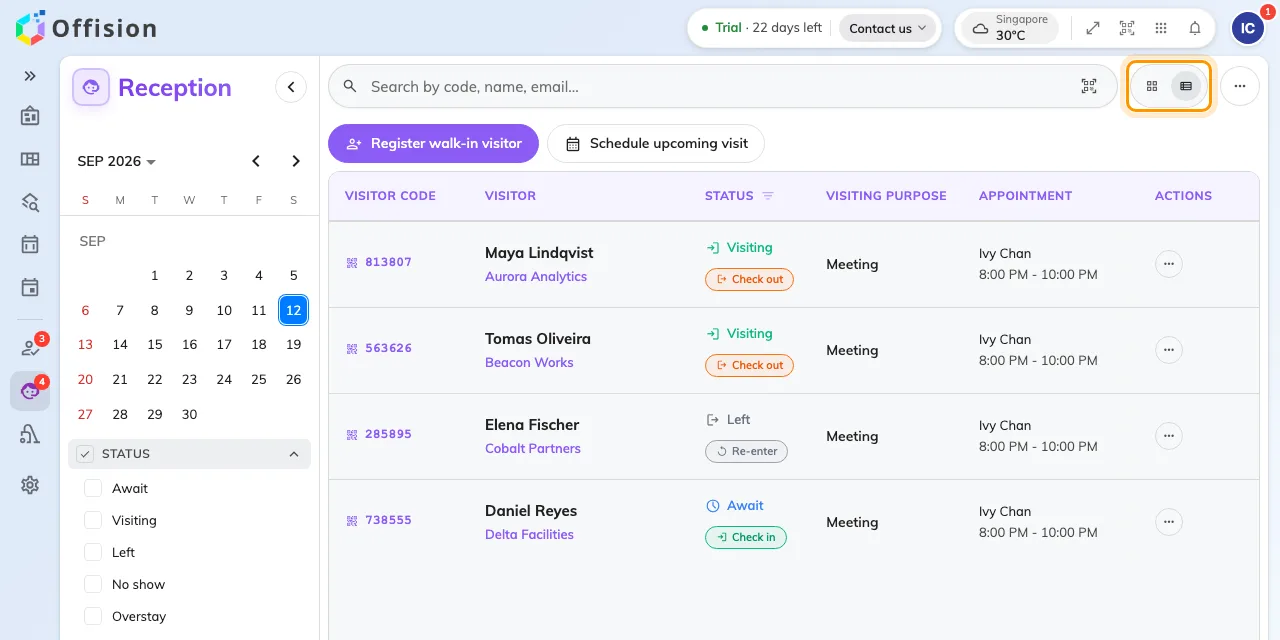
The same day as a list; the two buttons switch between cards and list.
What each card can do
Beyond Check in and Check out, a visitor’s card carries the smaller tools of the desk. The ⋯ menu on the card holds the badge: Print label issues it again for someone who lost theirs, and Download label saves it to send on. Either way it is the badge that visitor already has — reprinting never creates a second record.
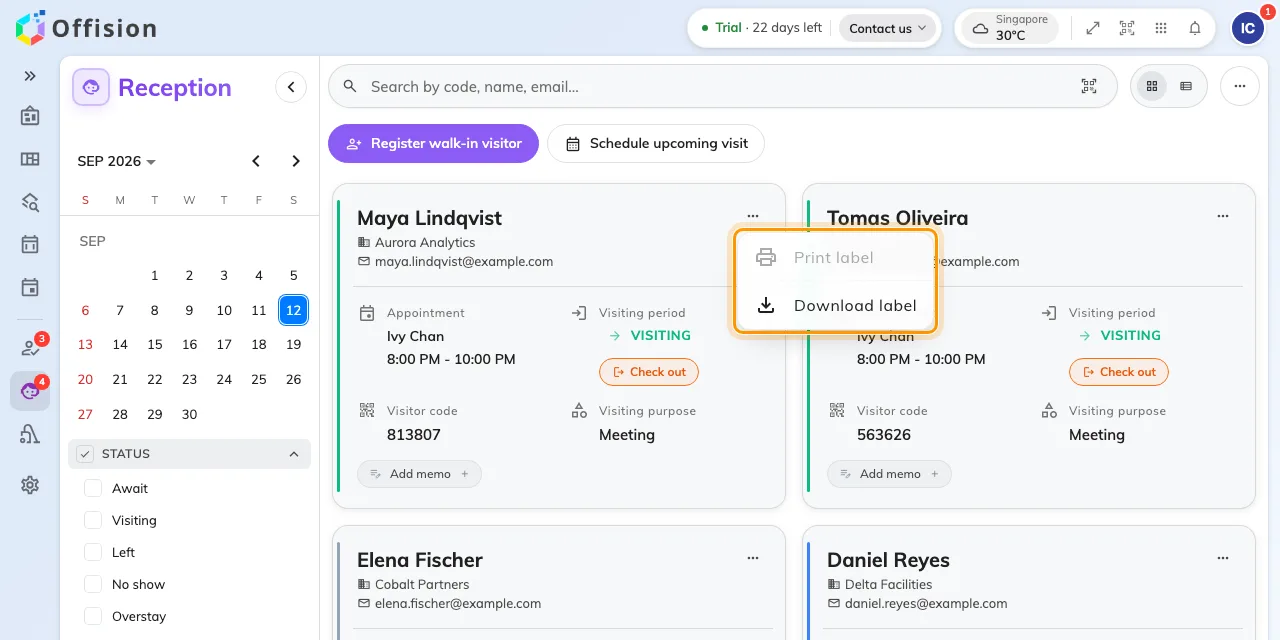
The card reprints the badge a visitor already holds — Print label needs a connected label printer, Download label does not.
Edit memo leaves a note the next shift should read, and View photos appears where the visiting purpose collects one.
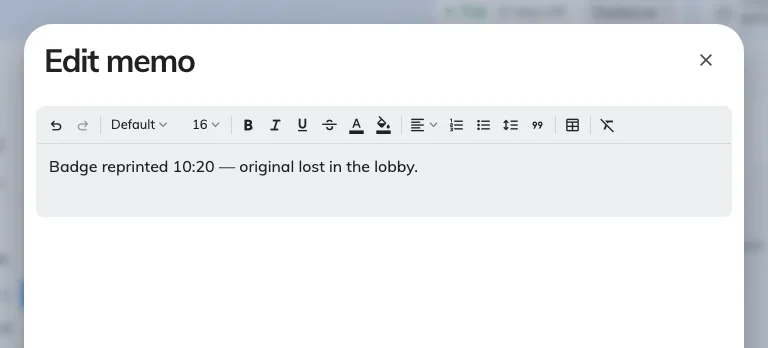
The memo a card carries, for the note the next shift should read.
Above the list
Register walk-in visitor takes the person with no appointment and admits them as it saves, Schedule upcoming visit books one for a later day, and More actions holds the day-level tools — the on-site list and its export, export of the day, printing every badge at once, and the label printer connection.
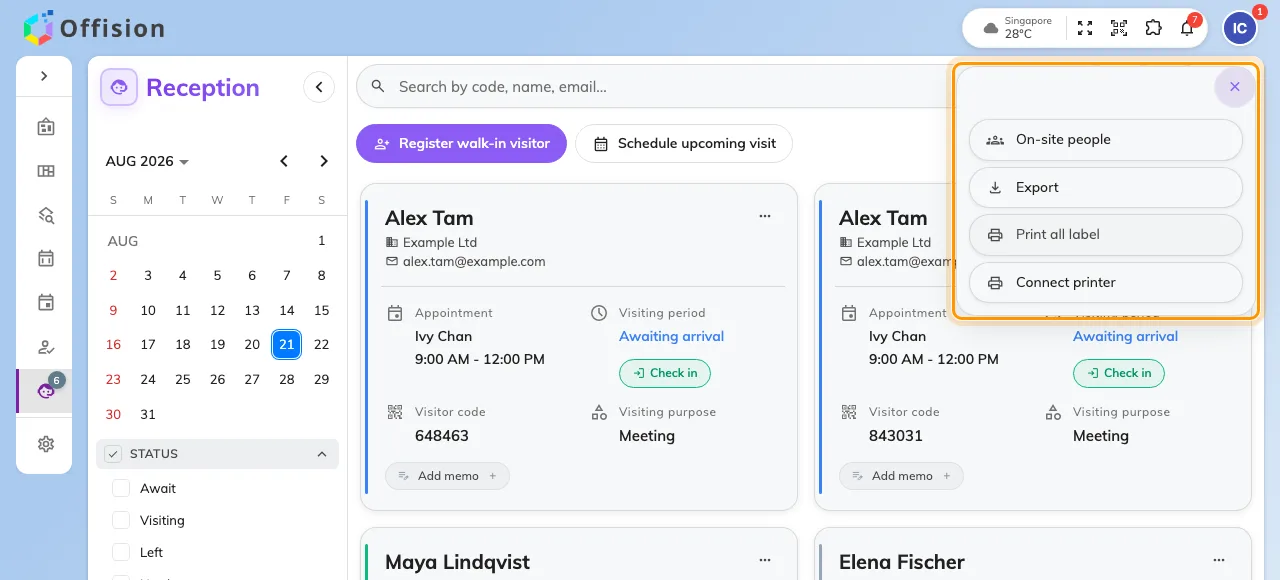
More actions holds the day-level tools, including the label printer connection.
What this page does not control
What a visitor is asked — the form, the photo, the surveys, the badge design — is configured per visiting purpose in the admin console, under Visitor management. Inviting a visitor is the employee’s own job, from their app; the desk receives the visit, it does not create the invitation.