

How an announcement reaches people
What decides who sees an announcement and when — the two audiences, the targeting rule that surprises everybody, the effective period, and the one notification you get per announcement.
An announcement is the shortest path from “everyone needs to know this” to everyone knowing it. Four things about how it works catch people out, and all four are decided in one dialog.
An announcement has no title
There is one text box, and what you type in it is the announcement. Nothing asks you for a subject.
Everywhere the notice is shown small — a card on the app’s home screen, a tile on a board — the first line is promoted into the heading. So write the first line as one: Lift B out of service Friday reads well as a heading and the rest of the paragraph follows it. A notice that opens with “Please be advised that…” gets a heading that says “Please be advised that…” on every screen in the building.
Leaving the audience blank means everybody, not nobody
This is the single most misread part of the feature, and it applies to both audiences independently.
Turn on User portal and leave Recipients on Everyone, and the announcement goes to every account on the system. Turn on Devices and leave Locations on All, and it appears on every screen. Choosing Specific narrows it — and Specific with nobody named cannot be saved, so a narrowed notice always names somebody.
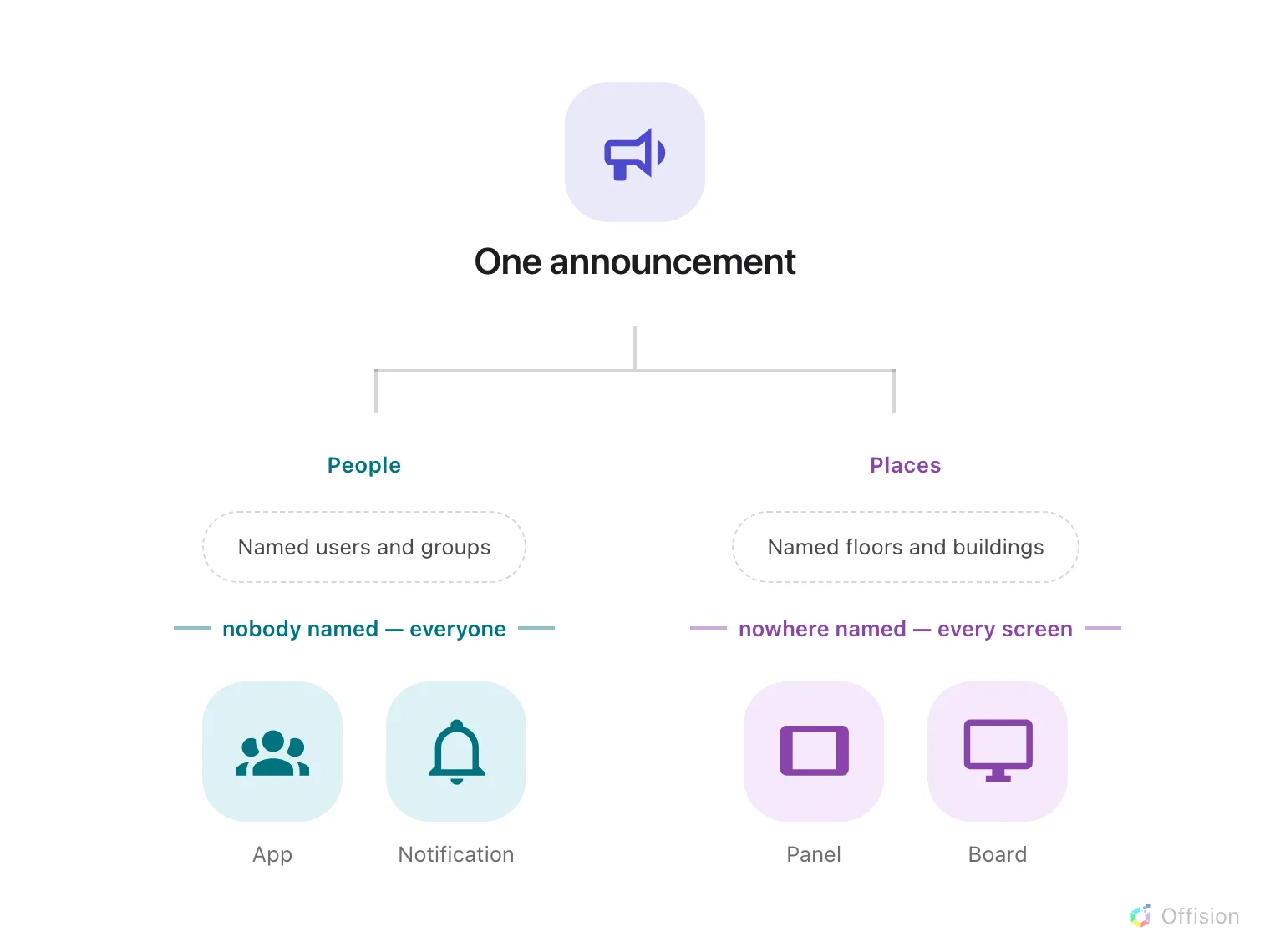
Two independent halves, and an empty filter on either side opens it to everybody rather than closing it.
The two halves also do not talk to each other. An announcement aimed at the Finance group and at Level 3’s screens does not restrict Level 3’s screens to Finance — the screens show it to whoever walks past, because a screen has no idea who is looking at it. Anything genuinely confidential belongs in an announcement with Devices off.
Half a period never expires
Schedule decides when the announcement is visible: Always, or a Period. The useful thing to know is what happens when a period is half filled in.
A notice is shown when either end is missing, or when now falls between the two. So a period with only a start, or only an end, is shown always — it never begins counting down and never expires. Set both ends, or set neither.
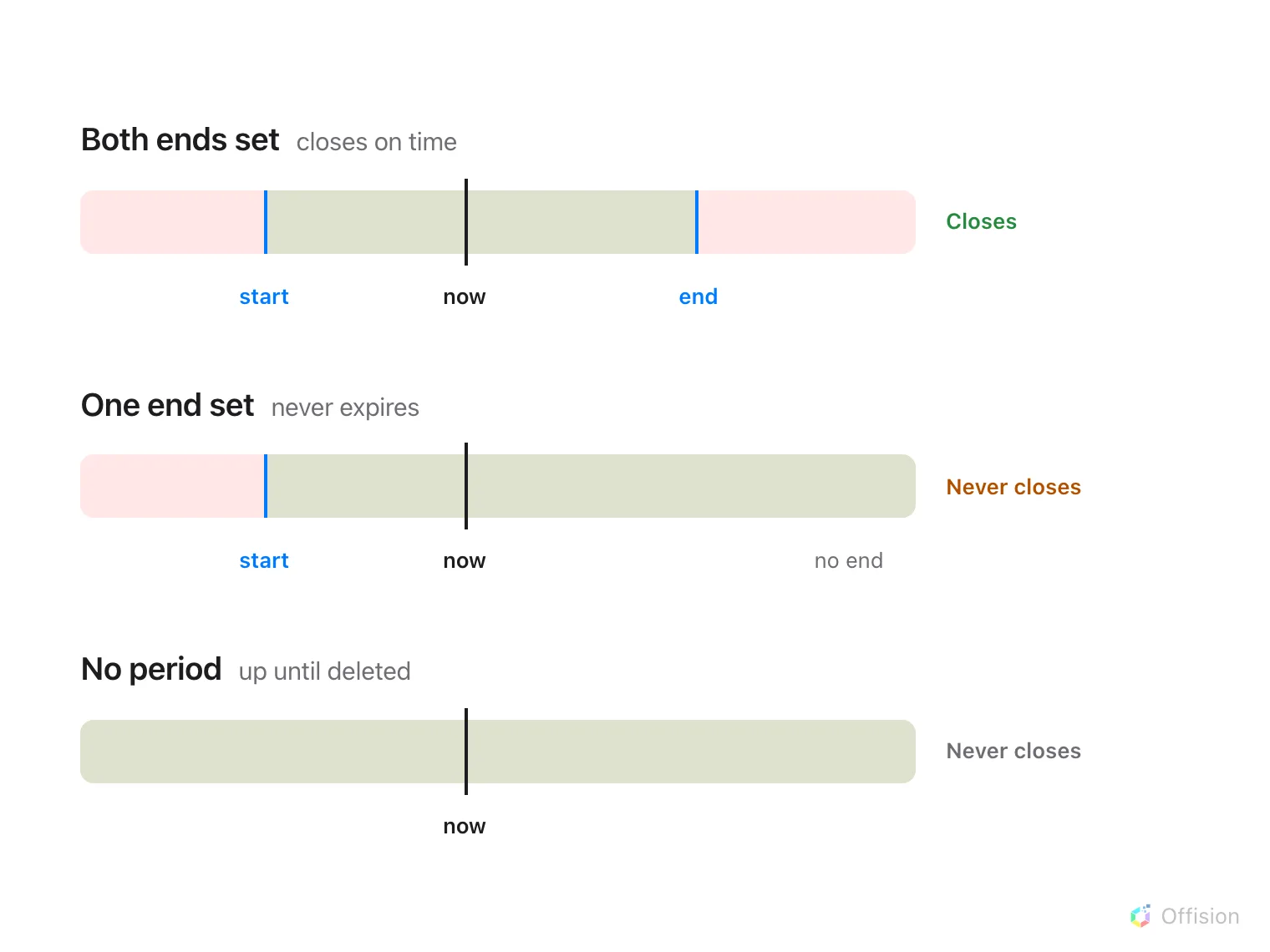
Only a period with both ends set actually closes; one end alone leaves the notice up for good.
Set no period at all and the announcement stays up until somebody deletes it, which is right for a standing notice and wrong for a notice about last Friday.
Always on top is a separate answer, and it is about order rather than time: a pinned announcement sorts above the others wherever they are listed. Pinning a notice does not extend it, and an expired pinned notice is simply gone.
The notification goes out once
Posting to the User Portal does more than put the notice in the app. Everyone it targets also gets:
- a row in the app’s notification list, which they can mark read; and
- a push notification on whatever they are signed in on — the browser, the mobile app, and Teams.
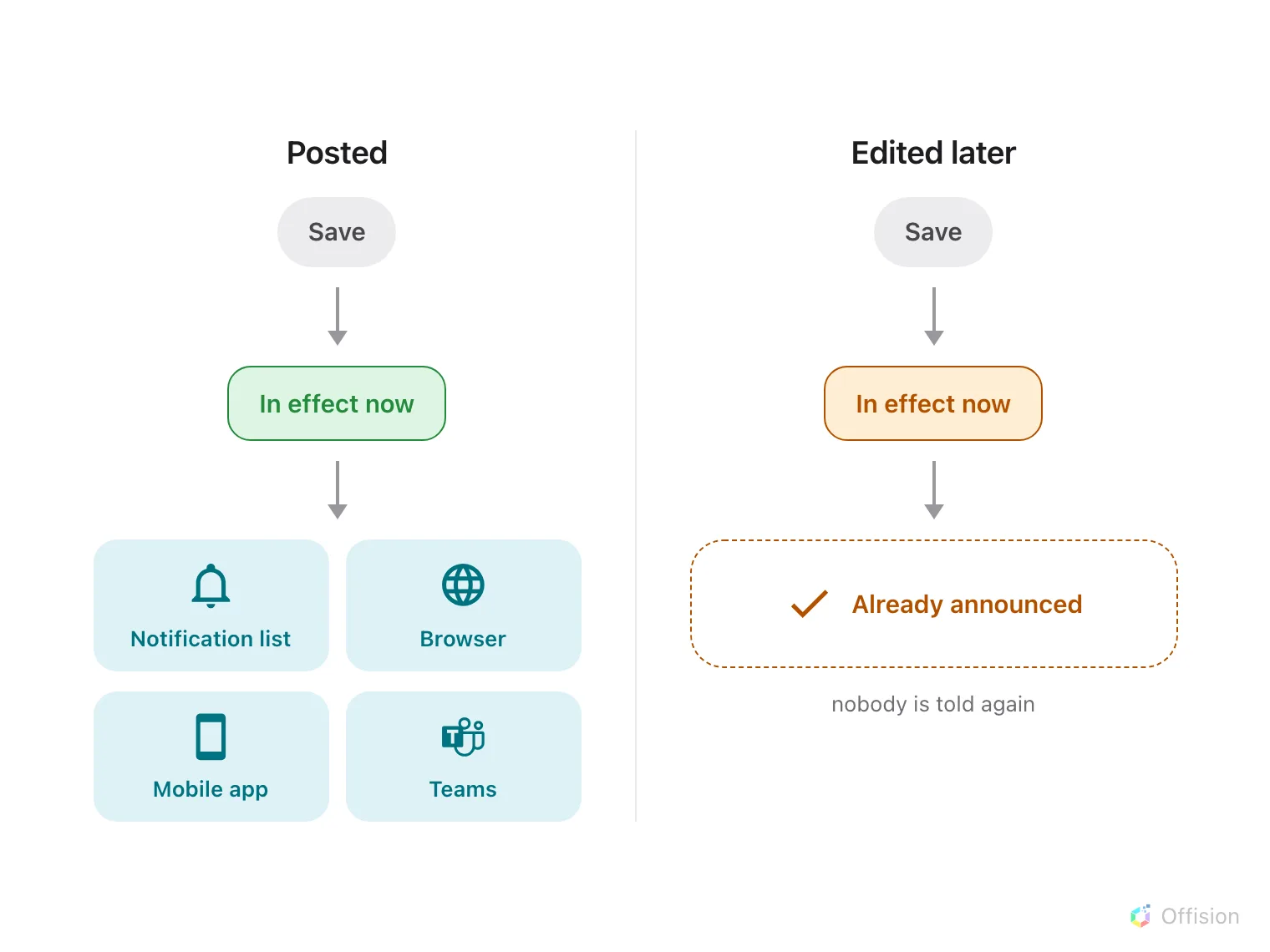
One announcement, one announcement-wide notification — and an edit afterwards reaches nobody again.
Two consequences worth planning around:
- A scheduled announcement notifies when it starts, not when you save it. Post Monday’s notice on Friday with an effective period starting Monday and the push lands on Monday.
- Editing never re-notifies. The correction appears on every screen and in the app, but nobody is told about it. If it matters that people see the correction, post a new announcement.
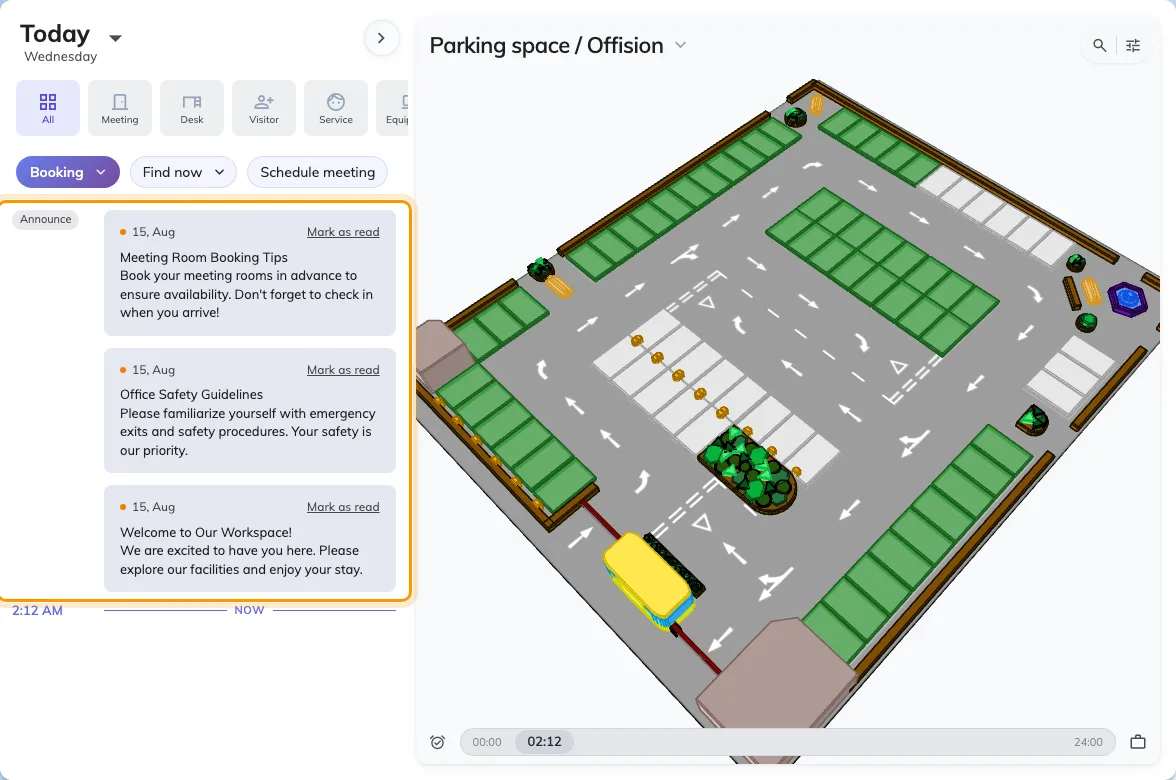
Announcements on the app's home screen, each with its unread dot and Mark as read.
Where you watch it from
Broadcast › Overview is the operational view: what is running right now, and how many notices are live.
Open Broadcast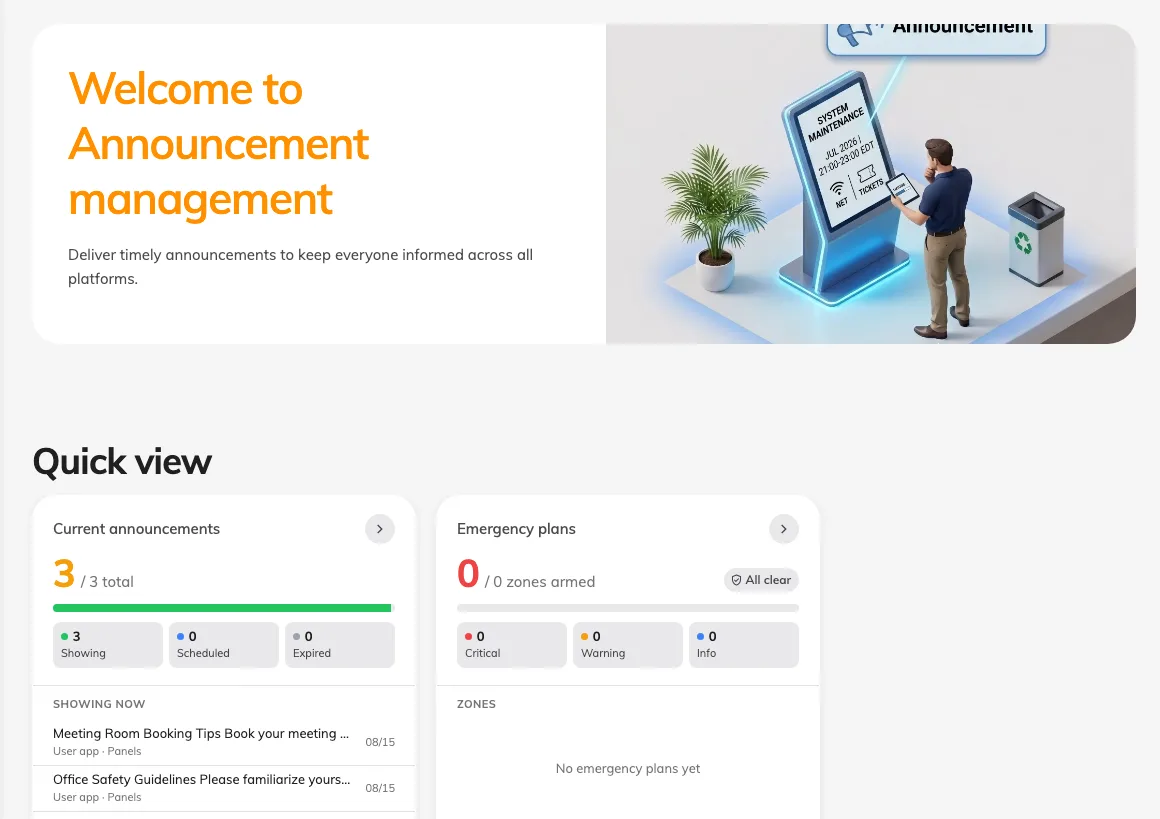
The Broadcast overview, with the announcements currently in effect.
What an announcement does not control
- Which screen shows it. Naming a floor selects screens by where they are, and where a screen is comes from the device, not from here. A screen with no location matches only untargeted announcements — see The announcement is in the app but not on the screens.
- Who may post one. That is a Directory permission, not a setting on the notice.
- Anything about one booking. A message for the people in one meeting belongs on that booking.