

Announcement settings reference
Every field in the Add and Edit announcement dialog, and every column in the announcement list — what each one does, and when it is worth changing.
The dialog behind Broadcast › Announcements › Add, field by field. It has the same two pages when you add and when you edit, plus an Information page on an existing announcement.
Open AnnouncementsContent
| Field | What it does | When to change it |
|---|---|---|
| Always on top | Sorts this announcement above the others everywhere they are listed — the app’s home screen, the notification list, a board. Adds a pinned badge in the admin list. | For a notice that must outrank the rest while it is up. Worth nothing if every announcement has it. |
| AI writer | Drafts the announcement body from a short instruction and replaces whatever is in the box. Only present when the feature is available to your organisation. | When you know what to say but not how to word it. Always read the result — the first line becomes the heading everywhere. |
| Announcement | The notice itself: rich text, with bold, italic, lists and links. There is no separate title — the first line is promoted to the heading wherever the notice is shown small. | Always. Put the point in the first line. |
Text colour and size are deliberately not offered. A notice is rendered at half a dozen sizes on screens you cannot see, and hand-set colours are the first thing to become unreadable on a dark board.
Conditions
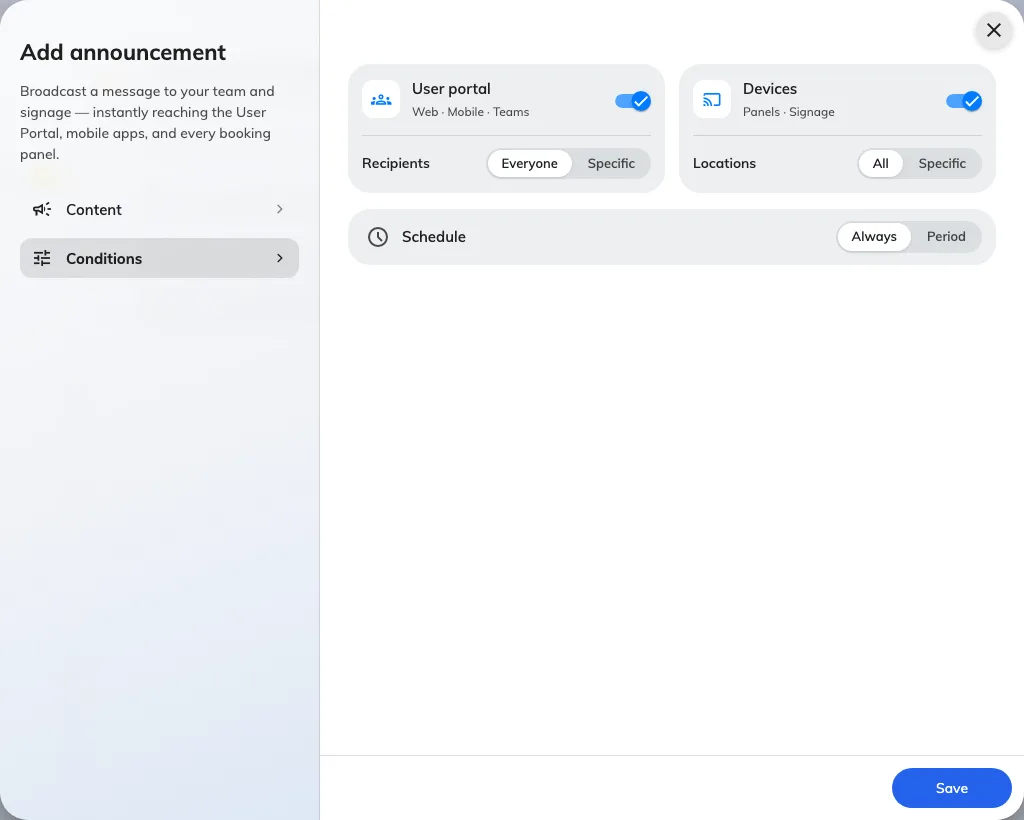
Conditions: two independent lanes, then the schedule.
| Field | What it does | When to change it |
|---|---|---|
| User portal | Puts the notice in the Offision app — browser, mobile and Teams — and notifies the people it targets, once. | Off for a notice meant only for the screens, such as a lobby greeting. |
| Recipients | Everyone — every account — or Specific, which opens the User(s) / User group(s) picker. Groups are resolved to their members at the moment the notice goes out. | Specific whenever the notice concerns one department, floor team or role. |
| Devices | Puts the notice on booking panels and signage boards. | Off for anything you would not want a visitor in the lobby to read. |
| Locations | All — every screen — or Specific, which opens Add building or floor. Type to search; a building chip covers all its floors, and a floor already covered by its building is greyed out. A screen is selected by where it is, which comes from the device, not from here. | Specific whenever the notice is about one building or one floor. |
| Schedule | Always, or a Period that bounds when the notice is visible. | Period for anything about a particular day. Set both ends — with one end missing the notice is shown for good. |
Specific with nothing picked cannot be saved, on either lane.
Information
Present when editing, and read-only: who created the announcement and when, who last changed it and when. It is the audit trail for a notice somebody is asking about.
The announcement list
The list opens with four columns; everything else is opt-in from Sorting / Columns. Sorted by creation order, newest first.
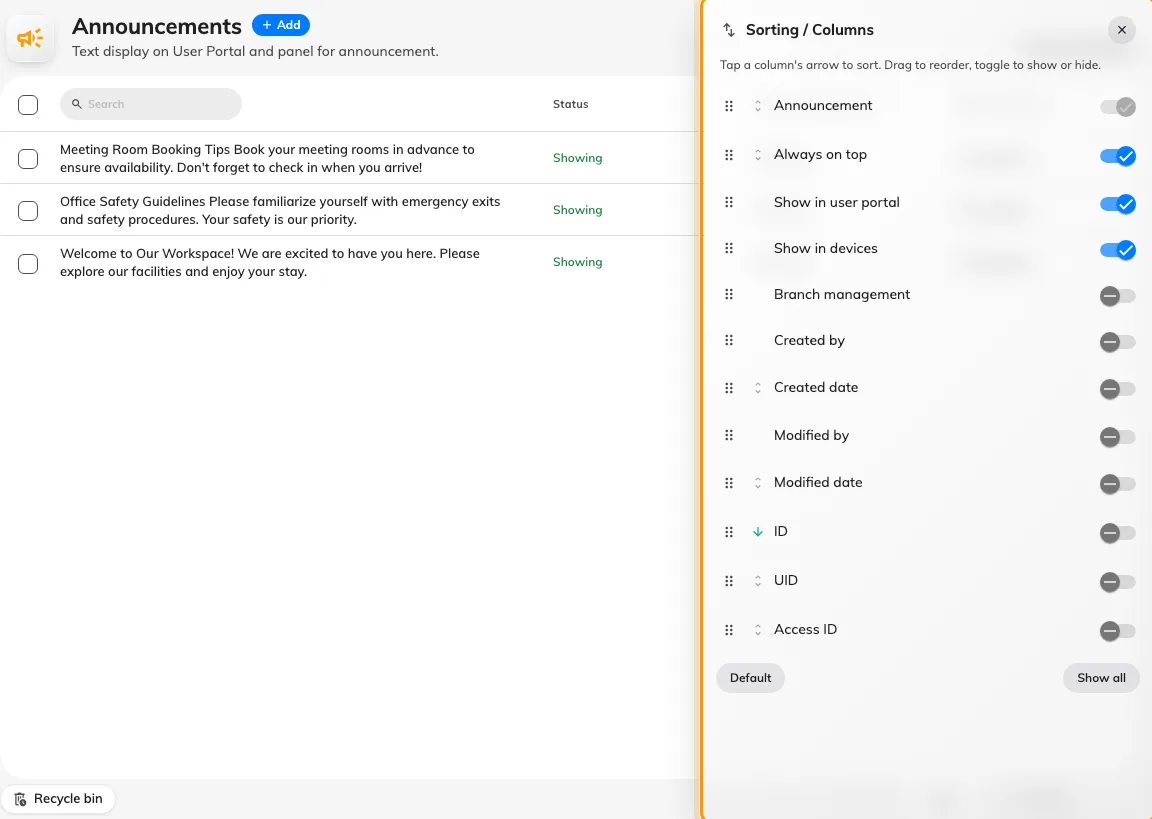
Sorting / Columns, where the audit and identifier columns are turned on.
| Column | Shows | Shown by default |
|---|---|---|
| Announcement | The notice as plain text, clamped to three lines. Always present and always first. | Yes |
| Status | A pinned badge when Always on top is set, then one of Showing, Upcoming or Passed, then the period itself. An announcement with no end date always reads Showing. The Sorting / Columns menu lists this column as Always on top. | Yes |
| Show in user portal | Who the notice goes to in the app — the named users and groups, or everybody. Doubles as a filter. | Yes |
| Show in devices | Which screens show it — the named floors and buildings, or all of them. Doubles as a filter. | Yes |
| Branch management | The organisation unit the announcement is filed under. | No |
| Created by / Created date | Who posted it, and when. | No |
| Modified by / Modified date | Who last edited it, and when. Useful when a notice on screen does not match what somebody remembers writing. | No |
| ID / UID / Access ID | The announcement’s identifiers, for support and for the external API. | No |
Deleting an announcement moves it to the recycle bin rather than destroying it, so a notice removed by mistake can be restored from the deleted view.
What this does not control
- When the notice is sent. There is no send time. The effective period’s start is when it becomes visible and when the notification goes out.
- Where a screen is. Floors and buildings here select screens by location; the location itself is a property of the device, in Devices.
- Who may post an announcement. That is a permission, in Directory.
- Whether anyone read it. A reader can mark their own copy read; nothing aggregates that.