

An announcement went out but nobody saw it
The notice is in the admin list and looks right, but staff say they never got it. Six causes, ordered by how often they turn out to be the one.
Open the announcement and read its Conditions page before working down this list — five of the six causes are visible on it, and the sixth is the clock.
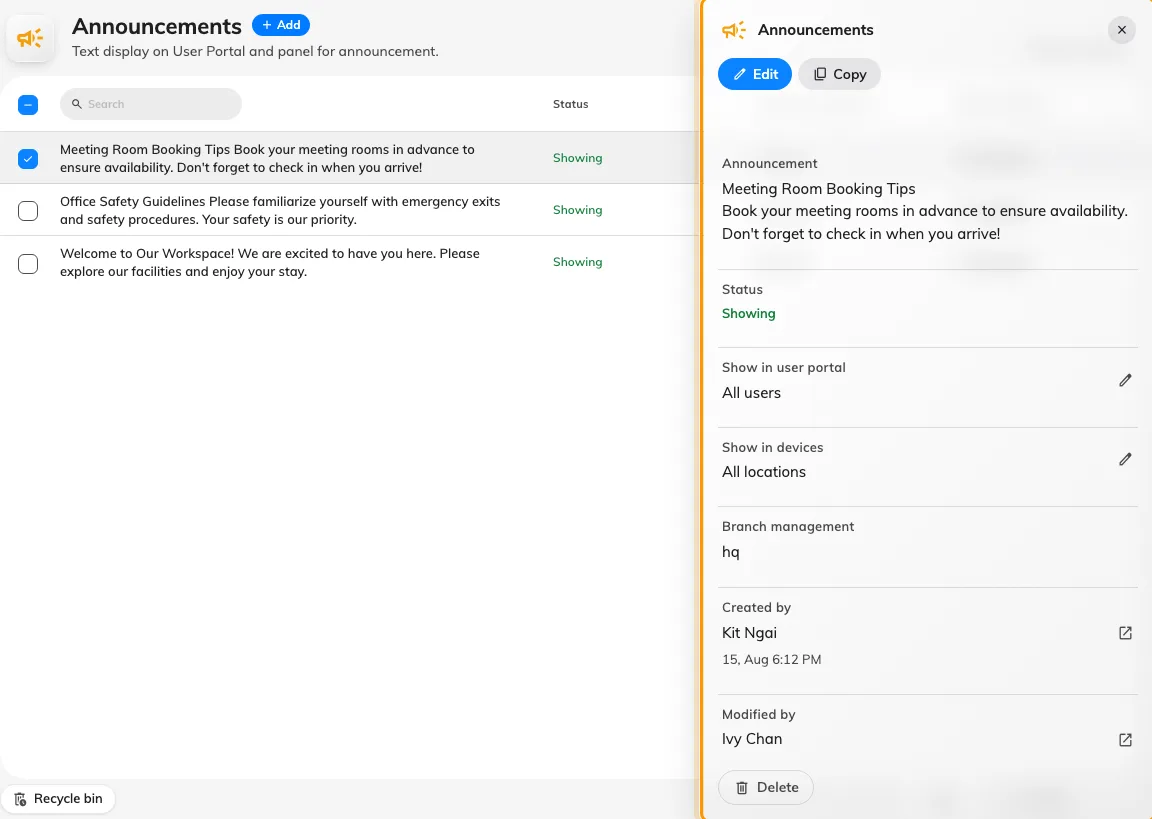
Selecting a row opens its detail panel, which shows the audience and the period without opening the editor.
User portal is off
Most commonOne switch governs the whole app half of the feature: the notice in the app, the row in the notification list, and the push. With User portal off, the announcement is a screens-only notice and reaching nobody in the app is exactly what it is set up to do.
This is far and away the most common cause on a notice that looks perfect in the admin list, because the list’s Show in user portal column reads as a filter and is easy to skim past.
Open the announcement, go to Conditions, and check the switch on the User portal lane.
Open AnnouncementsIt was targeted, and the people complaining are not in the target
Most commonWith Recipients on Specific, only the users and groups named underneath get it — nobody else, and no fallback.
Two things make this less obvious than it sounds:
- Groups are resolved when the notice goes out, not when it is written. Somebody added to the group afterwards was not a member at that moment and is not retrospectively notified.
- A user targeted through a group they were removed from stops receiving it from the next announcement onward, silently.
Check the named list against the people complaining. If it is genuinely meant for everyone, choose Everyone — Specific with nobody named cannot be saved, so it is never a stand-in for “everyone”.
The period has not started yet
CommonAn announcement whose Schedule is a Period starting in the future is invisible and un-notified until that moment arrives. The admin list shows it as Upcoming, which is the fastest way to spot this.
That is intended behaviour — it is how you write Monday’s notice on Friday — but it catches people who set a period to bound the end and picked a start of “tomorrow” without meaning to.
The mirror case is worth checking at the same time: a period whose end has already passed reads Passed, and an expired notice is never announced late.
It was announced once already, and then edited
CommonThe notification goes out once per announcement. Editing one afterwards updates what is on screen and in the app, but notifies nobody a second time.
So the sequence that produces this complaint is: post a notice, notice a mistake, fix it, and assume the fix went out. It did not. Everybody who was notified got the original wording; anybody who has not opened the app since sees the correction only when they do.
If it matters that people see the correction, post a new announcement rather than editing the old one.
It has been less than five minutes
Less commonAnnouncements are not notified at the instant you press Save. A background pass picks up newly-effective announcements every few minutes, so a notice can be visible in the app — where it is read live — before the notification for it has gone out.
Wait five minutes before treating it as a fault. If nothing has arrived after that, the cause is one of the others.
Notifications are switched off where they are looking
Less commonIf the announcement is in the person’s notification list and they simply never saw a pop-up, delivery worked and the last hop did not. That hop is not Offision’s:
- Browser — notifications must have been allowed for the Offision site. A browser that was never asked, or was asked and refused, shows nothing.
- Phone — the mobile app needs notification permission, and the device must have been signed in recently enough for its registration to still be current.
- Teams — the Teams channel needs the tenant-wide connection in place; without it the other channels still work and Teams alone stays quiet.
The distinguishing test is the one in the box at the top: the row exists, the pop-up did not.