

Post an announcement to the app and the screens
Write a notice, choose who sees it and for how long, and confirm it arrived — in the app, as a notification, and on the screens.
Announcements are one screen’s work. Almost all of the thinking is in step 3.
1. Open the announcement list
Go to Broadcast › Announcements and choose Add.
Open Announcements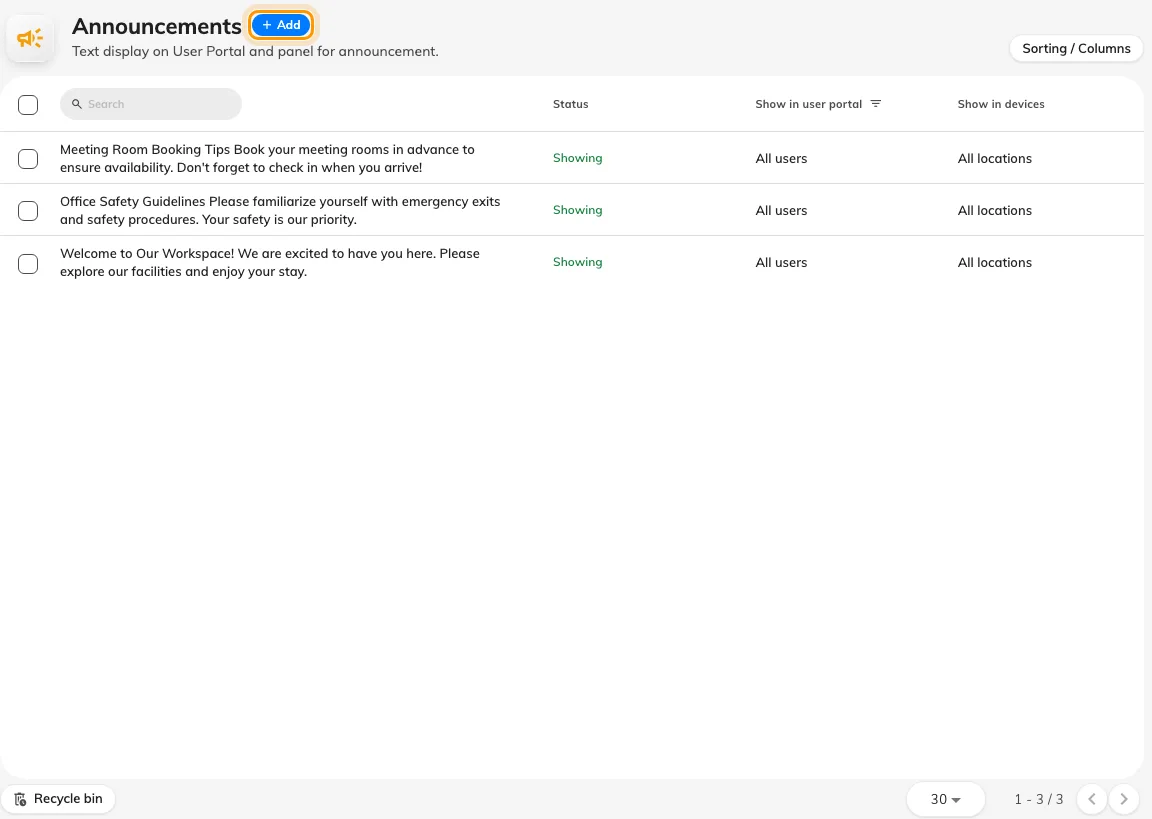
The announcement list. Add sits beside the title.
2. Write the notice
The dialog opens on Content, which is one rich-text box and one switch.
Put the point in the first line. There is no title field, so the first line is what every small rendering of the notice uses as its heading — the card on the app’s home screen, the tile on a board. Lift B out of service Friday is a heading; Please be advised that… is not.
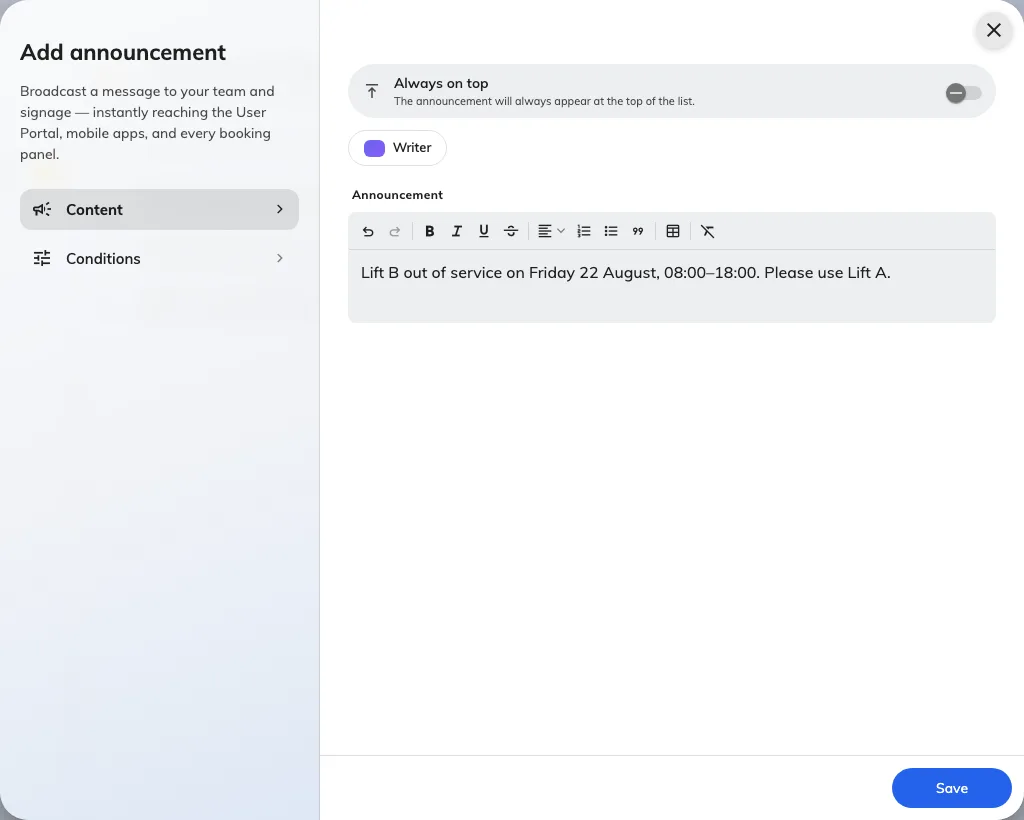
Content: the announcement body, with Always on top above it.
Turn on Always on top only for a notice that should outrank the others while it is up. It affects order, not how long the notice lives, and it is worth nothing if every announcement has it.
If AI writer is available, it will draft the notice from a short instruction. Read what it produces before saving — it is a starting point, and the first line still has to work as a heading.
3. Choose who sees it, and for how long
Open Conditions. Two lanes side by side, and a schedule under them — and the defaults are not what most people expect.
User portal puts the notice in the app and notifies the people it targets. Its Recipients start on Everyone, meaning everyone with an account; choose Specific to pick users or groups.
Devices puts the notice on booking panels and signage. Its Locations start on All, meaning every screen; choose Specific and type into Add building or floor to pick them. A building chip says All floors; a floor chip names its building.
Schedule bounds when the notice is visible: Always, or a Period. Set both ends of a period: one with only a start, or only an end, is shown for good. Always is right for a standing notice and wrong for anything about a particular day.
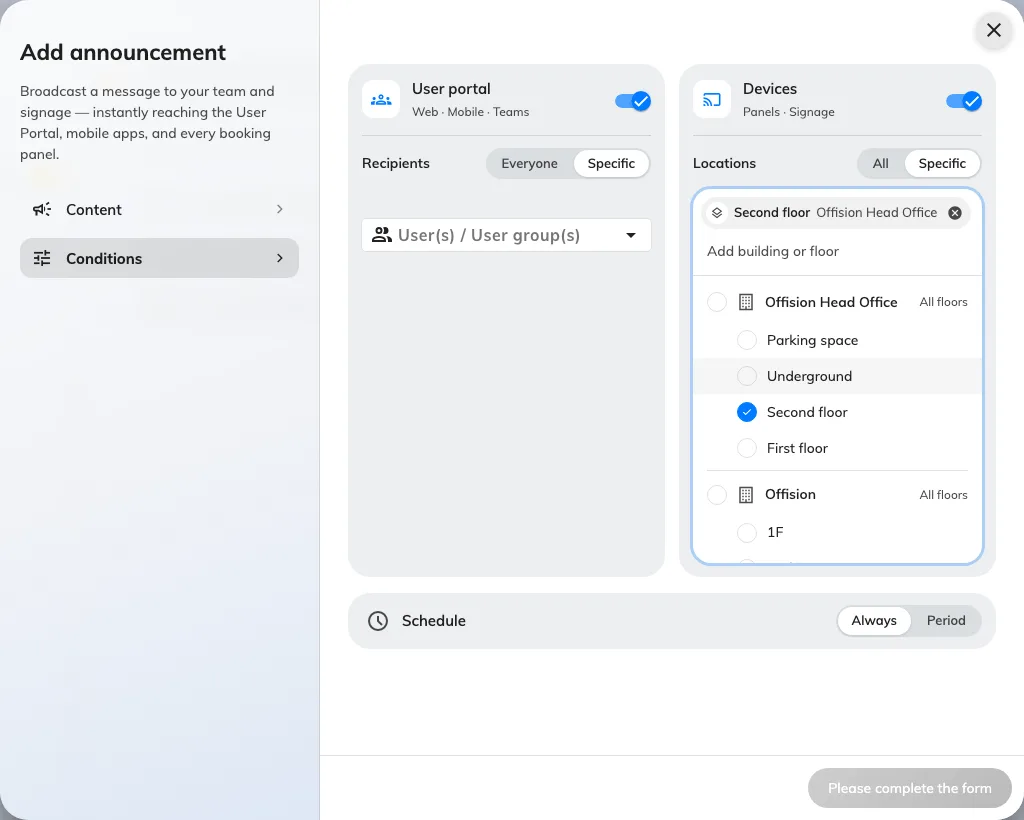
Conditions, with both lanes on Specific and one floor picked.
Choose Save. If the period has not started yet, nothing happens until it does — that is the point of setting one.
4. Check it arrived
Check all three surfaces, because they fail independently.
In the app. Open the Offision app as somebody the notice targets. It appears on the home screen with an unread dot, and pinned notices sort first.
As a notification. The same person gets a row in their notification list and a push on whatever they are signed in on. This is the leg that reaches people who are not looking at anything.
On a screen. Walk past one of the screens you targeted, or open a booking panel on a targeted floor. If it is missing there but present in the app, the cause is almost always the device’s own location — see The announcement is in the app but not on the screens.