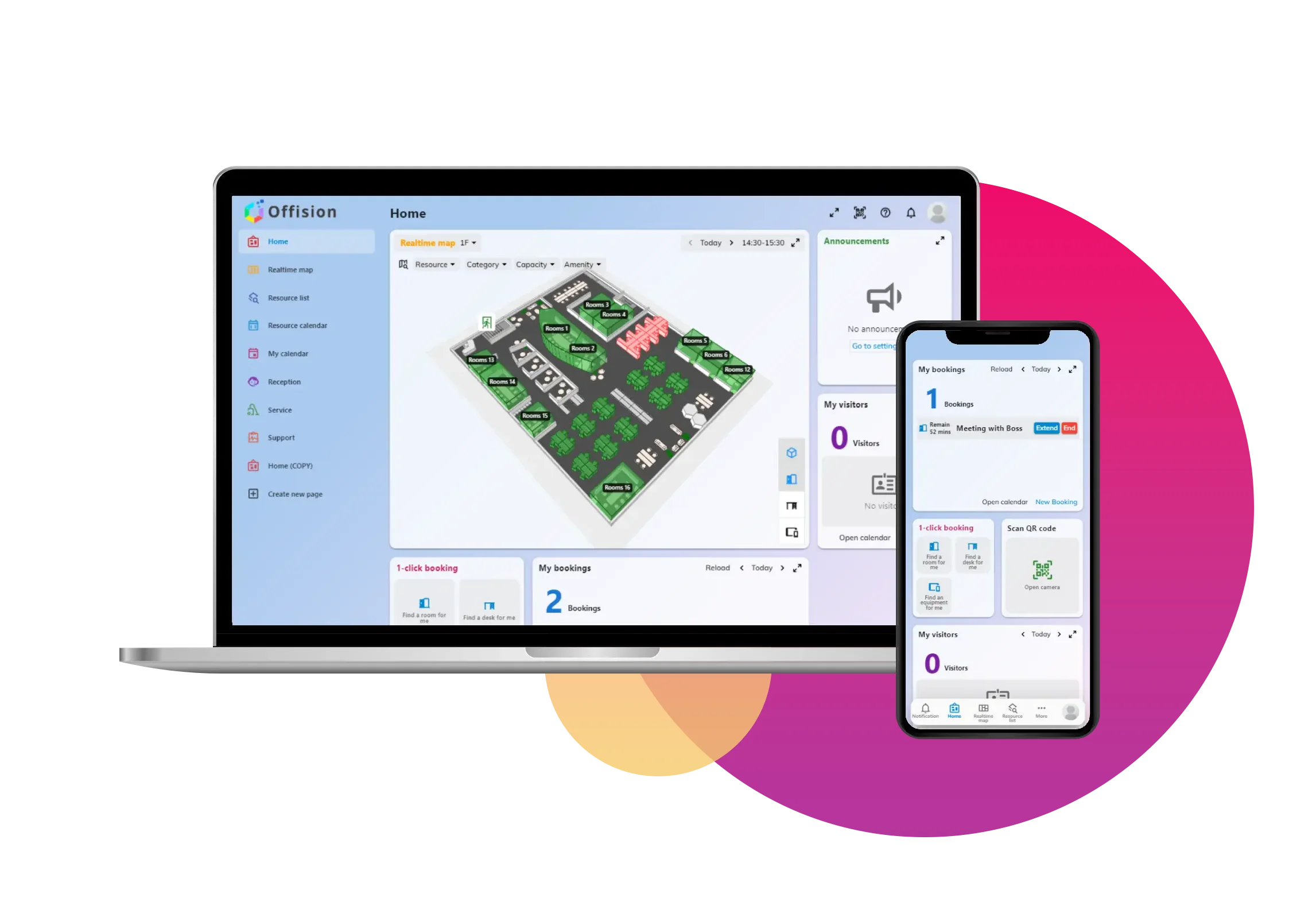
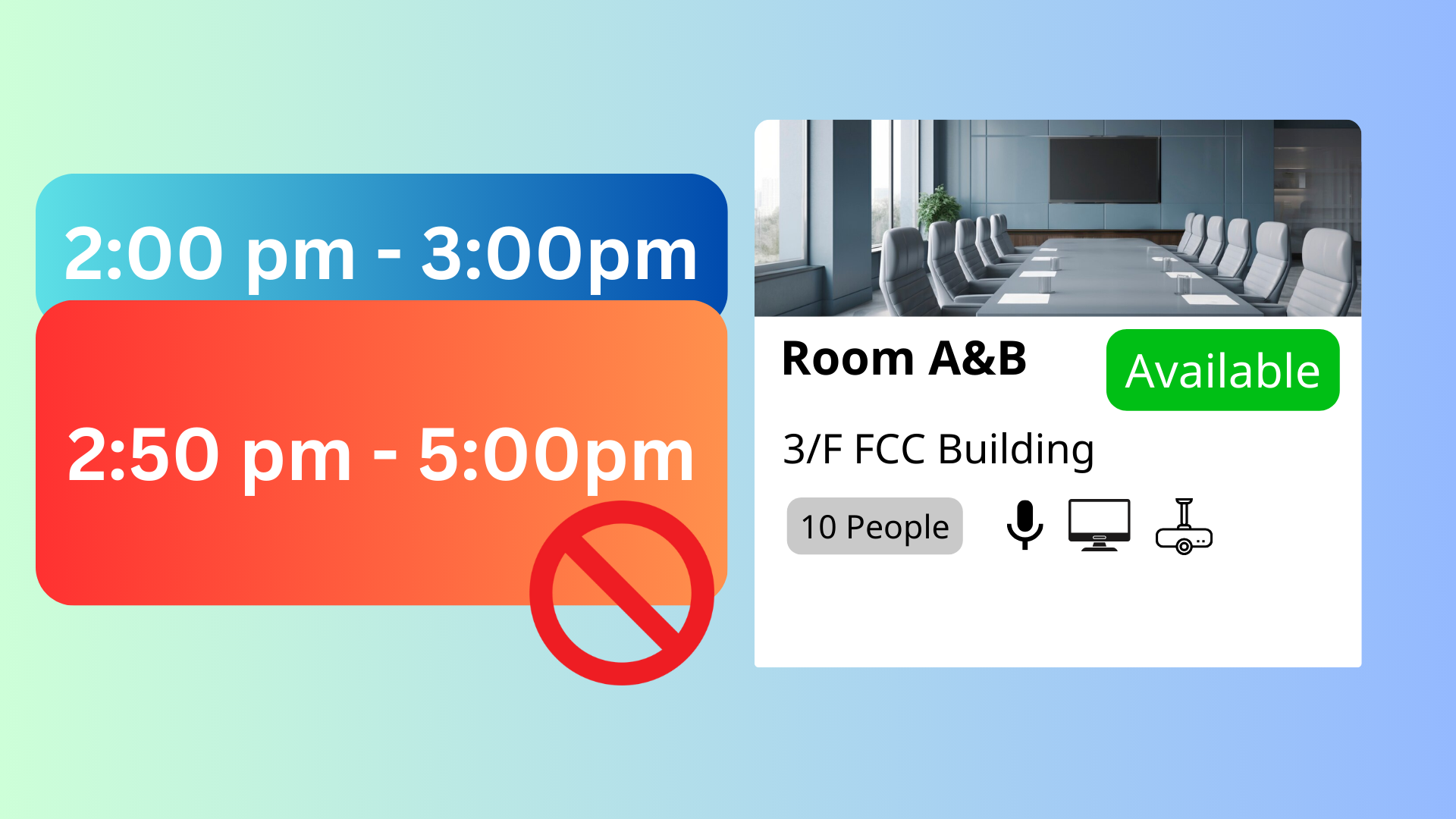
The **Restrict Users from Creating Overlapping Bookings** in Offision prevents users from creating overlapping bookings for the same time period. This ensures fair resource allocation and avoids scheduling conflicts.
洞察與最佳實踐,協助您優化工作空間
The Restrict Users from Creating Overlapping Bookings feature in Offision is designed to prevent users from creating multiple bookings that overlap in time. When this setting is enabled, users will be restricted from making another booking during a time slot that conflicts with an existing booking.
This feature ensures that resources are fairly allocated and prevents scheduling conflicts that could arise from overlapping bookings. It is particularly useful for organizations with shared resources where double-booking could cause disruptions or inefficiencies.
Key highlights of this feature include:
Conflict-Free Scheduling:
Automatically blocks users from creating bookings that overlap with an active reservation.
Fair Resource Allocation:
Ensures resources are used one at a time and are not monopolized by overlapping bookings.
Improved Booking Transparency:
Provides users with a clear view of resource availability, reducing confusion or accidental overlaps.
Supports High-Demand Resources:
Ideal for managing shared resources like meeting rooms, equipment, or facilities to maintain order and efficiency.
This feature simplifies booking management, ensuring a smooth and conflict-free scheduling process for both users and administrators.
Prevents Scheduling Conflicts:
Fair Resource Usage:
Improves User Clarity:
Streamlines Booking Management:
Enhances System Reliability:
Supports High-Demand Resources:
Encourages Better Scheduling Practices:
Customizable Settings:
Reduces Admin Workload:
Simplifies Resource Tracking:
The Restrict Users from Creating Overlapping Bookings in Offision is an essential tool for maintaining order and fairness in resource scheduling. While it eliminates conflicts and ensures clear bookings, it requires careful implementation and communication to balance user needs with organizational policies.
請依照以下步驟操作
Navigate to “Advanced policy” and create / edit a policy
Navigate to “Booking policy” tab and select “Not allow overlap with all other bookings”
Navigate to the "Room," "Desk," and "Equipment" to create / edit resources
Set the policy to the resources
Navigate to “Advanced policy” and create / edit a policy
Navigate to “Booking policy” tab and select “Not allow overlap with all other bookings”
Navigate to the "Room," "Desk," and "Equipment" to create / edit resources
Set the policy to the resources
備受全球機構信賴
加入數百間使用 Offision 提升工作空間管理效率的企業


©2026 ONES Software Ltd. All rights reserved.

 Neat 裝置
 Crestron