 Neat
Neat
 Crestron




User
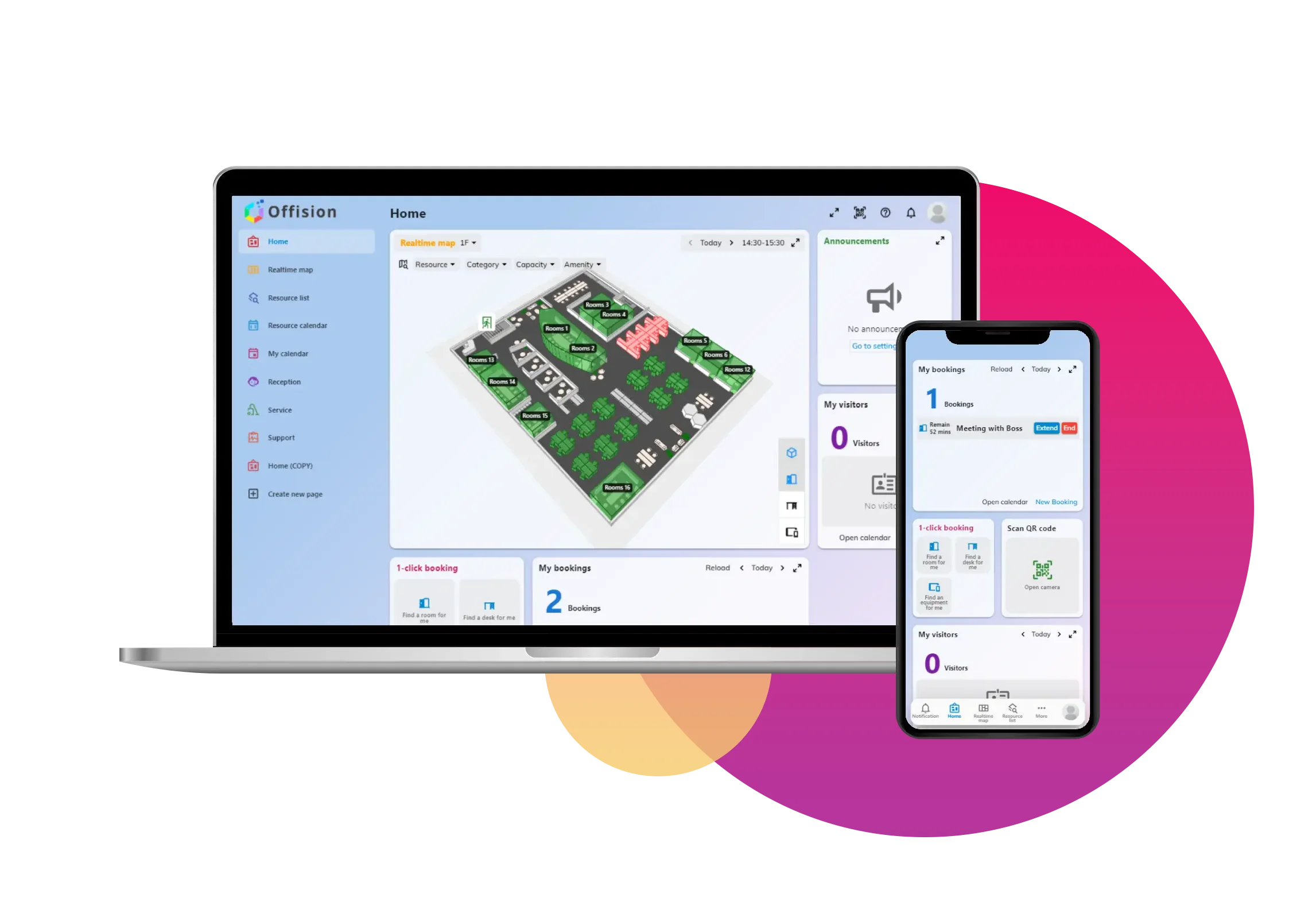
Book a space, meet a guest, manage your own account — in the app, a browser, Outlook or Teams.
Offision is not one layout stretched onto every screen. The user guide, the front desk, service, support and events each have their own path because the work is different.
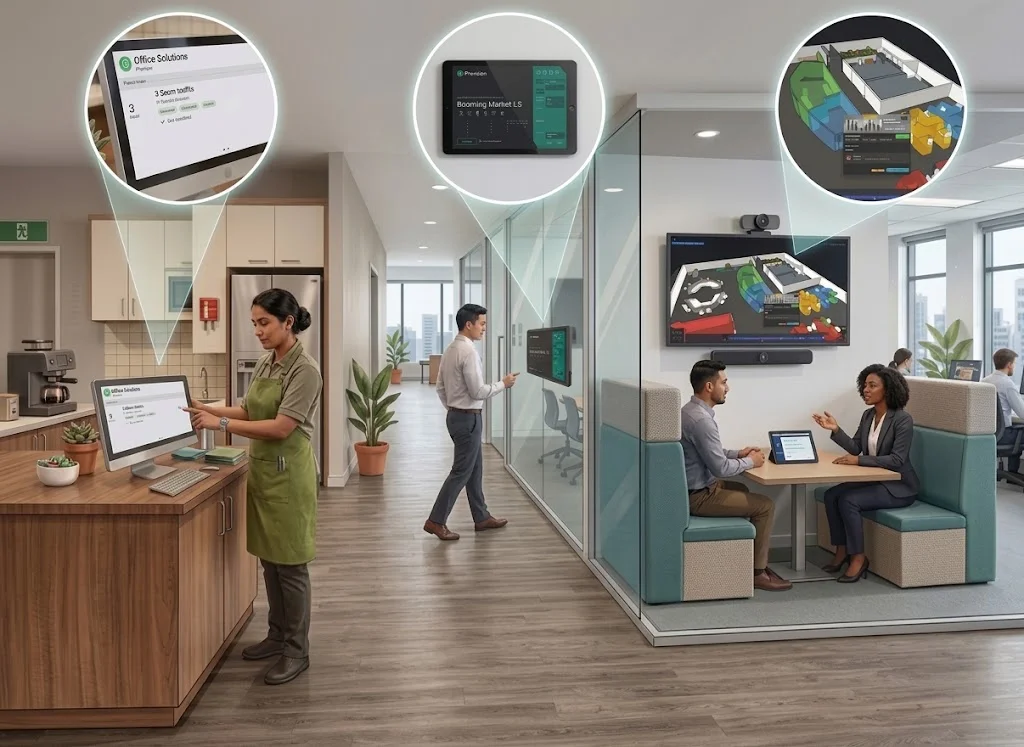
The Help Center splits Offision the way the product does — not by module first, but by who is signed in.
Open the Help CenterBook a space, meet a guest, manage your own account — in the app, a browser, Outlook or Teams.
Run the front desk: check-in, walk-ins, and who is on site.
Take the tea, cleaning and help people asked for, and mark it done.
Pick up what somebody reported as broken, and see it through to closed.
Build an event, open it for sign-ups, and check people in on the day.
The home screen leads with the two things people do most. A booking asks for a time and a resource; anything else on the form is there because your company asked for it.
Afterwards you have two calendars, and they are not the same thing.
The app can be switched to your language, put into dark mode, moved to a twenty-four hour clock and given larger text, all from one group behind your picture.
System holds the logo, colours and languages the console, the app, the panels and outgoing mail inherit. Signage content is a design of live widgets — not a screenshot taken earlier.
A room can be empty on screen and still refuse the booking: outside the period it can be booked, longer than it allows, outside business hours, reserved for another department, over your quota, or waiting for approval. The message says which one.
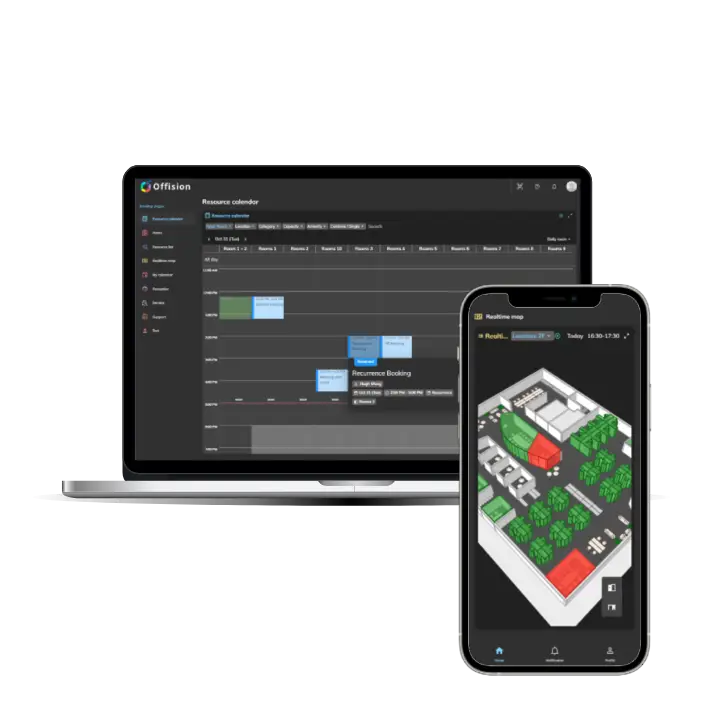
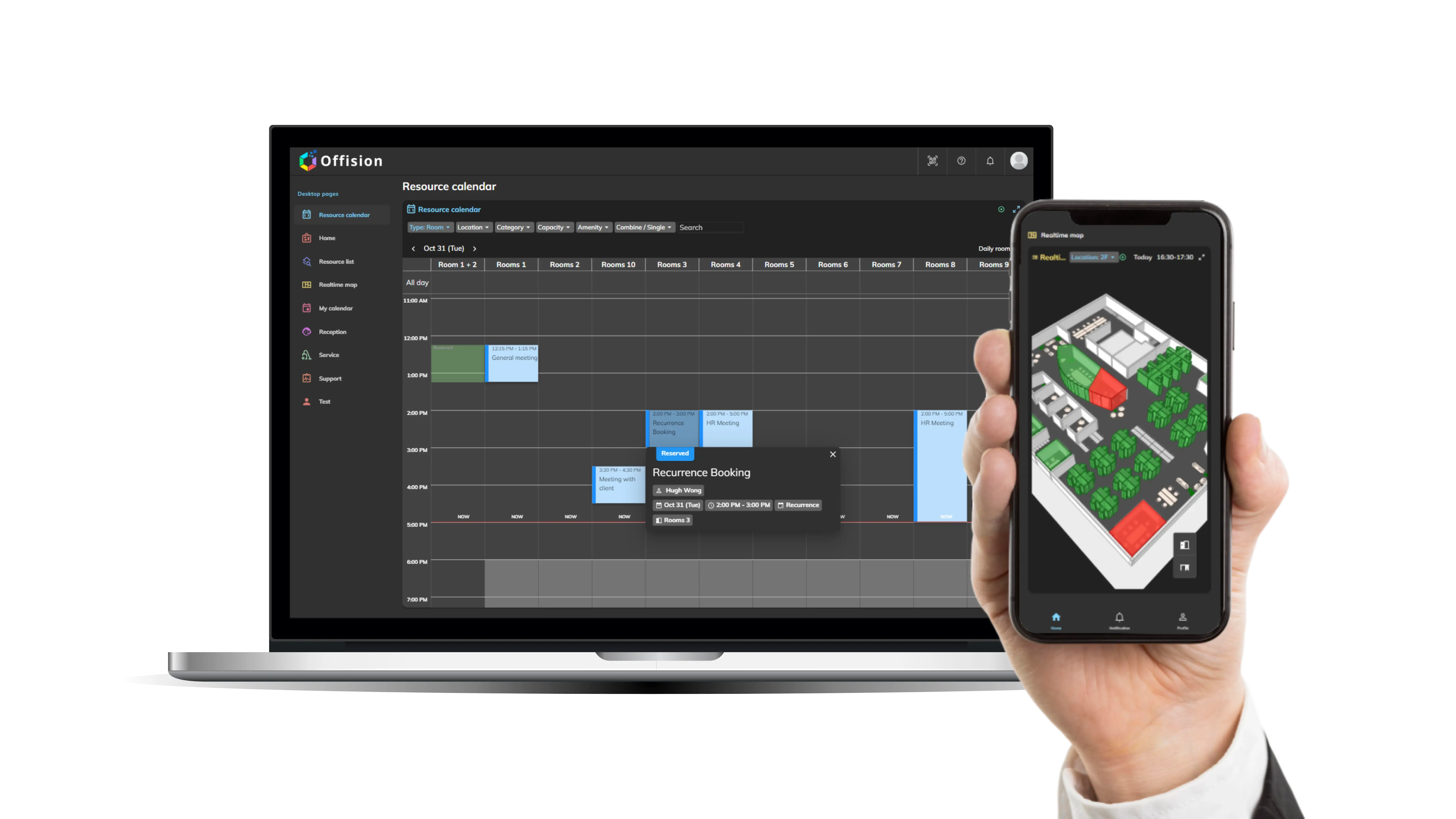
My calendar is your bookings — drag to change when. The resource calendar is the rooms side by side — drag to change where.
Only language follows the account. Dark mode, a 24-hour clock and larger text stay in that browser.
Running the front desk is a staff permission, not day-to-day booking. Service, support and event coordinators each have a guide of their own for the same reason.
Start in the employee app, then open the Help Center guide that matches the permission you actually use.
Get started in minutes