

Assign the people who fulfil requests
Who a request goes to, how it gets shared out, and where staff work through the queue. Includes the empty-staff-list trap that sends every request to everybody.
1. Give people the permission
A person can only receive service requests if they hold Service staff — “Permission to handle the service request”. Without it they will not appear when you try to name them, and they will not see the queue.
Open Service staffThere is a second gate underneath: handling requests is also a licensed capability. Somebody with the permission but no licence sees nothing, and the console says so — No service staff license. If a person has been given the permission and still cannot see a queue, check the licence before checking anything else.
2. Name the staff on the service
On the service itself, the Service staff page has Service staff / Service staff groups. Name a group — the cleaners, the pantry team, the IT desk — rather than individuals, so requests keep flowing when somebody changes role.
3. Choose how requests are shared out
Auto assign policy decides who a new request lands on.
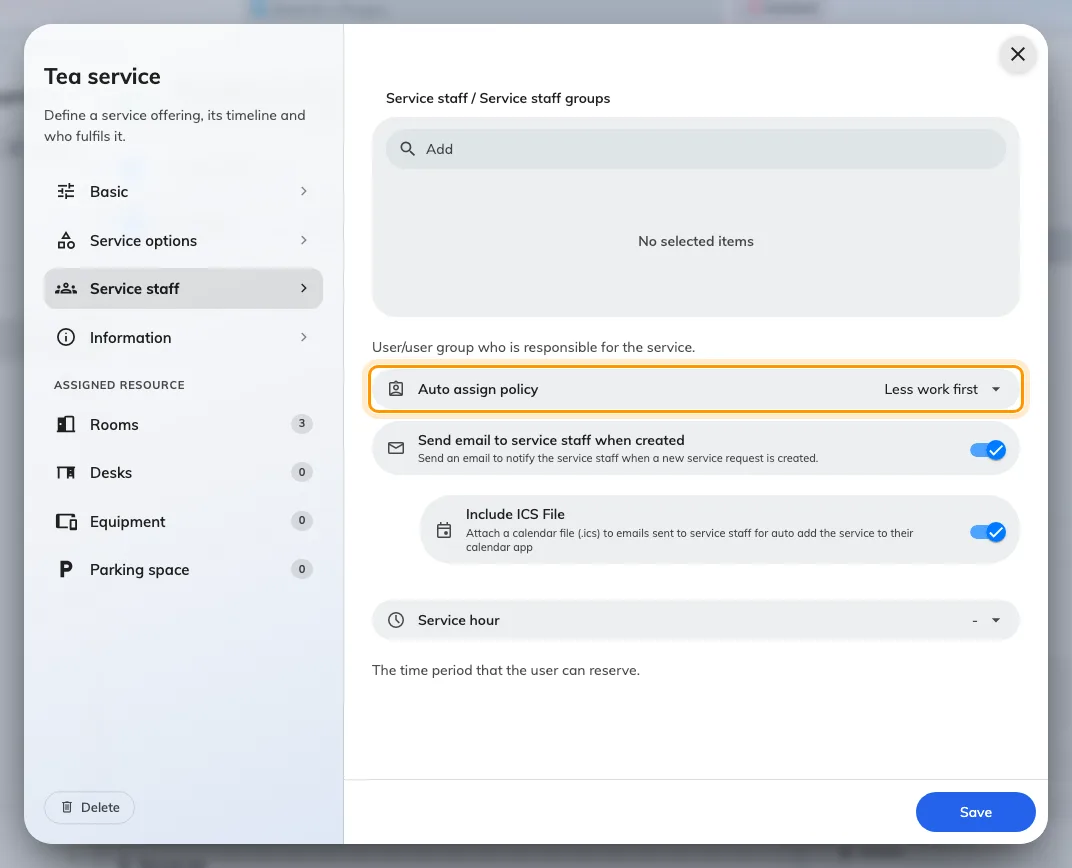
Auto assign policy, on the Service staff page of the service.
| Policy | What it does | When to use it |
|---|---|---|
| None | The request arrives unassigned and waits for somebody to take it | A small team who watch the queue together |
| Less work first | Goes to whoever has fewest requests still open | The sensible default for a real team |
| Random | Spreads them arbitrarily | Where the work is uniform and fairness matters more than load |
Less work first counts only requests that are still New or In progress, so somebody who finished ten this morning is not punished for it.
4. Tell them a request has arrived
Send email to service staff when created emails everybody who could take the request. A push notification goes out whether or not this is on, so turning it off means staff must be watching the app.
Include ICS File attaches a calendar file, so the job appears in the staff member’s own calendar at the right time. It is on by default and worth leaving on for anything with preparation time — a cleaner with the meeting in their calendar does not need to be told twice.
5. Set when they are working
Service hour is the service’s own opening hours. Outside them, the service cannot be requested at all.
Open Service hoursThese are separate from the room’s business hours and from the company’s. A pantry that stops at four does not stop rooms being booked at half past — it stops tea being ordered for half past. Setting this honestly prevents the requests nobody was ever going to answer.
6. Where staff actually work
| Where | What it is for |
|---|---|
| Service requested, in the console | The full queue — list, table or calendar, upcoming or past |
| The Service page in the app | What most staff use day to day |
| A service panel on the wall | A shared queue for a pantry or facilities room |
| The room panel | Ticking off services in the room itself |
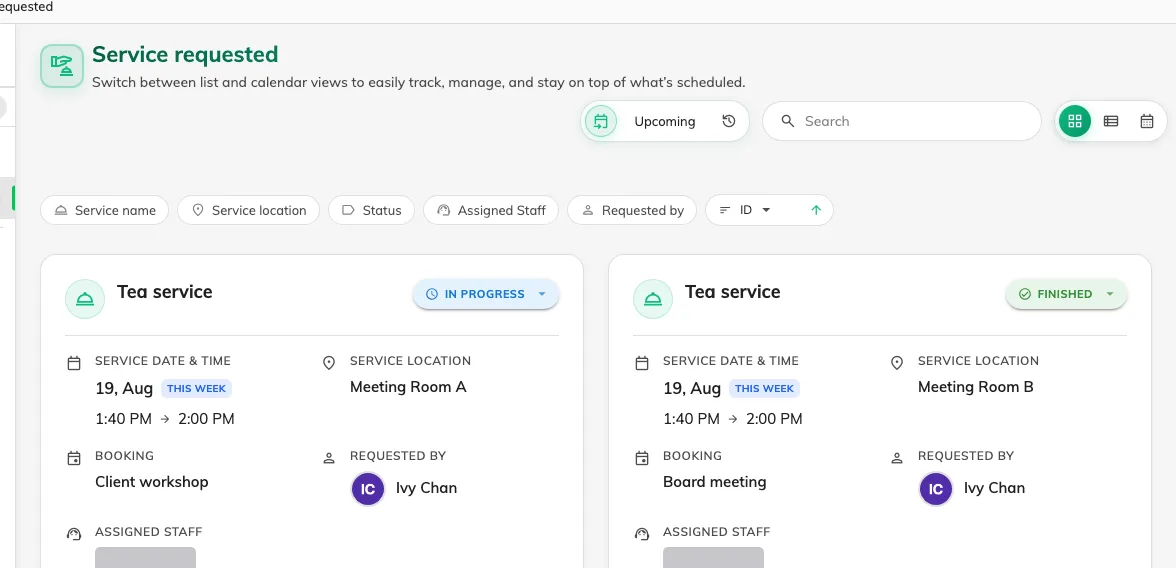
Service requested: every request, what it is on, and where it has got to.
Opening a request shows what was asked for, the options chosen, and Remarks from organizer. Staff move it on with Processing, Finish or Reject, and can write a Staff response back.
7. Check it worked
Raise a request as an ordinary user against a room the service covers. Then confirm three things: it appears in Service requested, it already has a staff member against it if you set an auto-assign policy, and that person was emailed.
If it arrived unassigned with a policy set, nobody eligible was free to take it — check the staff list on the service and that those people hold both the permission and the licence.