

Print the day's service orders as a run sheet
One page per day: every appointment carrying a service request, by time and location, filtered and printed or saved as a PDF for the people doing the work.
The daily service report is the paper end of the service workflow: one page per day listing every appointment that carries at least one service request, in time order, with the orders spelled out — what, when, for which room, and any remarks. It exists to be printed and handed to the people making the tea.
1. Open the report
In the Service module, the page is not one of the pinned entries in the list down the left — choose Show more first, then Daily service report.
Open Daily service report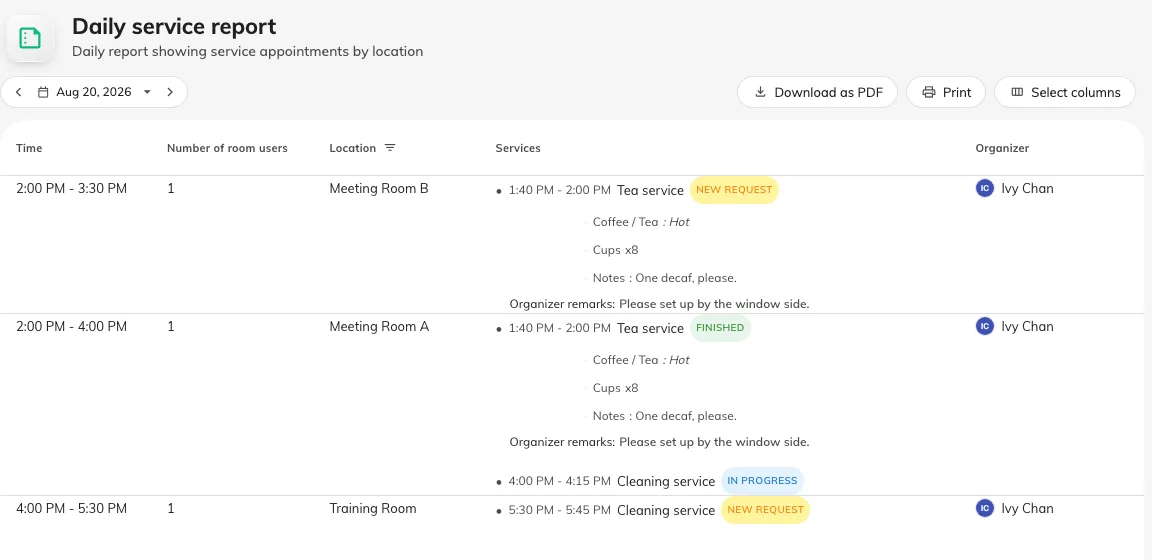
A day's orders: each appointment with its services, statuses and remarks.
2. Pick the day
The report covers exactly one day. The bar at the top steps a day back or forward, or opens a calendar to jump further. Appointments without any service request are left out — this is a work list, not the booking calendar.
3. Read the sheet
Each row is one appointment. Services is the column the page exists for: every request on the appointment, with its own time range, a status, its chosen options, and any remarks.
| Column | Shows |
|---|---|
| Time | When the appointment starts and ends |
| Number of room users | How many people to serve — the organizer’s count if they gave one |
| Location | The room. Its header is also the filter, below |
| Services | Each request: its time, name, status — New request, In progress, Finished or Rejected — the options chosen, and Organizer remarks / Staff remarks |
| Organizer | Who booked it, in case something needs checking |
| Title | The booking’s subject. Hidden until you show it — most run sheets do not need it |
Booking fields marked Show for service manager appear as extra columns of their own, photos included — how a floor plan or a delivery note travels from the booking form onto the sheet.
The footer counts the day: how many appointments, and how many service items across them.
4. Filter to one location
The Location column header is a filter: select it, pick one or more rooms, and the sheet narrows to them — one kitchen’s floor, printed for that kitchen. The clear icon in the header takes it off again.
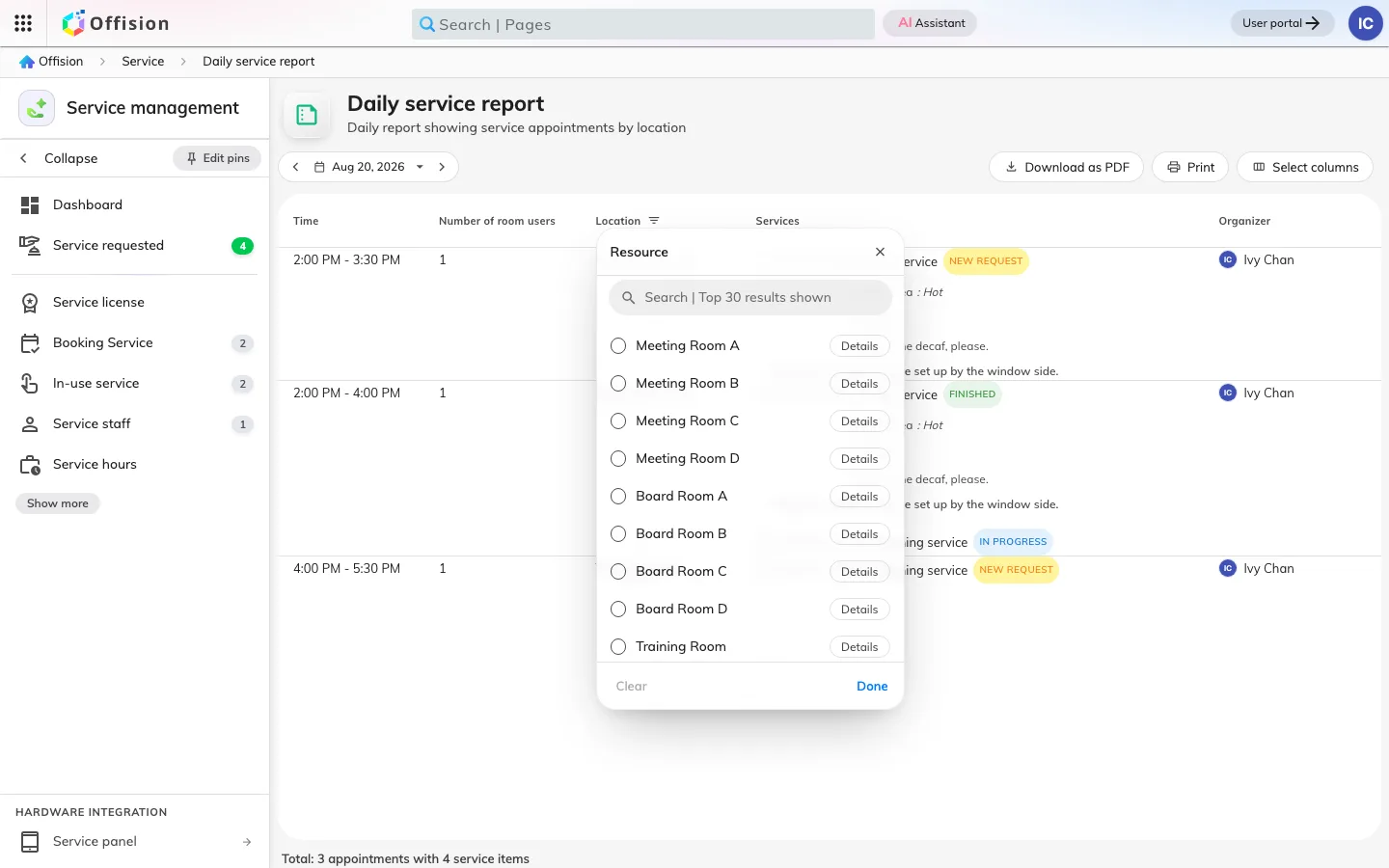
The filter lives in the Location header.
5. Choose the columns
Select columns opens a panel to hide, reorder and sort. The layout is remembered per person, so trimming the sheet for the kitchen does not change what a colleague prints.
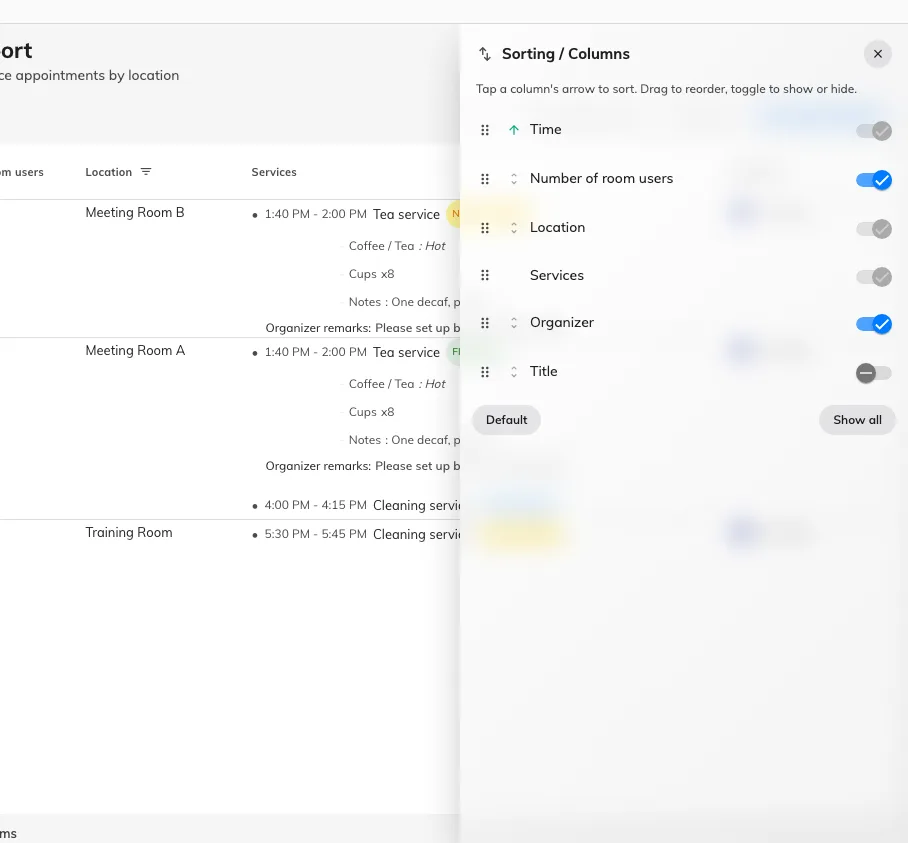
Hide, reorder and sort — remembered per person.
6. Print it
Download as PDF saves the sheet as a landscape PDF named after the day —
call-daily-service-report-2026-08-19.pdf — and Print sends the same PDF
straight to the printer. Both print what you see: the chosen day, the filter and
the columns as set. On an empty day both are disabled.
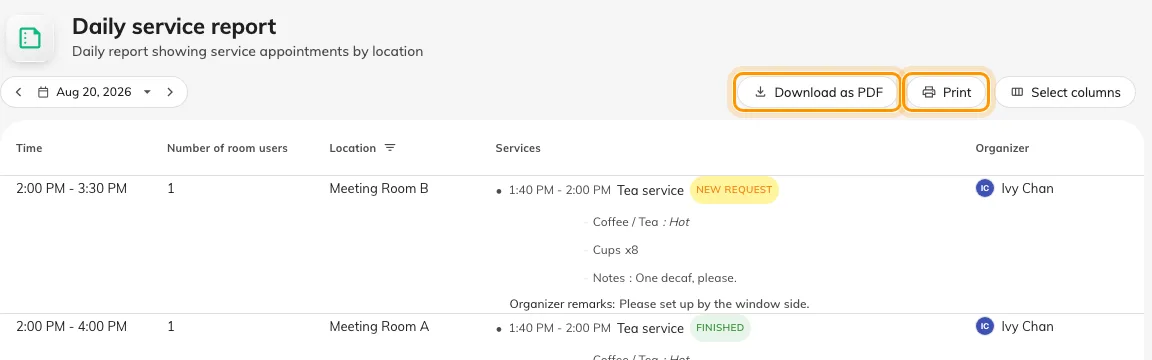
The same sheet, as a PDF or straight to the printer.
What this page does not do
Nothing sends it. The report is a page you open, not an email that arrives — a scheduled summary is the forecast email instead. And it never marks work done: statuses are updated where requests are handled, on the Service requested page, and this sheet just reads them.