

Handle requests at the service panel
Working the shared queue on the wall — what the timer colours mean, how Start, Finish and Reject move a ticket, and the two things a panel tap can never do.
The service panel is the screen on the wall where the team works: every open request, grouped by the floor it is due on, each with a timer that has been running since somebody asked. This page is how to work that queue — and what the screen deliberately cannot do.
Reading the screen
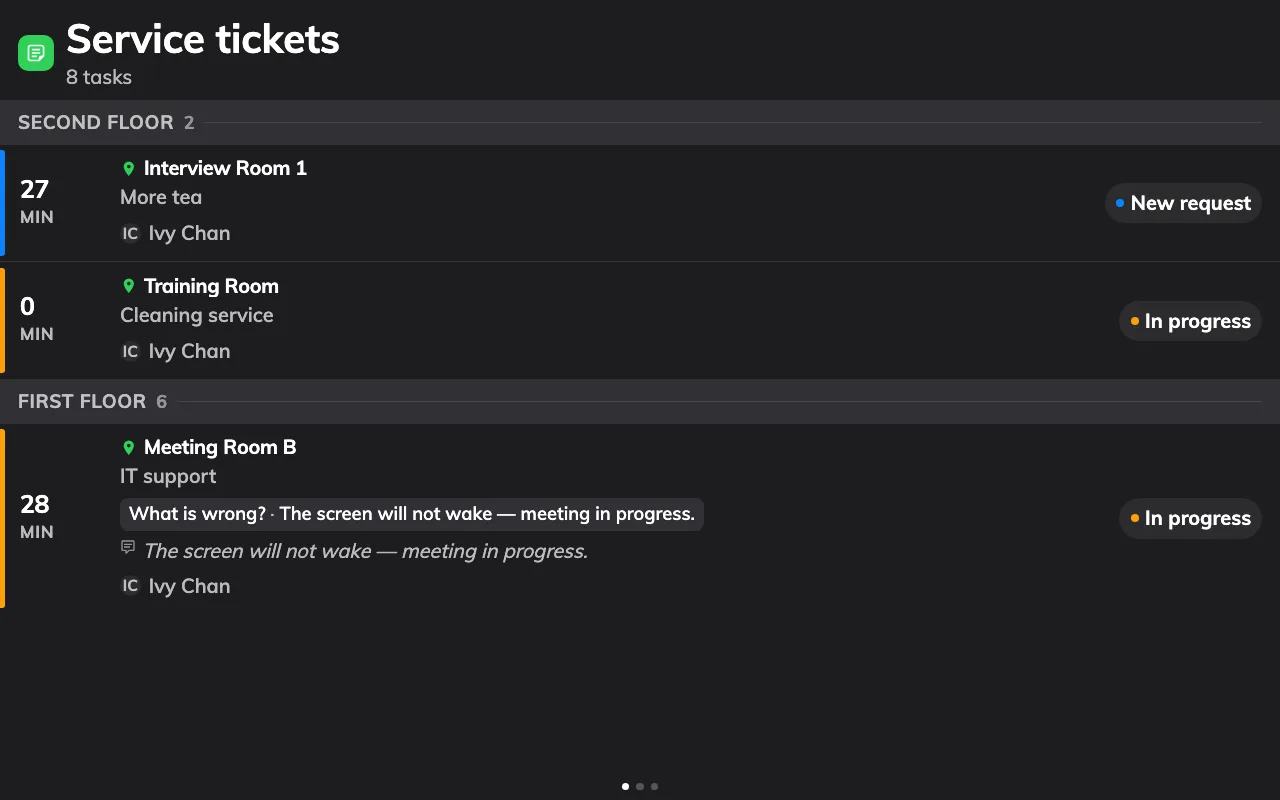
The queue: floor by floor, oldest wait first, the timer telling you who has waited too long.
Each ticket carries the room, the service, the options ordered — how many pots, which setup — any remarks, and who asked. The headline is the timer:
- Plain — waiting, within the time the team allows itself.
- Amber — waiting longer than the panel’s warn threshold. Somebody should pick it up now.
- Red — past the overdue threshold. This is the escalation.
Amber and red fire at the minutes chosen when the panel was set up. A grey check marks a finished ticket, and when more tickets arrive than fit, the screen turns its own pages.
Working a ticket
On a touch screen, tap a ticket. Its details open with three buttons, and they are the whole workflow:
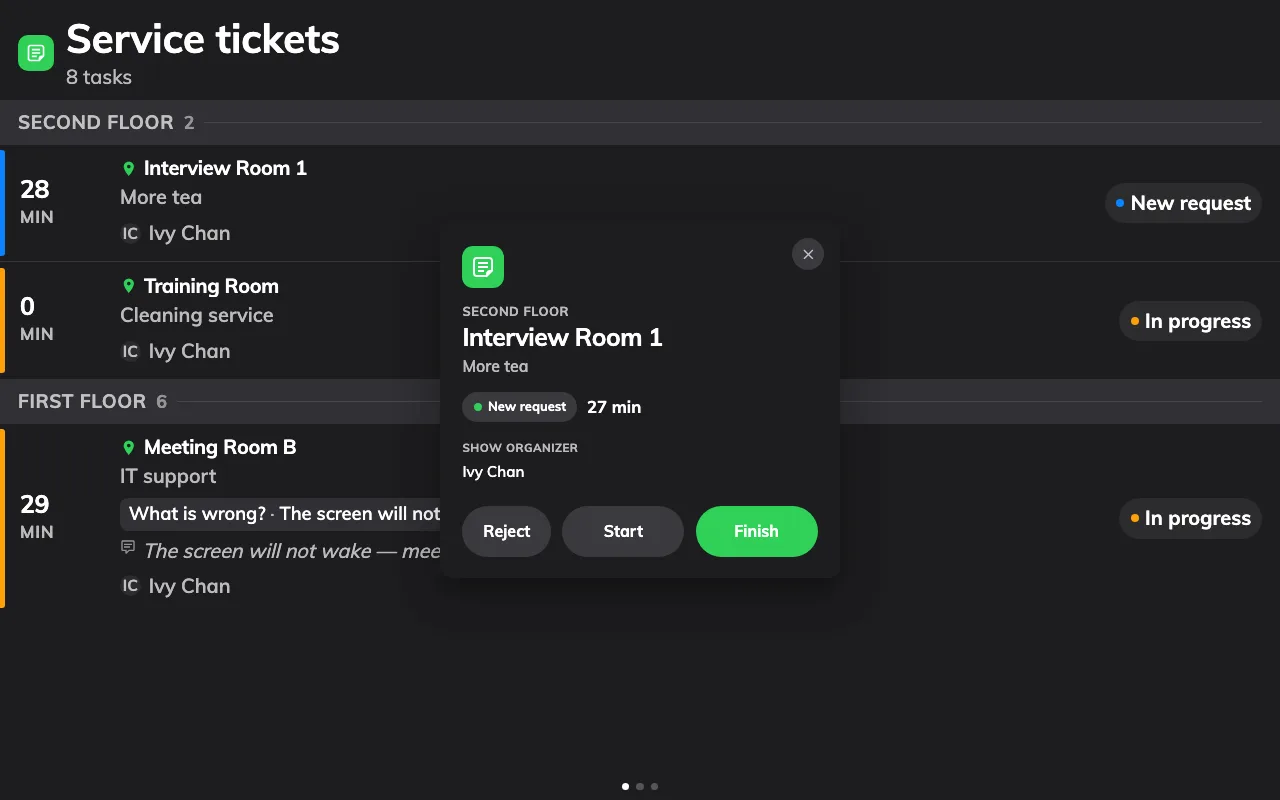
A ticket, opened: everything ordered, and the three buttons that move it.
- Start when you pick it up. The ticket moves to In progress, which tells the rest of the team it has an owner — on this screen, in the app, and in the console, all at once.
- Finish when it is delivered.
- Reject to turn it down — the room that asked for tea two minutes before a fire drill.
That is the whole workflow: tap, deliver, tap. A mistake is not fatal — a finished or rejected request can be put back to New from the queue in the console or the app. The full lifecycle is in How a service request works.
What a panel tap cannot do
The panel is built for speed, and two things are traded away for it. Knowing them saves an argument later:
- It never tells the person who asked. Moving a ticket at the panel notifies nobody. The only thing that messages the requester is the update dialog in the app or console, with its notify organizer tick — so when a rejection needs explaining, do it from there.
- It carries no reply. There is nowhere to type a Staff response at the panel. The response field lives in the same update dialog.
For both, open the request on your own Service page in the app, or in Service requested in the console — the same queue, with the full dialog. The app’s version of these three buttons is Move a request from new to finished.
Open Service requestedThe panel is also shared and anonymous — the log records a tap without a name. A team that needs per-person accountability works from the app.