

Read the attendance report
How a month of punches becomes verdicts — On time, Late, Early leave, Absent, Incomplete and the days that count for nobody — and how the Summary by user and Daily details tabs, the four stat tiles and the Excel exports present them.
The report is where punches become judgements. A record only says signed in at 9:12; the report reads that against the schedule’s working hour and says late, by 12 minutes. The judgement is computed when you open the report, not stored — which is why correcting a record is enough to correct the month, and why a schedule whose working hour changes rewrites history: the report always judges by the working hour as it is now.
The verdicts
Each person-day gets one status:
| Status | It means |
|---|---|
| On time | Signed in by the expected start and out no earlier than the expected end. |
| Late | Signed in after the expected start. The daily row carries the minutes. |
| Early leave | Signed out before the expected end. |
| Late and early leave | Both at once. |
| Absent | A working day with no sign-in at all. |
| Incomplete | A sign-in with no sign-out — the day cannot be judged, and its worked time cannot be counted. |
| Holiday / Non-work day | The working hour’s holiday calendar, or a weekday it does not cover. Never counted against anyone. |
| No working hour | The schedule had no working hour to judge by. |
Incomplete is the one that surprises: a person who worked a full day but never signed out shows no worked minutes for it. A team with many Incomplete days usually has a check-out channel switched off, or people who need reminding — not an attendance problem.
Reading the page
Pick a Working schedule, a Period and optionally Users — the report is per schedule, so people on two schedules are judged separately on each. Four tiles summarise the month: On-time days, Late or early-leave days, Absent days and Total worked hours.
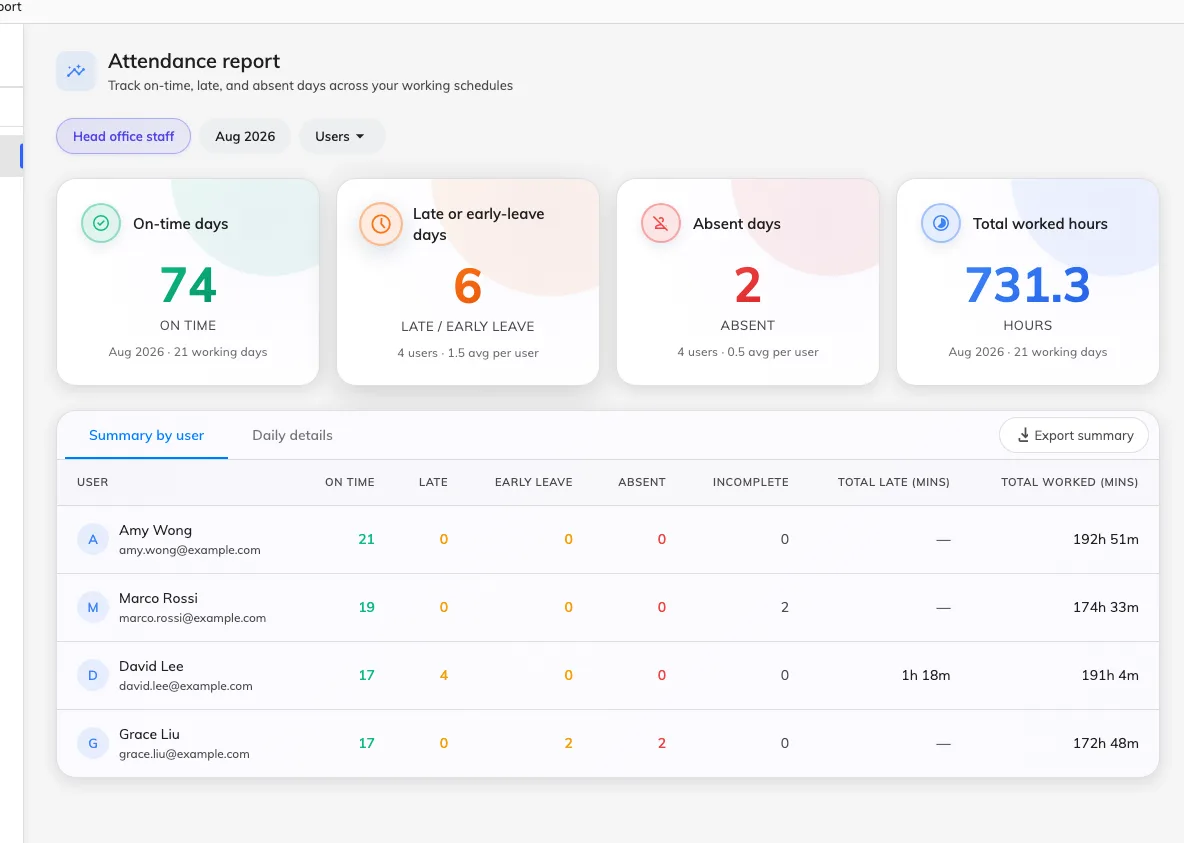
The report for one schedule and month: the four tiles, and the Summary by user tab with each person's day counts and totals.
Two tabs share the filters:
- Summary by user — one row per person: counts of On time, Late, Early leave, Absent and Incomplete days, plus total late and total worked minutes. This is the tab for spotting a pattern.
- Daily details — one row per person per day: status, expected start and end, actual in and out, and the late, early-leave and worked minutes. This is the tab for investigating one.
Export summary and Export daily download the current tab’s rows for payroll or HR. An export is a snapshot, and that is the reason to keep one: the report recomputes its verdicts every time it is opened, so a schedule whose working hour changes rewrites months that were already read and signed off.
Attendance records, and the edits to them in the Attendance log, are kept for as long as the tenant exists — nothing purges them, so a month from years ago can still be opened and exported. The selfies attached to them cannot: they are deleted on their own schedule. See Your data: retention, export, deletion and backup.
What the report does not do
It does not alert anyone — it is read, not sent. It does not judge people on no schedule, or days before a person joined one. And it never shows the proof behind a punch — the selfie, IP and coordinate stay on the record in Attendance Records, where the punches themselves are inspected and fixed.