

Verify clock-ins with GPS, IP and selfies
Making a punch prove where it came from: GPS geofences drawn on a map with a 10 m to 10 km radius, IP ranges that pin the punch to the office network, and selfies that show who was holding the phone — each a switch on the working schedule, checked live before the punch is accepted.
A punch from a phone proves nothing by itself — a Sign in tap from the sofa looks exactly like one from the lobby. The working schedule’s Security & location page is where a punch is made to carry proof: where the phone was, which network it was on, and who was holding it. Each check is a switch, per schedule, so a field team can stay free while the office team must stand on site.
All three checks run before the punch is accepted. The person sees the verdict live in the app — Location verified, Network verified — and a failed check blocks the punch rather than flagging it afterwards. There is no “clocked in, but suspicious” state to chase.
GPS: draw where a punch may come from
A geofence is a circle on the map — a centre and a radius — and a punch passes if the phone is inside any of the schedule’s fences.
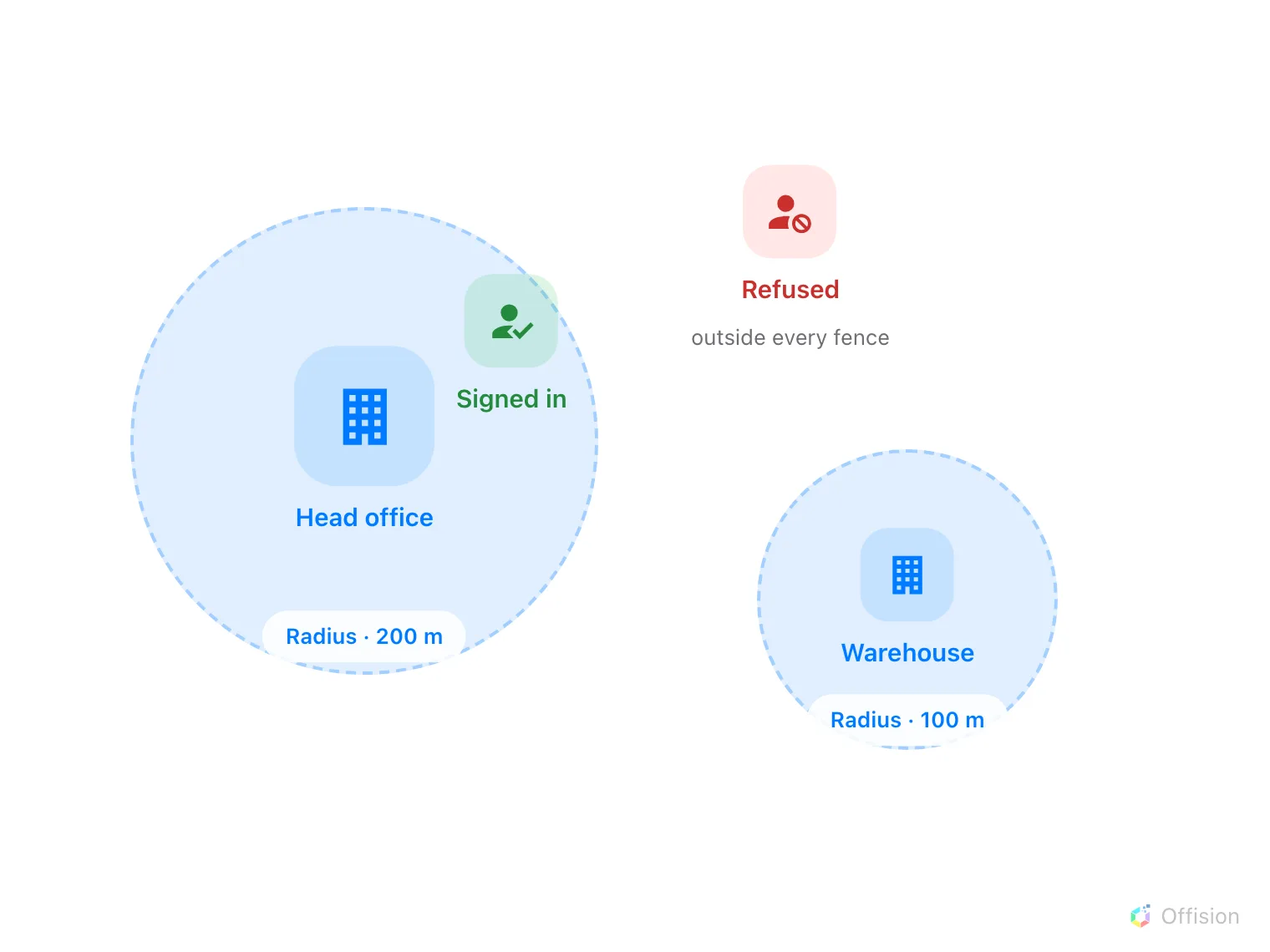
Two fences on one schedule. A punch inside either circle passes; outside both it is refused before it becomes a record.
Open the schedule’s Security & location page and switch on Require location in User Portal, then Add geofence. Each fence has a Location name, a map with a search box, and a Radius (meters) — from 10 m up to 10 km, 100 m by default. Search for the address or drag the pin, and set the radius generously: GPS in a building is easily 30–50 m off, and a fence cut too tight refuses people standing in the lobby. Add one fence per site people legitimately work from.
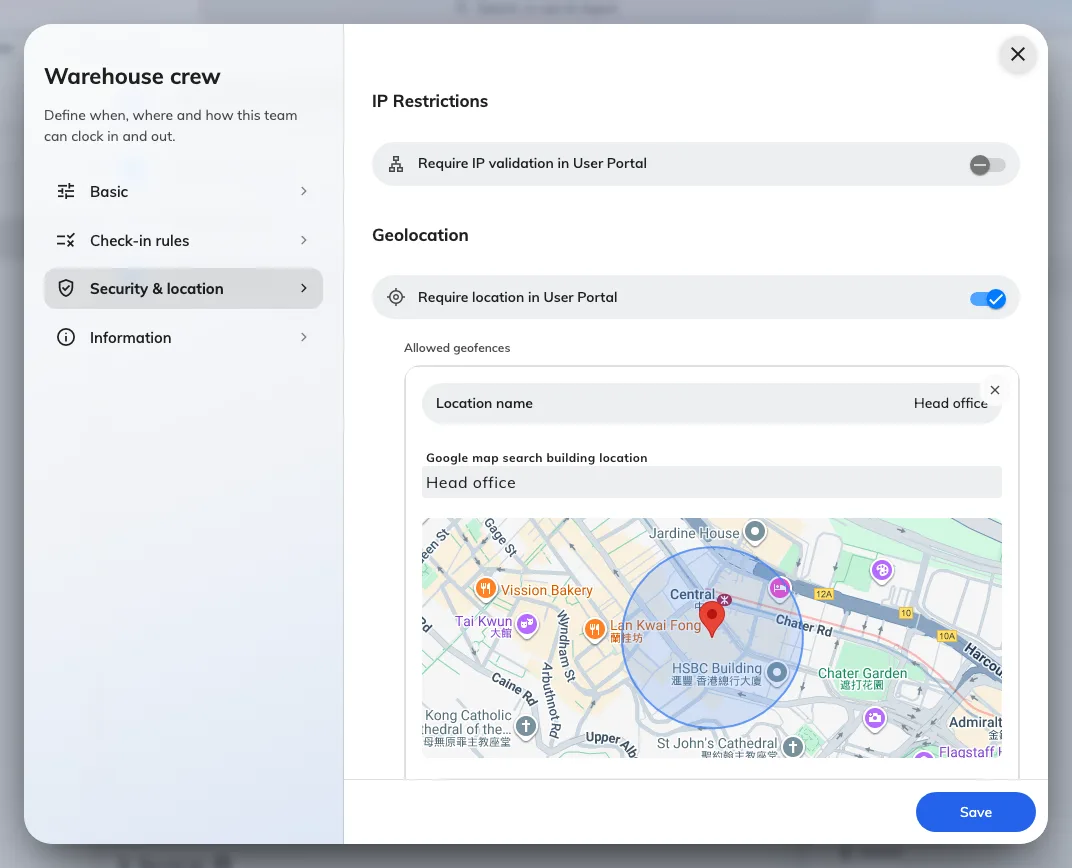
Security & location: IP Restrictions, Geolocation with a geofence drawn on the map, and the four Selfie verification switches.
When the person punches, the app shows their position and the allowed areas on a small map before they confirm — someone refused can see they are outside the circle rather than guessing.
IP: pin the punch to the office network
Require IP validation in User Portal checks the address the punch arrives
from against Allowed IP ranges — single addresses or CIDR ranges such as
192.168.1.0/24, each with an optional description. A punch from any listed
range passes.
Use the public address your office traffic leaves through, not the internal range, unless staff reach Offision on a private network. IP is a good complement to GPS: it works on devices without location hardware, and it catches a spoofed position — but a phone on office Wi-Fi in the car park also passes, which is what the geofence is for.
Selfies: show who was holding the phone
Selfie verification is four switches — check-in and check-out, via User Portal and via Kiosk. Switched on, the punch pauses for a photo — Take a selfie to continue — and the photo is stored on the record, where an administrator opens it from Attendance Records with Click to view. This is the check that answers buddy punching: the punch may be in the right place on the right network and still show the wrong face. Requires 4.5.0.
Selfies are sensitive personal data, and the module treats them that way: they are deleted automatically after the Selfie retention period — 1 to 90 days — set on the Selfie privacy page, and supervisors never see them at all.
Open Selfie privacyCheck it worked
Punch in as a worker from outside the fence (or off the office network): the app should show You are outside the allowed area and refuse to confirm. Then punch from inside it — the checklist should read Location verified, and the record in Attendance Records carries the IP address and the coordinate it was accepted with.
What these checks do not cover
They apply to the user app only — a kiosk punch is verified by the kiosk’s own identification (QR code, staff card, PIN or face), not by GPS or IP. An empty fence or IP list with the switch on refuses nothing, and none of this decides when a punch is allowed — timing lives on the Check-in rules page.