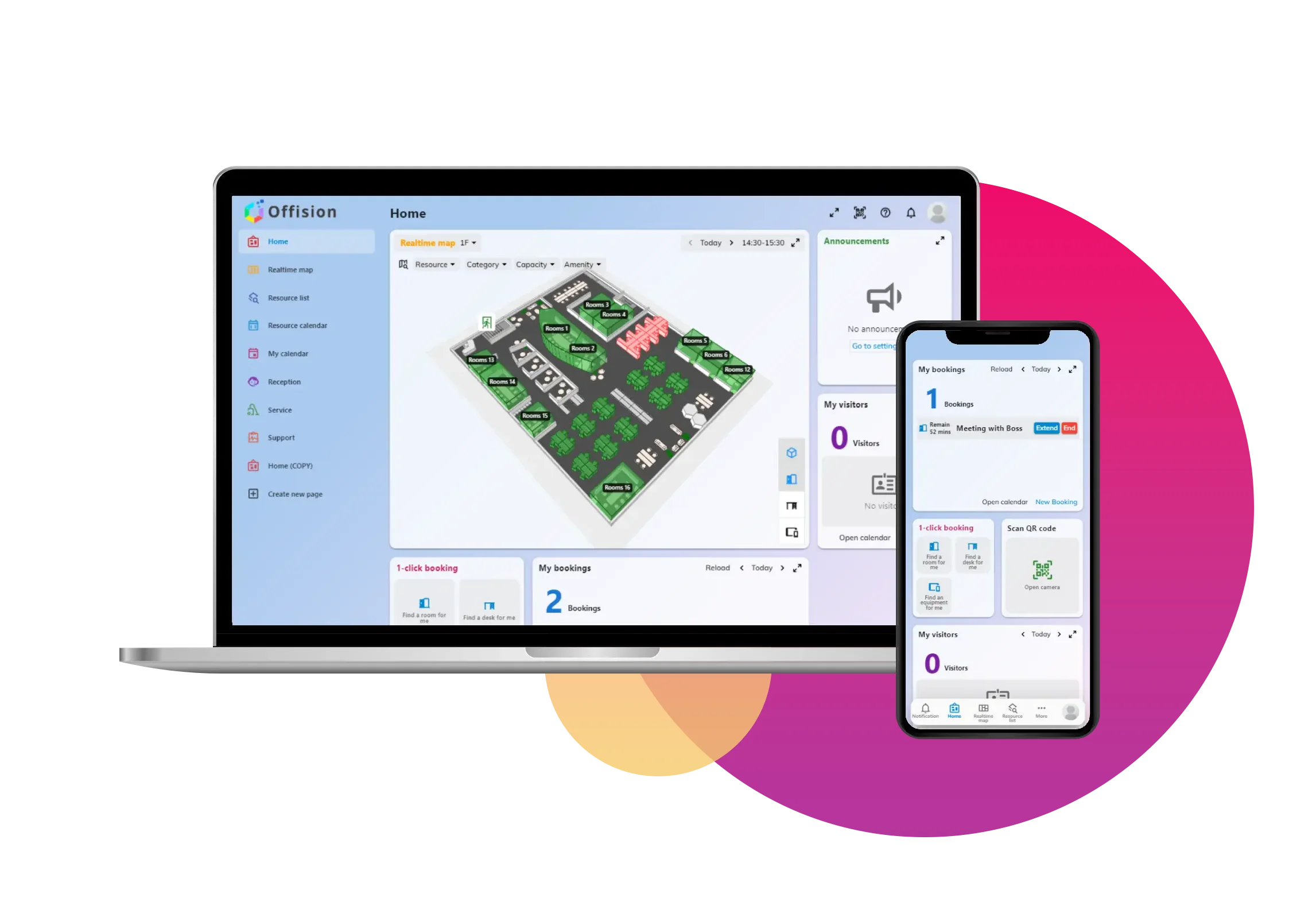
Offision’s Contact Support Button Feature ensures users can access assistance quickly and effortlessly while using a resource. When a resource (such as a room, desk, or equipment) is in use, users will see a "Contact Support" button within their user app.
This button is designed to provide instant communication with on-duty staff through the customer’s preferred chat platform, such as Microsoft Teams, WhatsApp, or other integrated chat vendors. By clicking the button, users initiate a direct call or message, ensuring their concerns are addressed immediately.
How It Works:
- The "Contact Support" button becomes available only while a resource is in use.
- Users click the button to connect with on-duty staff.
- Communication options depend on the customer’s integrated chat vendor (e.g., Teams or WhatsApp).
- On-duty staff receive the user’s message or call and can respond promptly.
Key Benefits:
- Real-time support for users during resource usage.
- Flexible communication via multiple chat platforms.
- Reduces downtime by providing immediate troubleshooting.
- Enhances user confidence and satisfaction with reliable assistance.
This feature is ideal for organizations that prioritize responsive support for their users, especially in environments where resources are frequently used.
Pros
Quick Access to Support
- Users can instantly contact on-duty staff without searching for contact details.
- Saves time during critical situations by providing direct communication.
Improved User Experience
- Ensures users feel supported while using resources.
- Reduces frustration by offering an immediate solution for issues or queries.
Real-Time Communication
- Instant connection through chat platforms like Teams or WhatsApp.
- Enables fast responses to user concerns.
Customizable for Organizations
- Supports integration with multiple chat vendors based on customer preferences.
- Flexible setup to align with existing communication systems.
Efficiency for On-Duty Staff
- Staff can respond quickly through familiar chat platforms.
- Reduces the need for users to report issues through separate channels.
Minimizes Downtime
- Immediate support reduces delays in resource usage.
- Ensures resources are back in operation quickly if problems arise.
Professional and Accessible
- Makes the booking system feel more reliable and user-friendly.
- Encourages users to report issues instead of ignoring them.
This feature is an excellent tool for enhancing user experience and ensuring smooth resource usage. While it offers significant benefits in terms of real-time support and convenience, careful implementation and staff training are essential to address potential challenges effectively.

 Neat
Neat
 Crestron