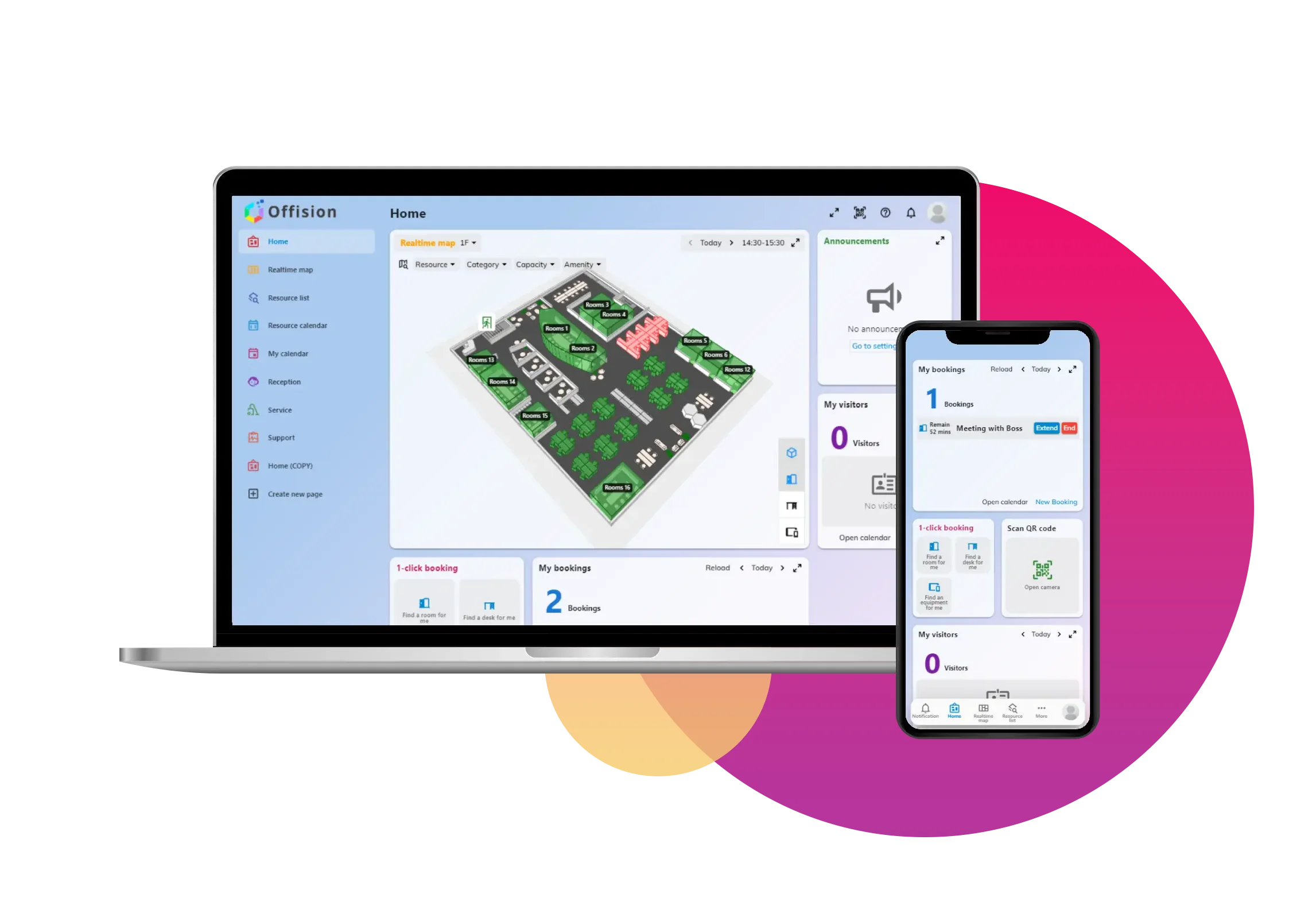
Easily manage visitor invitations in Offision with an approval system. Invite, approve, notify, and track visitor requests seamlessly, ensuring a secure and streamlined process every step of the way.
洞察與最佳實踐,協助您優化工作空間
The visitor invitation approval workflow in Offision enhances security and simplifies visitor management. Here's how it works:
Invite Visitor:
Approval Notification Sent:
Approver Reviews Request:
Approval or Rejection Decision:
Visitor Notified:
This workflow ensures a transparent and controlled process for managing visitor access.
The visitor invitation approval workflow in Offision offers multiple benefits:
Enhanced Security:
Time-Saving Notifications:
Streamlined Approval Process:
Improved Visitor Experience:
Transparency and Accountability:
Customizable for Locations:
With Offision, managing visitor invitations is stress-free, efficient, and secure. The approval workflow is designed to simplify communication and ensure a seamless experience for everyone involved.
請依照以下步驟操作
Navigate to "Location", and create a building
Input name, country or regions, address, and location on Google map
Add / edit a floor in the building
Navigate to "User groups", then create / edit a user group
Select "User" permission to the user group
Add users to the user group
Navigate to "Visiting policy", and create / edit a policy
Enable "Visitor approval", and add users to the list to approve visiting invitations
Navigate to "System interface" and scroll down to "Home page settings"
Enable "Visitor approval"
Navigate to "Visiting location", and enable the building for visiting
Assign visiting policy to the building
Navigate to "Location", and create a building
Input name, country or regions, address, and location on Google map
Add / edit a floor in the building
Navigate to "User groups", then create / edit a user group
Select "User" permission to the user group
Add users to the user group
Navigate to "Visiting policy", and create / edit a policy
Enable "Visitor approval", and add users to the list to approve visiting invitations
Navigate to "System interface" and scroll down to "Home page settings"
Enable "Visitor approval"
Navigate to "Visiting location", and enable the building for visiting
Assign visiting policy to the building
備受全球機構信賴
加入數百間使用 Offision 提升工作空間管理效率的企業


©2026 ONES Software Ltd. All rights reserved.

 Neat 裝置
 Crestron