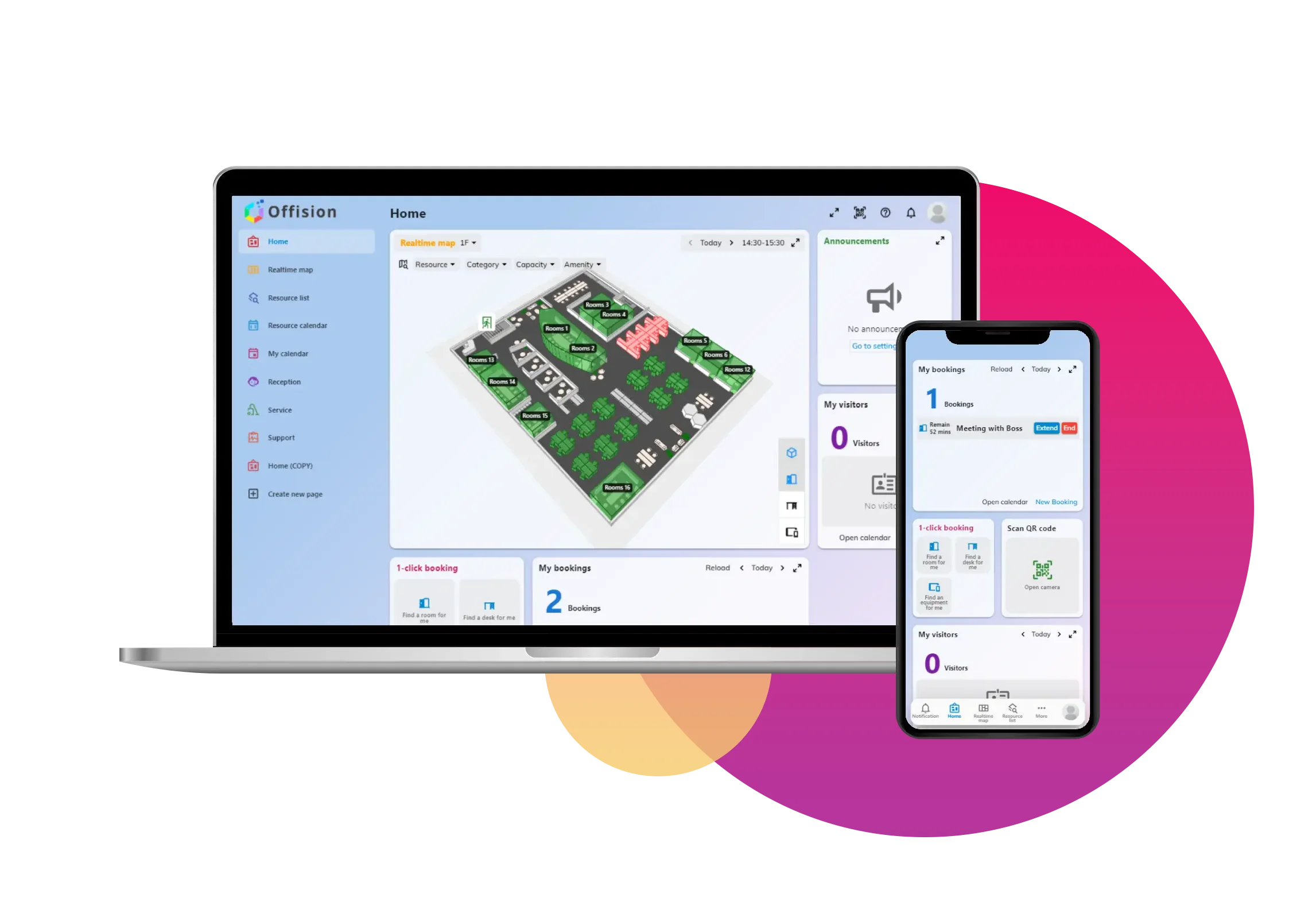
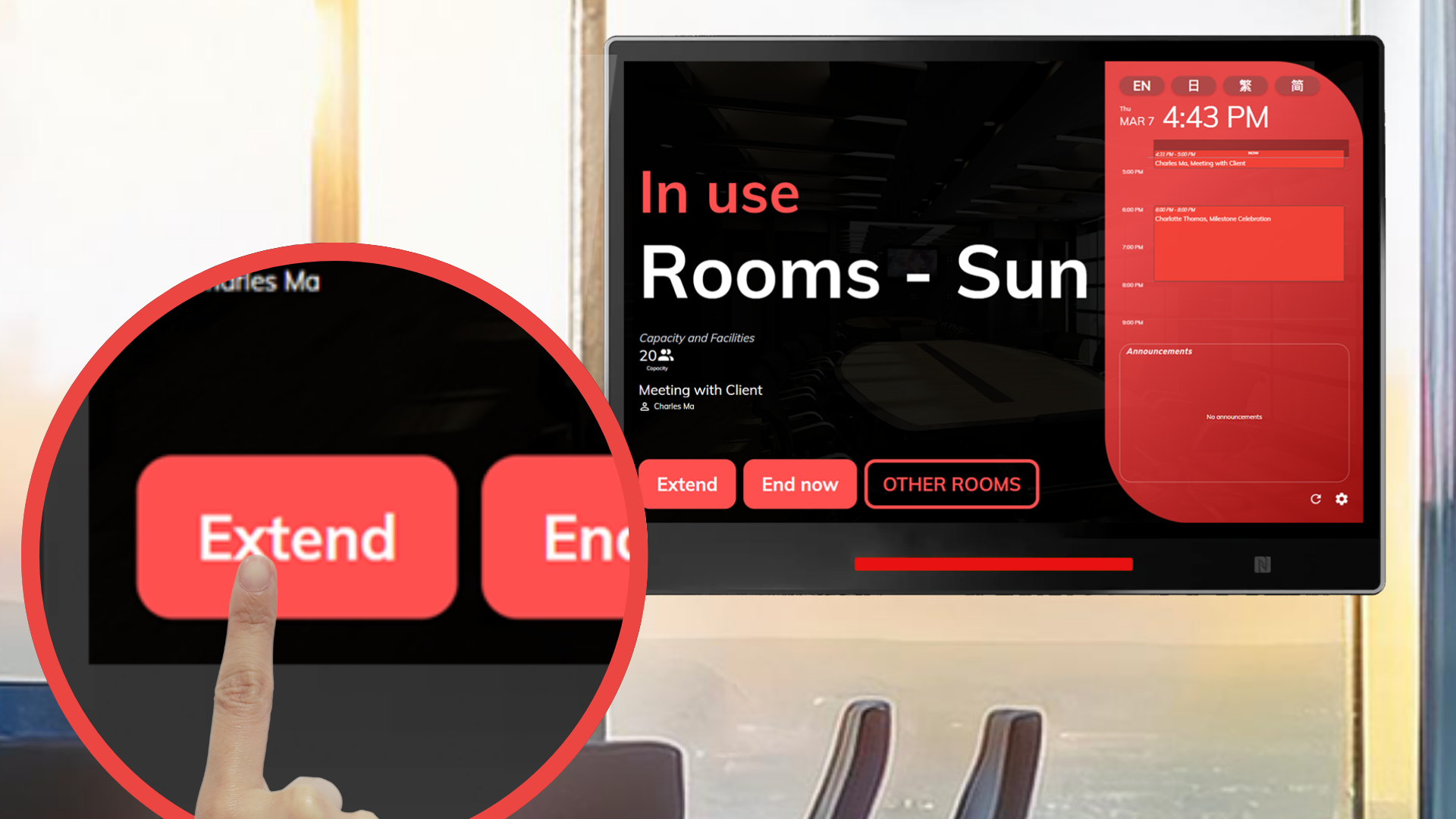
Offision's Extend Your Booking from the Room Panel feature offers users a convenient way to extend their current bookings without needing to leave the resource location. This feature is designed to provide flexibility and enhance user experience by allowing seamless control over ongoing bookings, directly through the room panel.
Key Features:
- Easy Extensions: Users can extend their bookings directly from the room panel without additional steps.
- Flexibility: Offers real-time adjustments to bookings, making it suitable for dynamic needs.
- Fair Usage: Ensures fairness by only allowing extensions if no conflicts exist with other bookings.
- Efficient Resource Management: Guarantees smooth resource allocation by preventing overlap or disruptions.
- Enhanced Experience: Saves time, provides convenience, and improves satisfaction for users requiring extended access.
This feature is particularly useful for meetings or events that run longer than expected, allowing users to adjust their bookings on the spot. Designed with fairness and efficiency in mind, Offision ensures that all users benefit from a smooth, well-managed booking system.
Pros
User Convenience
- Allows users to extend bookings directly from the room panel, saving time and effort.
- Reduces the need to access separate systems or create additional bookings.
Flexibility and Adaptability
- Supports dynamic scheduling by enabling real-time adjustments for users.
- Ideal for events or meetings that run longer than expected.
Efficient Resource Management
- Ensures that resources are allocated fairly by checking availability before granting extensions.
- Prevents scheduling conflicts or overlaps with other users.
Improved User Experience
- Simplifies the booking process by integrating extensions into the room panel interface.
- Reduces stress for users who need extended access to resources.
Streamlined Operations
- Enhances operational efficiency by managing extensions within the same system.
- Avoids disruptions caused by sudden resource changes or conflicts.
Real-Time Updates
- Users get immediate feedback on whether an extension is possible, helping them make quick decisions.
Fairness in Usage
- Extensions are only allowed if the resource is available, ensuring fair access for all users.
- Prevents misuse or monopolization of shared resources.
Offision’s Extend Your Booking from the Room Panel feature is a valuable addition for users who require flexibility and convenience. While it relies on system functionality and room panel availability, the feature’s ability to simplify extensions, manage resources fairly, and enhance user satisfaction makes it an essential tool for efficient booking management.

 Neat
Neat
 Crestron