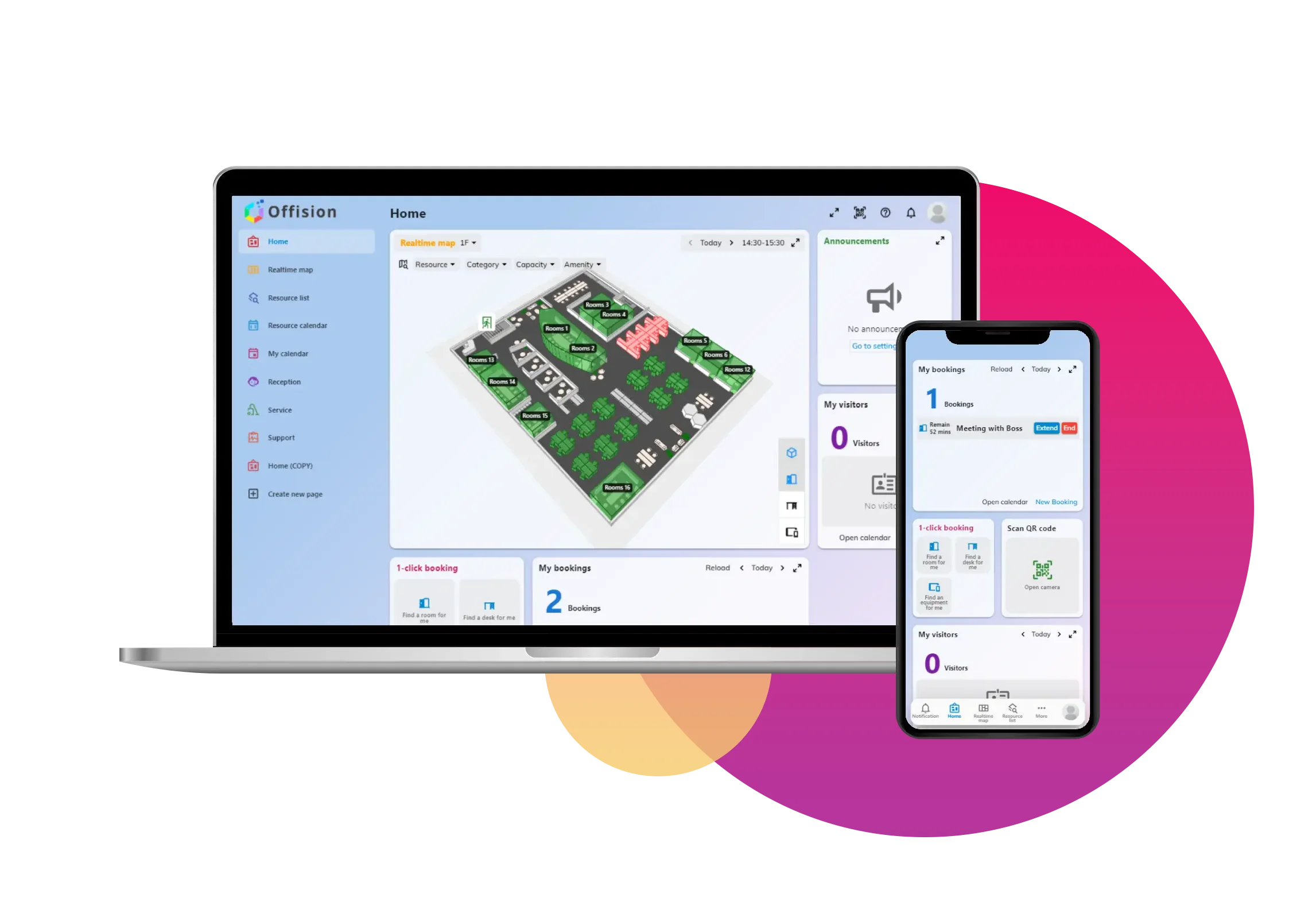
The Visual Indicators for Remaining Availability on Booking Panels feature in Offision enhances booking efficiency by providing visual alerts for short availability periods. Admins can configure unique colors for 15, 30, or 60 minutes left before the next booking. When a resource is nearing its next reservation, the panel automatically changes its screen color, allowing users to quickly identify resources with limited availability.
Key Features:
Custom Color Configuration:
Admins can assign specific colors for the 15, 30, or 60-minute availability periods.
Automatic Screen Color Updates:
The booking panel automatically changes colors based on the remaining time before the next booking.
Improved Resource Management:
Clear color indicators help users identify resources that are temporarily available, boosting efficiency in busy environments.
Time-Saving Visual Alerts:
Users can quickly scan for available resources without checking detailed booking schedules.
This feature is ideal for organizations looking to streamline booking processes and improve resource utilization through clear visual indicators.
Pros:
Improved Visibility:
- The screen color change provides a clear and immediate visual alert for resources with limited availability.
- Users can easily identify which resources are available for short periods without accessing detailed booking information.
Customizable Settings:
- Admins can configure specific colors for 15, 30, or 60-minute intervals, tailoring the feature to meet organizational needs.
- Flexible settings ensure the feature is adaptable to different environments and workflows.
Enhanced Efficiency:
- The feature helps users quickly locate available resources, saving time in busy or shared spaces.
- Reduces the risk of double bookings by clearly indicating when a resource is nearing its next reservation.
User-Friendly Alerts:
- The automatic color change provides a simple and intuitive way for users to understand resource availability.
- No technical knowledge or manual interaction is required to benefit from the feature.
Better Resource Management:
- Encourages optimal use of resources by clearly identifying short availability periods.
- Helps organizations maximize the utilization of meeting rooms, equipment, or desks.
Professional Appearance:
- The color-changing feature adds a modern and dynamic touch to booking panels.
- Enhances the functionality and aesthetic appeal of the workspace.
The Special Screen Color for Available Period feature in Offision is a practical and visually engaging way to improve booking efficiency. By providing clear visual indicators for short availability periods, it simplifies resource management and enhances user experience. However, proper configuration and thoughtful implementation are essential to maximize its benefits while addressing potential drawbacks.

 Neat
Neat
 Crestron