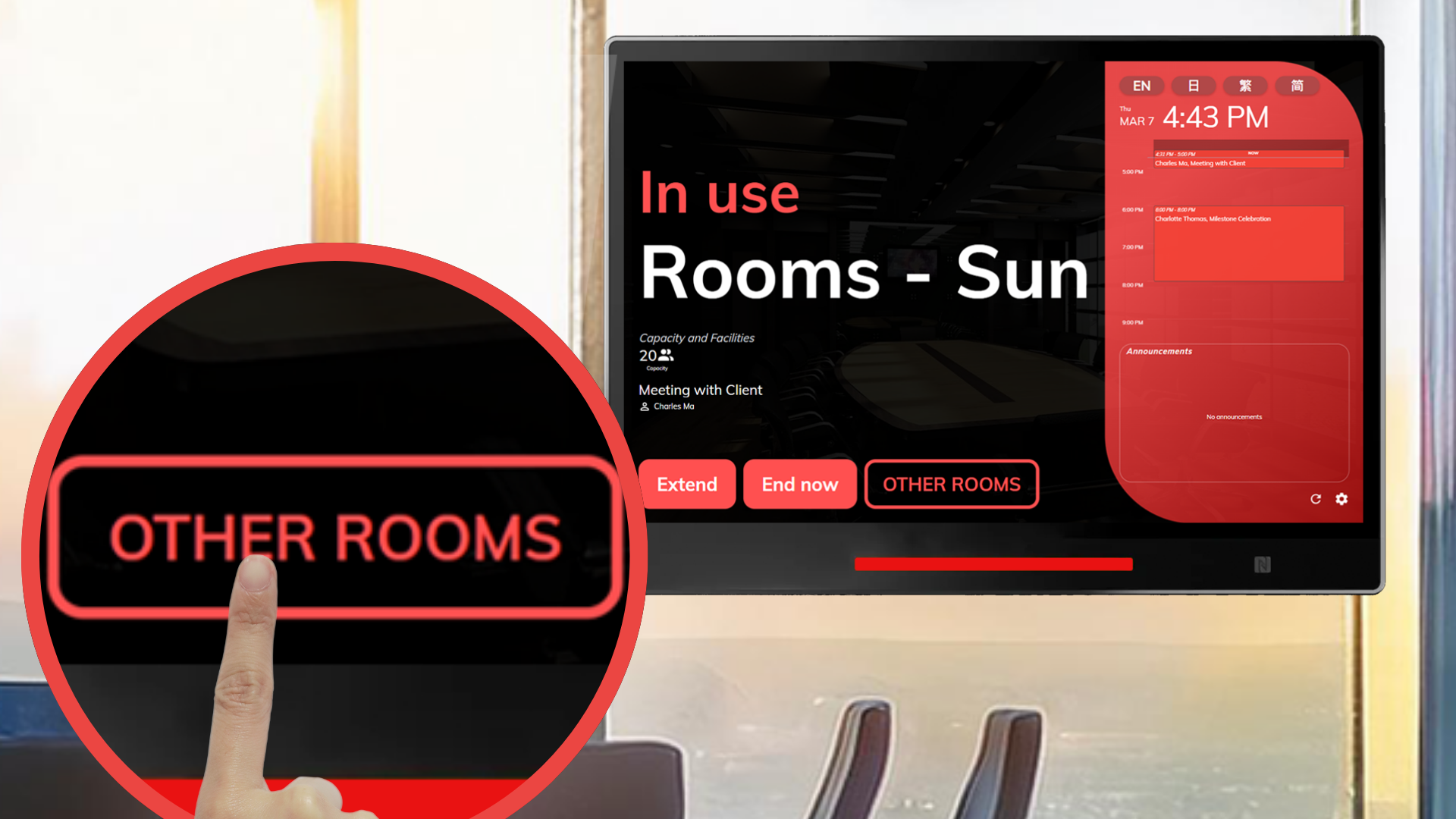
Offision’s Find Nearby Available Rooms via the Booking Panel feature simplifies room management by allowing users to locate and book nearby available rooms instantly. Whether a preferred room is unavailable or a meeting runs long, this feature ensures users can adapt their plans without hassle.
Key Features:
- Real-Time Room Availability: Provides up-to-date information on nearby available rooms.
- Seamless Adjustments: Easily transition to another room if your preferred room is unavailable or your booking ends unexpectedly.
- Convenience and Flexibility: Enables users to make quick decisions and adapt to changing circumstances.
- Efficient Resource Use: Ensures optimal utilization of available rooms.
- User-Friendly Interface: The booking panel makes it simple to view, select, and book alternative rooms.
This feature is particularly useful for organizations with high room demand, enabling users to handle unexpected changes or scheduling conflicts effortlessly. Designed with flexibility and user convenience in mind, Offision ensures a smooth booking experience while maintaining efficient resource management.
Pros
Real-Time Room Availability
- Provides instant updates on nearby available rooms.
- Ensures users can quickly locate and book alternative spaces.
Enhanced Flexibility
- Allows users to adapt quickly to changing circumstances, such as running over time in a meeting.
- Ideal for dynamic schedules in busy organizations.
Streamlined Adjustments
- Enables users to transition seamlessly to another room if their current booking ends unexpectedly.
- Supports continuity for ongoing meetings or activities.
Convenience and Accessibility
- Simplifies the process of finding and booking rooms through an intuitive interface.
- Reduces the stress of last-minute scheduling conflicts.
Efficient Resource Management
- Optimizes the use of available rooms by ensuring none are left unused.
- Helps organizations maximize resource utilization and minimize idle spaces.
Improved User Experience
- Saves time by eliminating the need to manually search for rooms.
- Makes room booking more efficient and hassle-free for users.
Supports High-Demand Environments
- Perfect for organizations with frequent room bookings and high usage.
- Helps manage resources effectively even during peak times.
Offision’s Find Nearby Available Rooms via the Booking Panel feature is an invaluable tool for enhancing flexibility and convenience in room management. While it depends on system accuracy and availability, its ability to simplify adjustments, optimize resource usage, and improve user experience makes it a crucial feature for busy organizations.

 Neat
Neat
 Crestron