

Work through the reported issues queue
Find a ticket, give it to somebody, move it along and answer the reporter — one at a time or in bulk, from the Reported issues page.
Every report, from the app and from every room panel, arrives on one page: Reported issues. This is how a support manager works it.
1. Open the queue and choose which half you are looking at
Open Reported issuesThe page opens on Handling — everything not yet closed, so New, In progress and Resolved together. The other half of the segmented control is Closed. There is no view that shows both, which is worth knowing before somebody reports a ticket as missing: it was closed.
Beside it are search, and a Card view / List view switch. List view is the one with columns and filters, and the rest of this article assumes it.
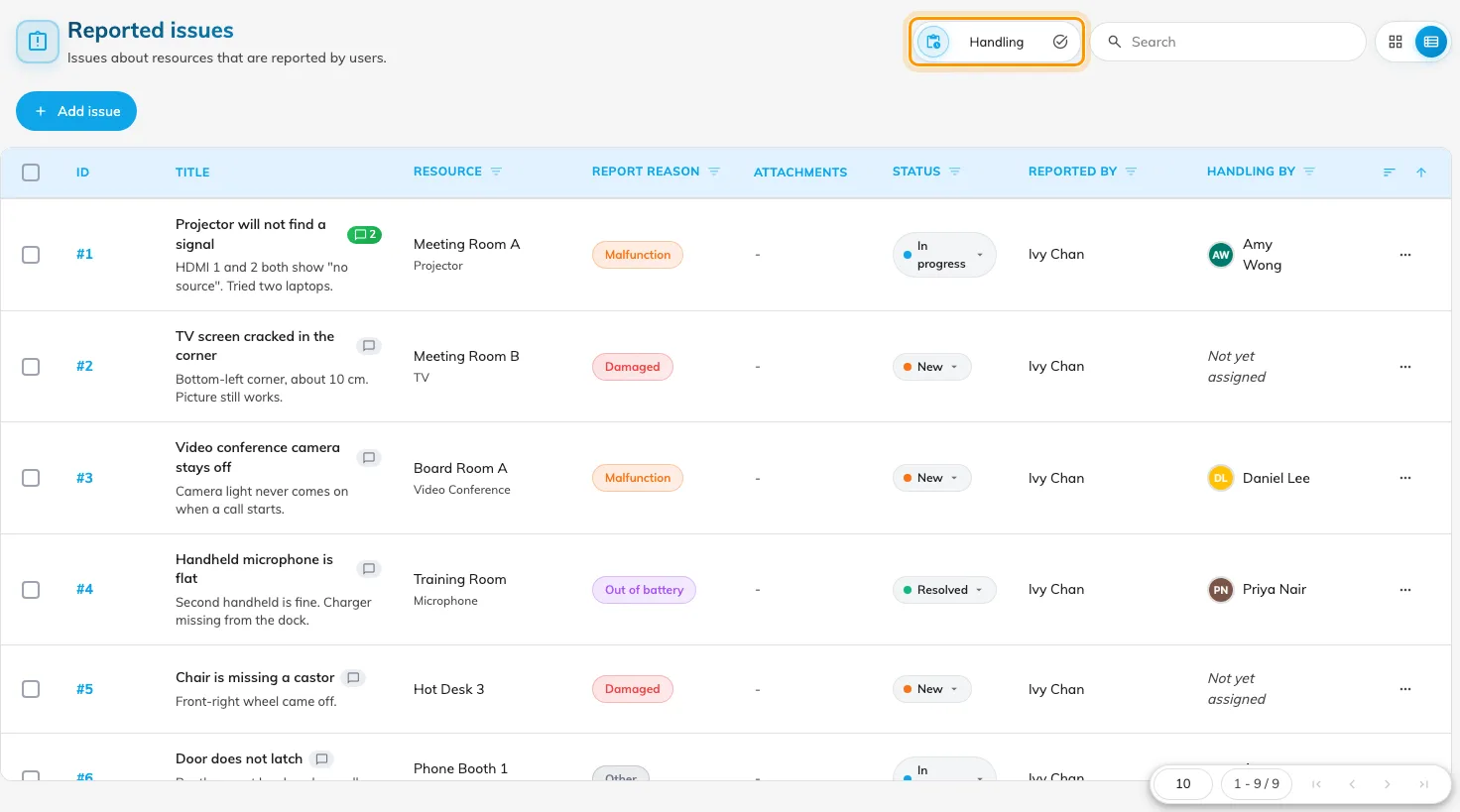
The queue in list view. The Handling / Closed control decides which half you see.
2. Narrow it to the ones you care about
Five of the columns filter: Resource, Report reason, Status, Reported by and Handling by. They combine, so this room + Out of battery + Not yet assigned is one click each.
Two of them answer the questions that come up most often:
- Handling by set to yourself is your own workload.
- Resource is how you answer “how many times has that room been reported this month” without leaving the page.
The remaining columns — ID, Title, Attachments, Date and Time — sort but do not filter. Attachments is worth a glance before you walk anywhere: a report made from the app often carries photographs, and a report made at a room panel never does.
3. Give it to somebody
Open the ticket by clicking its row, or select the row and use Assign to. Either way you are choosing from support staff.
Assigning is what turns a general announcement into one person’s job: the moment a ticket has an assignee, that person is emailed and notified, and further announcements about it stop going to everybody else. Reassigning notifies the new person; it does not tell the previous one they have been taken off.
4. Move it along
The status is editable in place from the row, and from the selection bar as Change status — New, In progress, Resolved, Closed.
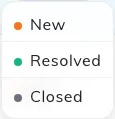
Changing a ticket's status from its row.
Any of the four can be set at any time. Setting a closed ticket back to New is how a fault that has come back is handled — reopen the ticket rather than filing a second one, so the room’s history stays in one place and the dashboard’s count of that room stays honest.
5. Answer the reporter
Each ticket has a comment thread, reachable from the comment mark on its row.
Comments are the one channel back to the person who reported the issue: a new comment notifies the people on the thread, and the reporter sees it in the app against their own report. A comment can be edited — it is then marked Edited — or deleted.
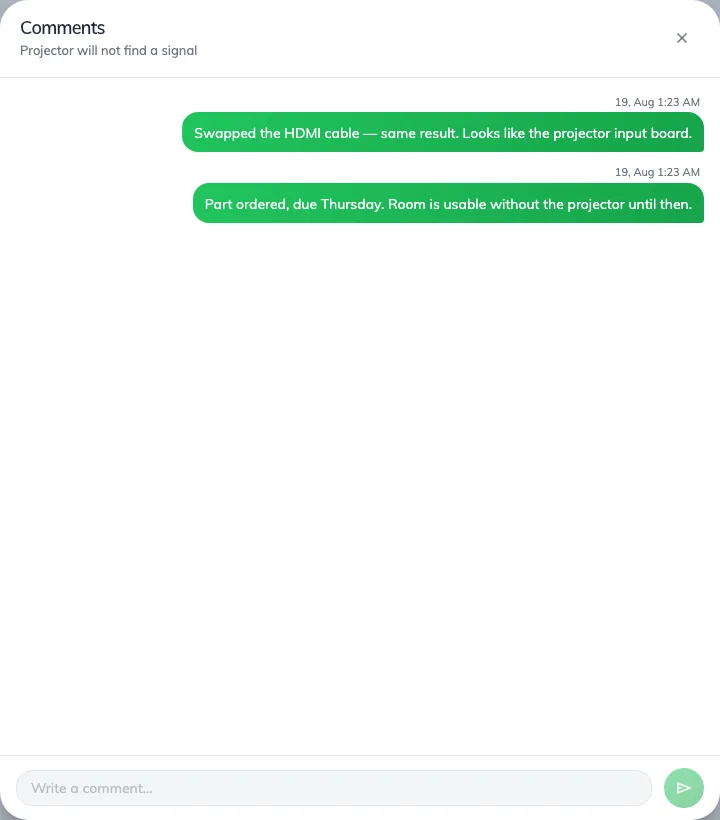
The comment thread on a ticket.
6. Clear a batch at once
Tick several rows and the selection bar offers Assign to, Change status and Delete all. Both bulk changes ask for confirmation, naming the count and the status you are setting.
Use them for what they are good at — twelve Out of battery reports on the same floor after one round of battery changes. Delete is not a status: it removes the ticket and its history, so the room loses that entry from its record. Close tickets; delete only what should never have been filed.
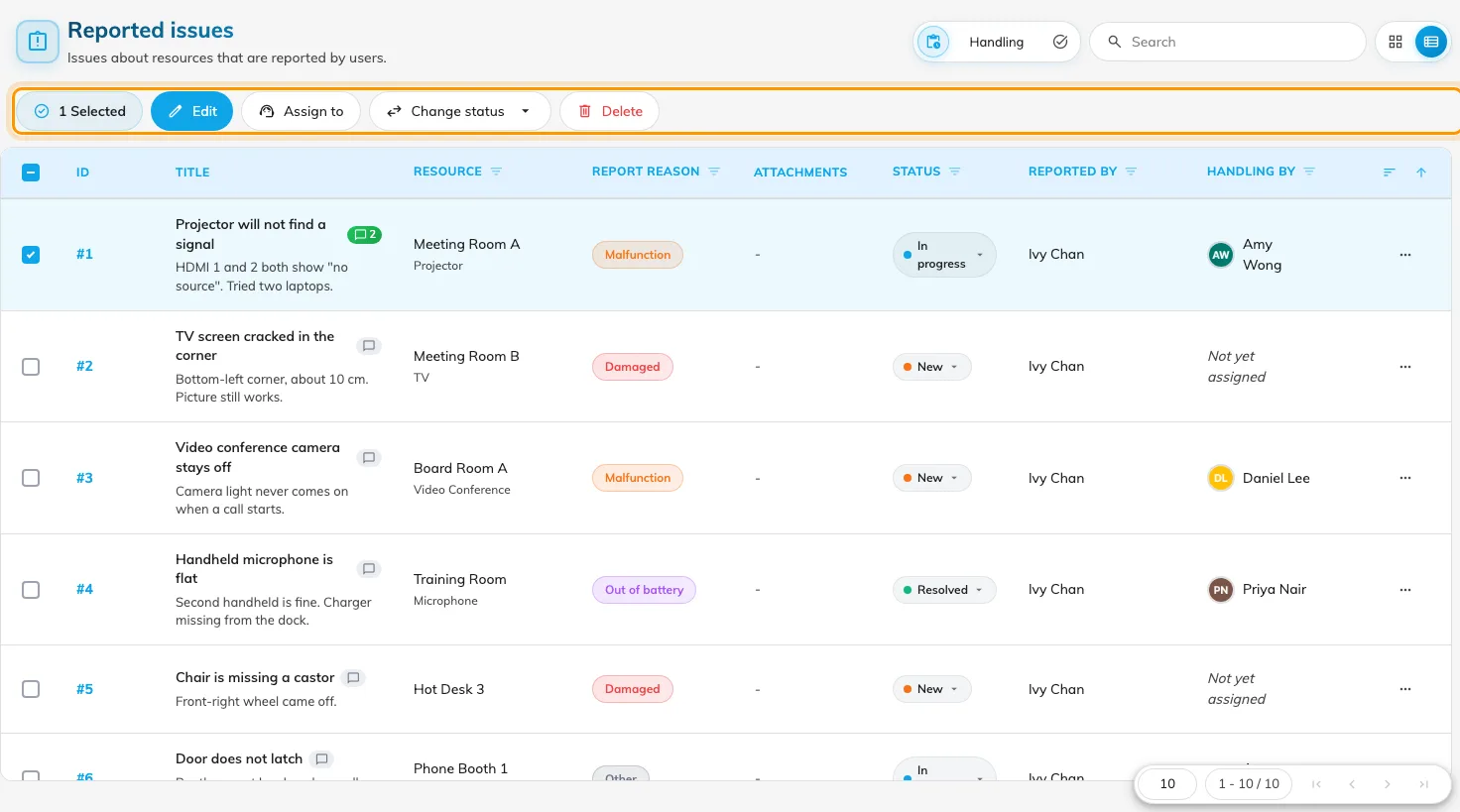
With rows ticked, the selection bar offers Assign to, Change status and Delete all.
7. File one yourself
Add issue opens the same form the queue reads, for a fault reported to you by somebody who never opened Offision — over the phone, or in the corridor. It takes the resource, an optional amenity, the reason and a description, and you can assign it as you create it.
Check it worked
Report a test issue from the app against a room you can see (how), then reload the queue. It should appear under Handling as New, with your name under Reported by and Not yet assigned under Handling by. Assign it to yourself and confirm the assignment email arrives; then close it.