

Report a problem with a room
Reporting something broken from the Offision app — which resource, what is wrong, a photograph — and how to follow your own report afterwards.
Something in the room does not work — the projector will not find a signal, a chair has lost a wheel, the panel by the door is flat. Reporting it from the app takes under a minute and gives the people who fix it everything they need.
Where to start from
On the home screen, pick Reported issues — the flag — from the row of filters across the top. The quick actions below it change to a single Report issue button.
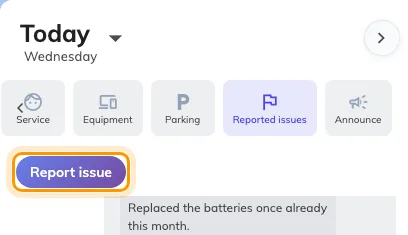
The Reported issues filter, and the Report issue action it reveals.
Two other routes reach the same form:
- On a phone, Report issue is in the action bar along the bottom.
- The Report issue button widget, if it has been added to your home layout.
1. Say which resource
The form opens on Which resource? — the room, desk or piece of equipment with the problem.
Recent used offers the places you have actually been, which is almost always where the fault is, so most reports are one tap. Search all covers everything else, including rooms you have never booked.
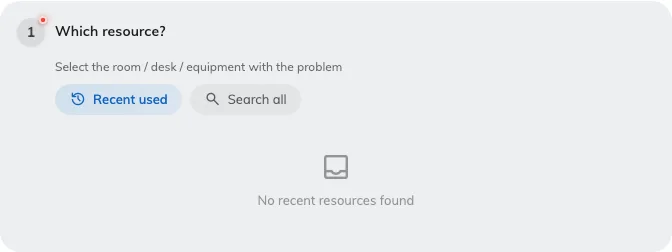
Choosing the resource, from recently used or by searching.
Under it, Specific amenity (Optional) narrows the report from the room to one thing in it — the projector rather than the room around it. Setting it is worth the extra tap: it is what tells a technician to bring a lamp rather than a ladder, and it is the difference between “Room 3 is broken” and something actionable.
Report one resource per report. A form covering three rooms could not be given to one person or counted against any of them, so if two rooms are broken, that is two reports.
2. Say what is wrong
What’s the problem? offers four kinds, each with a line explaining it:
| Reason | Use it for |
|---|---|
| Damaged | Something is broken or physically damaged |
| Malfunction | Equipment or system not working properly |
| Out of battery | Device needs charging or battery replacement |
| Other | Anything that is none of the above |
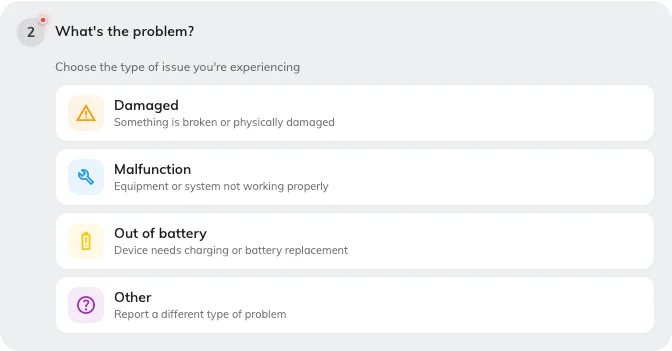
The four kinds of problem, each with what it covers.
The reason is not paperwork. It sorts the queue, and it is one of the columns the ticket dashboard counts — a floor generating fifteen Out of battery reports a month is a finding, but only if the reports say so.
3. Add a photograph
Upload images (Optional) takes photographs from the device or from its library.
Attach one whenever the fault is visible. A photograph of the error on the screen or the cracked panel settles in one glance what a paragraph would leave ambiguous, and it is the single biggest thing you can do to get the right person sent the first time. It is also the one part of a report a room panel cannot capture.
4. Describe it, then send
Additional details (Optional) is free text: what happened, what you had already tried, when it started.
The form closes with a line reminding you that the report goes to the support team. Send it, and the confirmation is immediate.
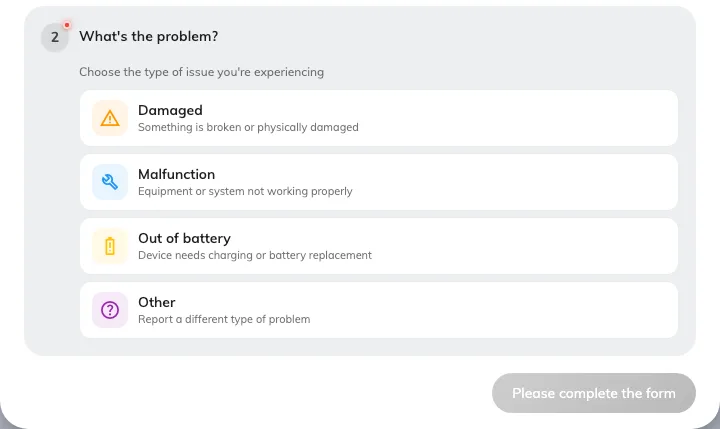
Photographs and a description, both optional.
What happens next
Support staff are told immediately — by email, and in the app. Somebody takes the ticket, works it through In progress to Resolved, and closes it.
The same Reported issues filter you started from also lists what you have reported, each with its current status. That is where to look afterwards.
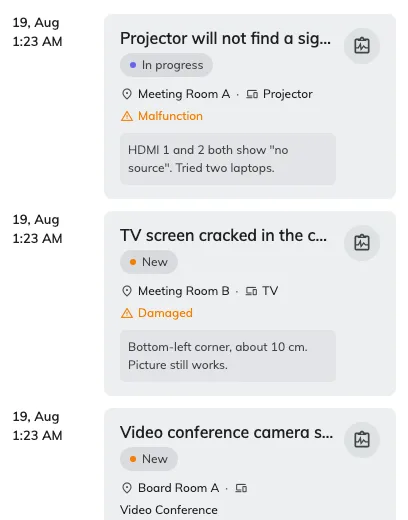
Your own reports under the Reported issues filter, newest first.
Open one to read its comment thread. Comments are how the person handling it talks to you — a new comment appears against your report, and you can answer there.
Check it worked
Your new report should appear under the Reported issues filter straight away, as New, with nobody assigned to it yet. If it does not, it was not sent — reopen the form and send it again.