

Open your Support page in the app
What turns an ordinary Offision account into support staff — the Support staff permission, granted in the admin console — which tickets then reach you, and where the page appears in the app.
Everything in this guide happens in the Offision app — the same app everybody books rooms in. Support staff are ordinary users with one extra permission, and that permission is what grows a Support page on the app’s left menu.
1. Get on the Support staff list
The permission is Support staff, and it is granted in the admin console under Support staff in the Ticketing section — one person at a time, or a whole user group at once. Without it the page does not appear at all, and there is no setting in the app that brings it back.
Open Support staff2. Know what that list gets you
Being on it does three things at once, and only the third is this page:
- Reported issues can be assigned to you — the assignee picker in every queue is that list.
- You are told when somebody reports an issue that nobody has picked up: an email, and a notification in the app.
- The Support page appears in your app.
One thing surprises people who come from the service side: there is no catalogue of what is yours. Everybody on Support staff sees every ticket in the estate, and every unassigned report is announced to all of them. A queue fuller than you expected is the design, not a misconfiguration.
3. Open the page
Sign in to the app and pick Support from the left menu — the orange icon, with a badge counting the issues still open.
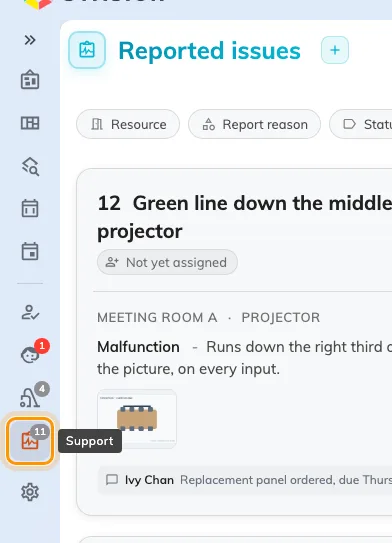
The app's left menu. Support carries a count of the issues still open.
Check it worked
The page opens on Reported issues, listing everything not yet closed. If it opens empty, check the queue toggle first — it starts on Opening issues, so anything already finished with is one switch away, not missing. What the page shows and how to work it is Run your support day from the app.