

Handle tickets at the support panel
Working the shared queue on the wall — what the waiting number means once it turns amber and then red, how Take, Resolve and Close move a ticket, and the two things a panel tap can never do.
The support panel is the screen in the facilities office or the workshop: every open ticket, grouped by the floor it was reported on, each with a number counting the minutes since somebody reported it. This page is how to work that queue — and what the screen deliberately cannot do.
Reading the screen
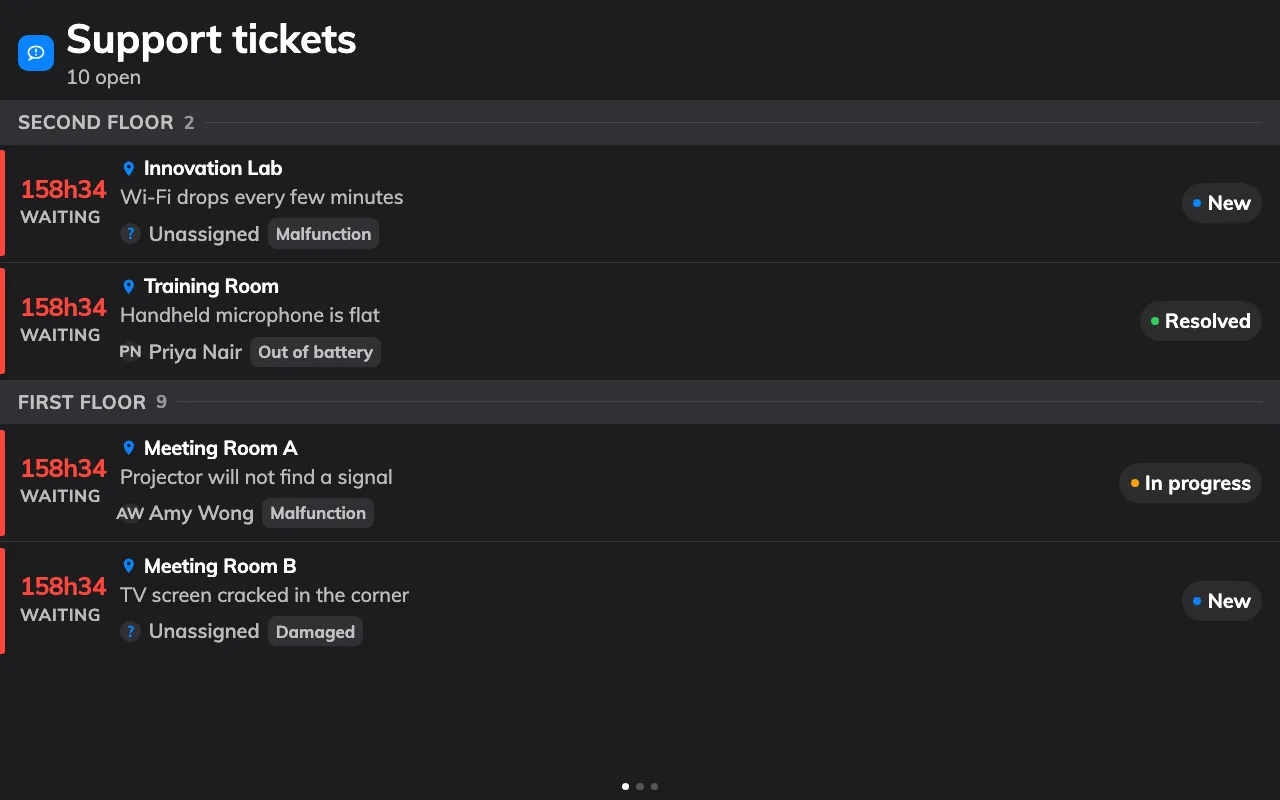
The queue: floor by floor, with the number telling you who has waited too long.
Each row carries the room, what is wrong, and — where the screen is set up to
show them — the reason and who is handling it. The headline is the waiting
number: minutes while it is under an hour, then 1h02 and the word waiting.
- Plain — waiting, within the time the team allows itself.
- Amber — past the panel’s warn threshold. Somebody should pick it up now.
- Red — past the overdue threshold. This is the escalation.
Both thresholds are minutes chosen when the panel was set up, and either can be switched off. When more tickets arrive than fit, the screen turns its own pages. An empty screen says No open tickets, which is the state to aim for.
Working a ticket
On a touch screen, tap a row. Its details open with the buttons its current state allows, and they are the whole workflow:
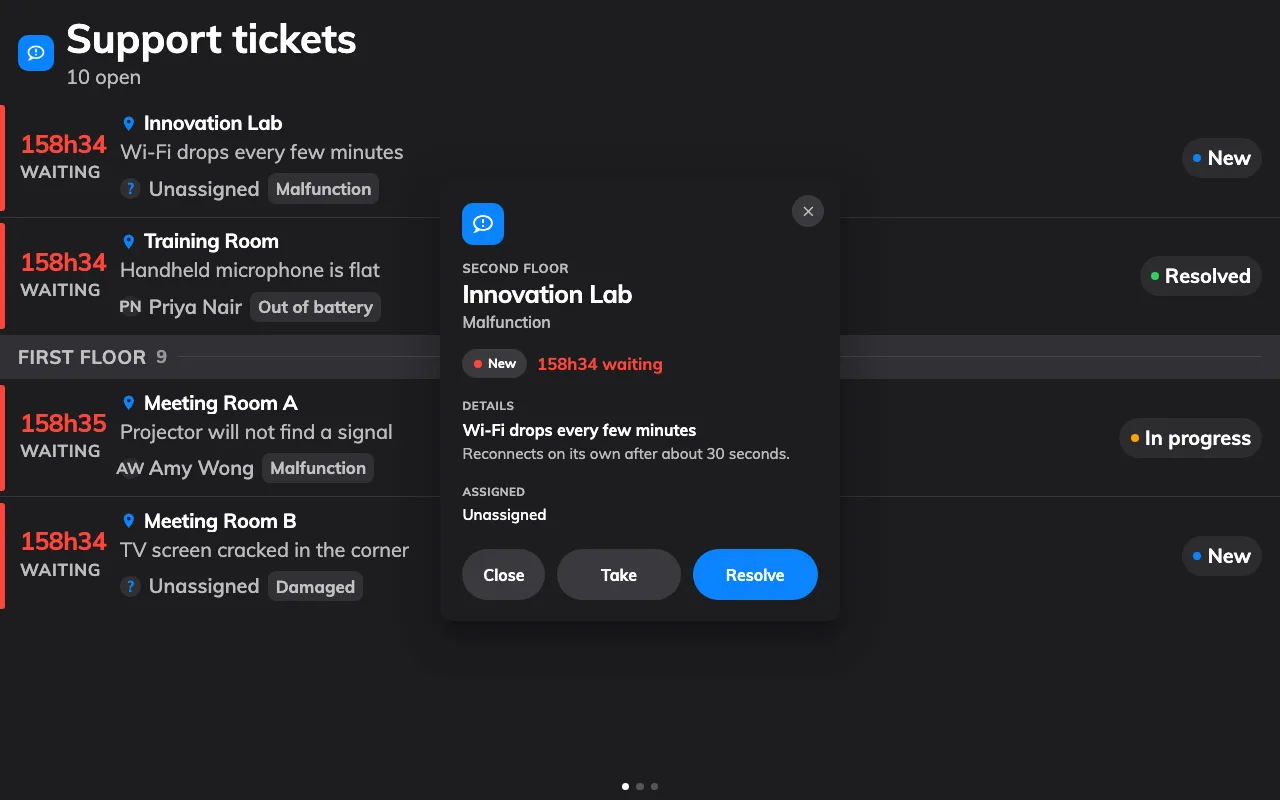
A ticket, opened: the room, what is wrong, who has it, and the buttons that move it.
- Take when you pick it up. Offered on a new ticket only — one already in progress has an owner. It moves the ticket to In progress, which the app, the console and every other panel see at once.
- Resolve when the fault is fixed.
- Close when the ticket is finished with, which takes it off this screen.
That is the whole workflow: tap, fix, tap. A mistake is not fatal — a resolved or closed ticket can be put back to New from the queue in the app or the console.
What a panel tap cannot do
The panel is built for speed, and three things are traded away for it. Knowing them saves an argument later:
- It never tells the person who reported the fault. Nothing on this screen writes a comment, and a comment is the only thing that reaches them. Do that from the app: Reply to the person who reported it.
- It cannot put a name on a ticket. There is no assignee picker here, so a ticket taken at the panel is in progress without being anybody’s. Assign it in the app if the team needs to know who has it.
- It is anonymous. The panel acts as the screen, not as a person, so the log records that a ticket was taken and not by whom. A team that needs per-person accountability works from the app.
There is no search and no filter either: the screen shows what the panel was set up to watch, and nothing else. Which rooms that is, which statuses it lists and where the two thresholds sit are all settings on the widget.
Open Signage