

Run your service day from the app
The Booking service page as a working day — the four states a request moves through, the three ways to look at them, and how to find one request fast when the list is long.
The Booking service page is one list: every request for the services you fulfil, on the bookings they hang off. The day’s work is moving each one along.
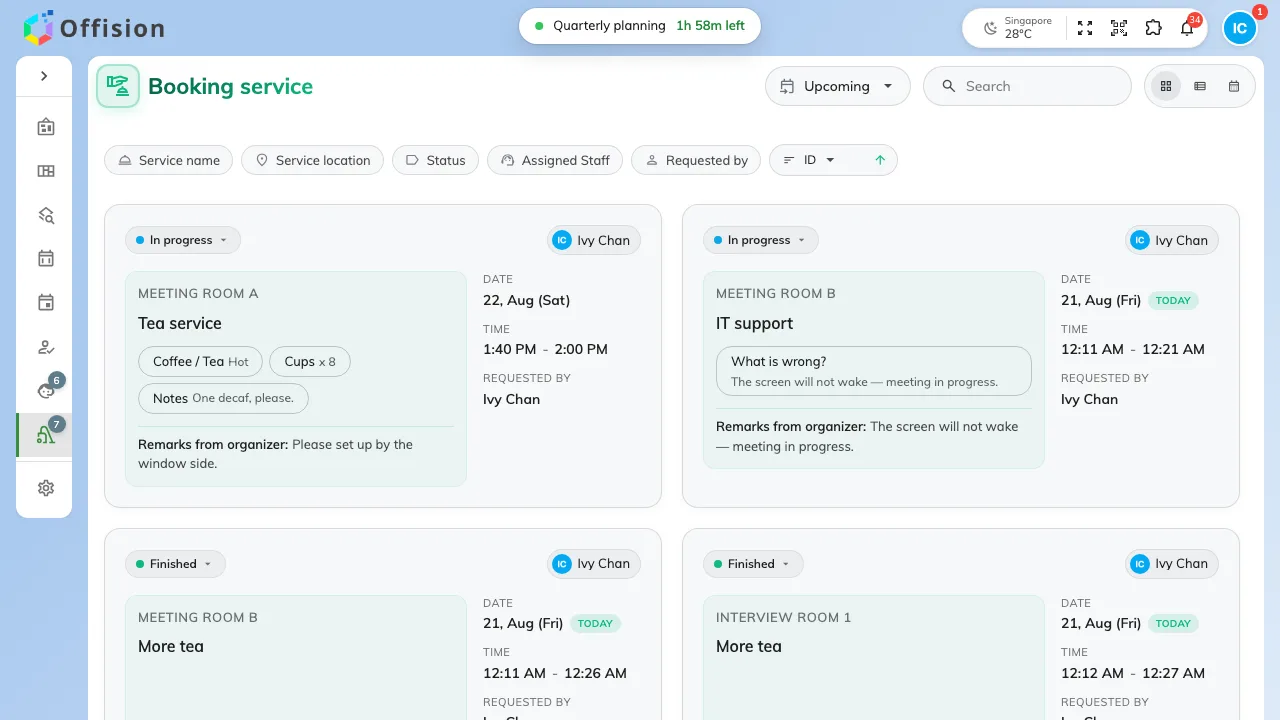
Today's requests: the room, the service, what was ordered, and who asked.
The four states
Every request is in one of four, and the pill on it says which:
- New request — nobody has picked it up.
- In progress — somebody has, and the rest of the team can see that.
- Finished — delivered.
- Rejected — turned down.
Nothing else moves a request. Moving one is Move a request from new to finished.
Upcoming or past
The page opens on Upcoming and sorts soonest first. Switch it to Past and the same list runs backwards, most recent first — that is where a request goes once its booking is over, not away.
This is the setting worth checking before anything else. A page that looks empty is more often on the wrong side of today than actually empty.
Three ways to look at the same day
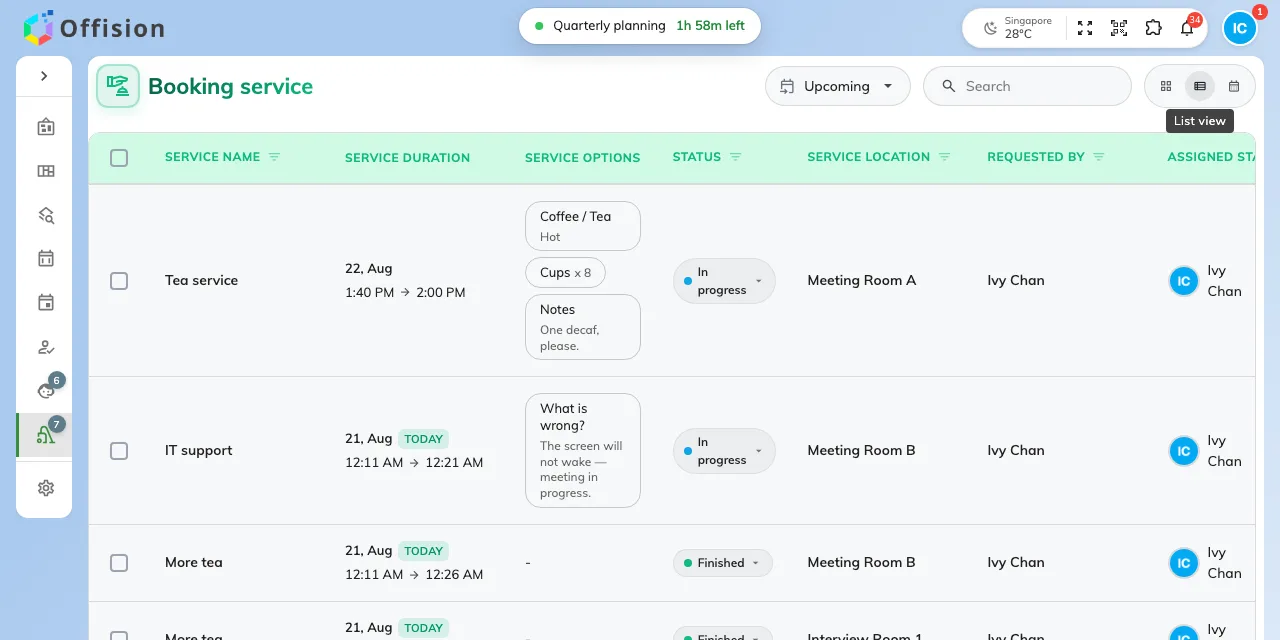
List view: a column per thing you sort or filter by.
- Card view — one card per request, with the options and remarks on its face. This is the one phones get.
- List view — a row per request, with a column for the service, its duration, the options, the status, the room, who asked and who it is assigned to. Each column heading filters and sorts on itself.
- Calendar view — the day, week or month, for seeing what is coming rather than what is waiting. Switching to it clears the filters, so set them again when you come back.
Finding one request
Search matches the service, the person who asked, the room, the organizer’s remarks and the staff response — so a room name or half a sentence from the remarks both work.
The chips along the top narrow it instead: Service name, Service location, Status, Assigned Staff and Requested by. They stay put while you work, and they survive a reload.