

Move a request from new to finished
Processing, Finish and Reject in the app — the response you can write back to the person who asked, the tick that actually tells them, reopening one you got wrong, and what changes when you move many at once.
Three buttons carry the whole job. They hang off the status pill on a card, and off the row in list view.
1. Pick it up
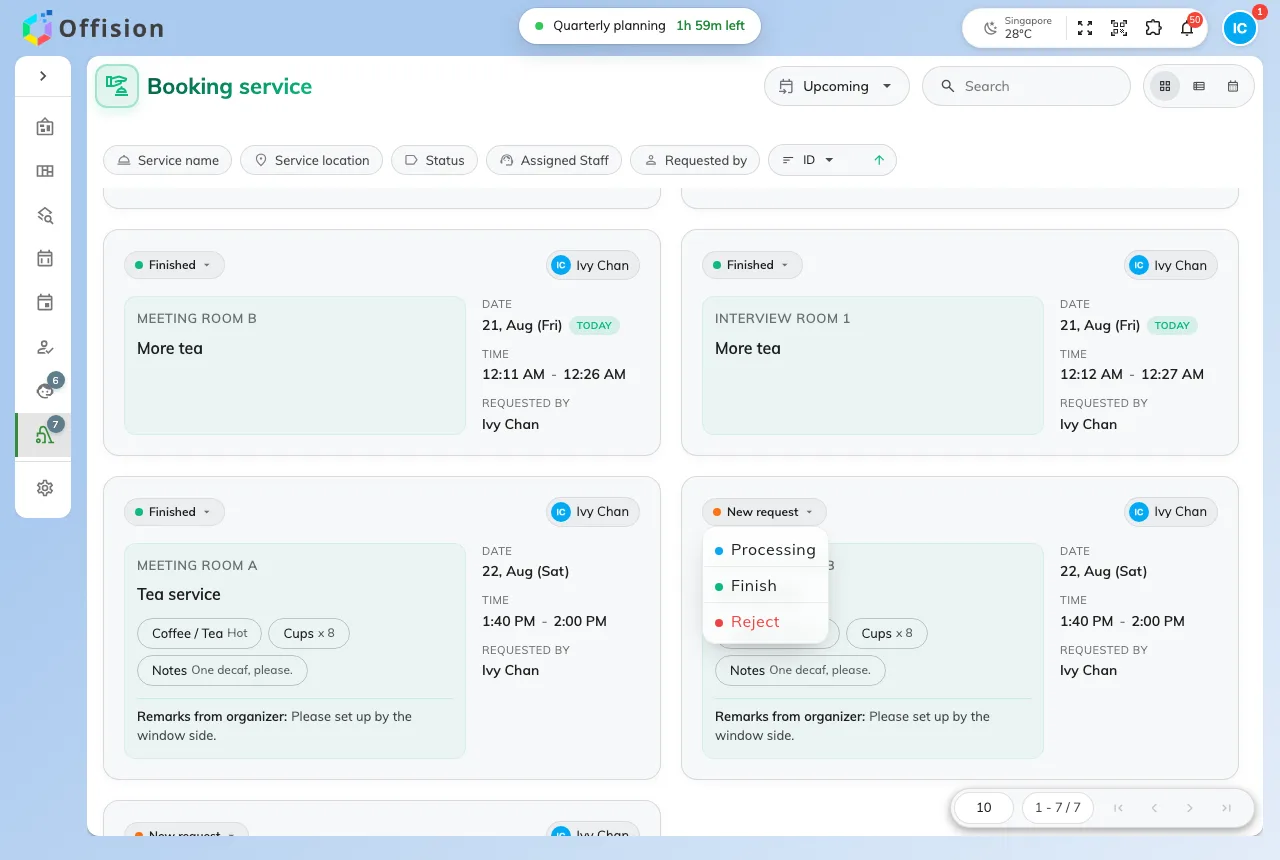
The status pill opens the actions the request's current state allows.
Tap the status pill and choose:
- Processing — you have taken it. Offered on a New request only; a request already in progress has an owner.
- Finish — delivered.
- Reject — turned down.
Which of the three you are offered depends on where the request is now. A Finished or Rejected one offers Edit instead, and that is how a mistake gets undone: Edit opens the full status list, so a request can go back to New request and be worked again.
2. Write back, and decide whether to tell them
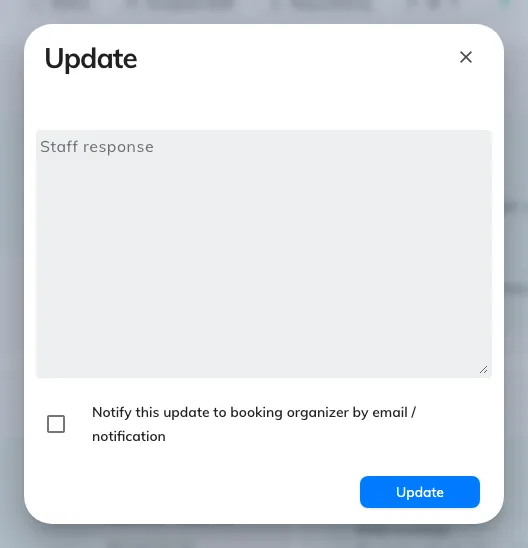
Every status change opens this: a response to the requester, and the tick that sends it.
All three buttons open the same dialog before anything changes:
- Staff response — free text back to whoever asked. “Set up by the window as requested”, or the reason for a rejection. It shows on the request from then on, wherever the request is opened.
- Notify this update to booking organizer by email / notification — the tick that actually reaches them. Leave it clear and the status moves silently.
Then Update.
3. Put a name on it
The badge in the corner of each card is the assignee. Tap it to hand the request to somebody — yourself when you pick up an unassigned one, a colleague when you pass it on. Requests can also arrive already assigned, if the service was set up to spread work automatically.
Many at once
Select several requests — or press Ctrl/Cmd + A for the lot — and the header offers Assign to and Change status across the selection. Both ask for confirmation and count what they are about to touch.
The trade is deliberate, and worth knowing before you use it on a rejection: a bulk change carries no staff response and notifies nobody. Clearing a morning of finished tea trays is what it is for. Anything the requester needs to hear about is one request at a time.