

Open your service page in the app
What turns an ordinary Offision account into service staff — the Service staff permission, granted in the admin console — which requests then reach you, and where the page appears in the app.
Everything in this guide happens in the Offision app — the same app everybody books rooms in. Service staff are ordinary users with one extra permission, and that permission is what grows a Booking service page on the app’s left menu.
1. Get the Service staff permission
The permission is Service staff, and it is set on your account in the admin console, under Service staff in the Service section. Without it the page does not appear at all — there is no setting in the app that brings it back.
Open Service staff2. Check which services are yours
The same screen decides what you see, not just whether you see anything. Each service in the catalogue names the staff and staff groups who fulfil it, and your page shows the requests for those services only.
One thing surprises people: a service that names nobody is offered to everybody. So an empty page usually means you were not named on any service, and a page fuller than you expected usually means one service names no one.
3. Open the page
Sign in to the app and pick Booking service from the left menu — the green icon, with a badge counting what is waiting on you.
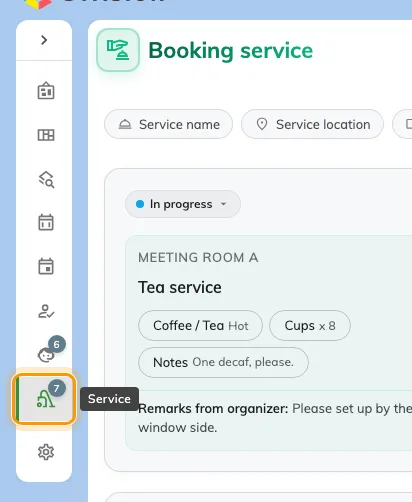
The app's left menu. Booking service carries a count of the requests waiting on you.
Check it worked
The page opens on today’s requests. If it opens empty, check the period filter first — it starts on Upcoming, so anything already delivered is one toggle away, not missing. What the page shows and how to work it is Run your service day from the app.