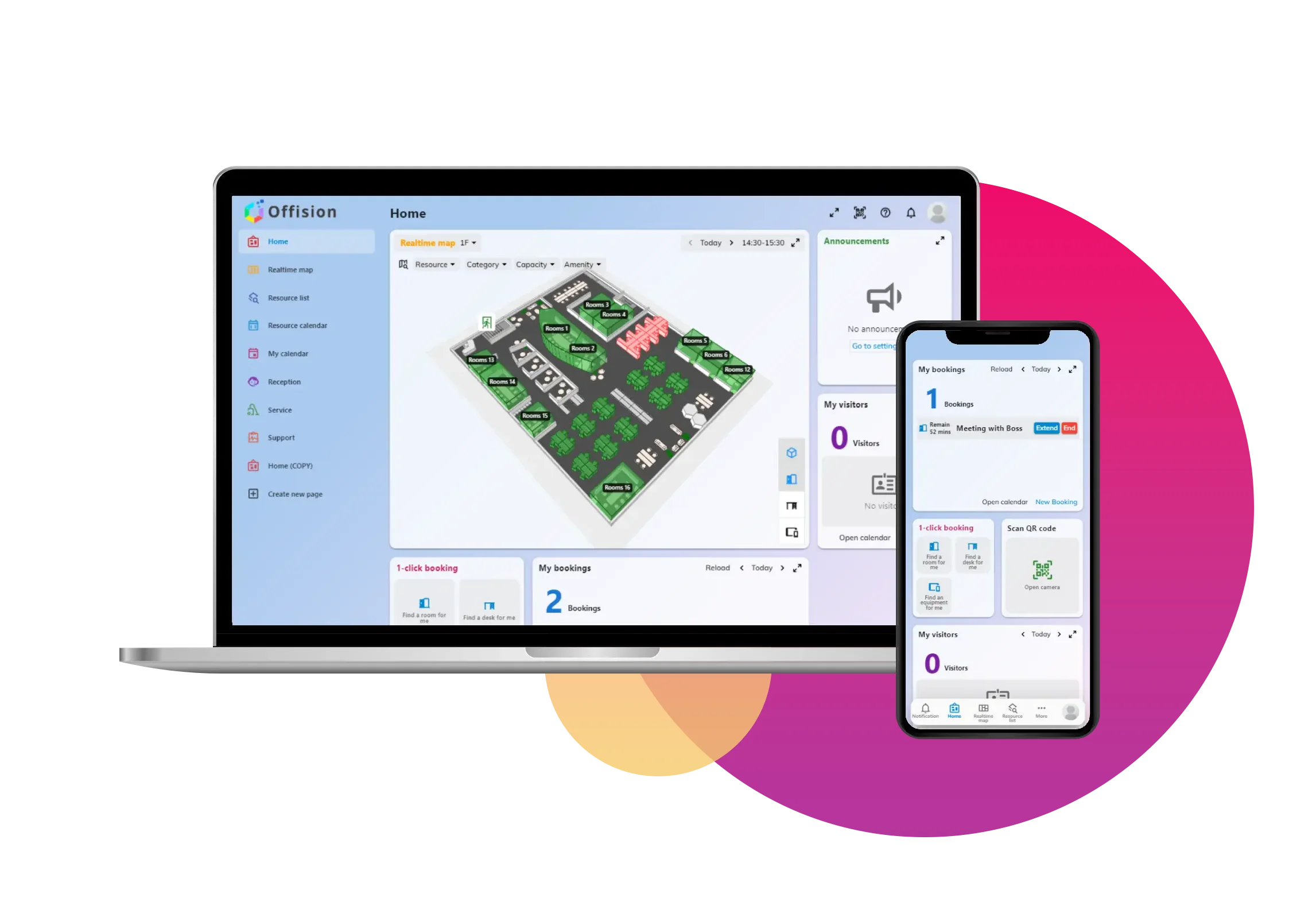
The **Create Bookings Spanning Multiple Days** feature in Offision allows users to book resources across multiple days with a single booking. Users only need to check in on the first day to confirm.
洞察與最佳實踐,協助您優化工作空間
The Create Bookings Spanning Multiple Days feature in Offision allows users to reserve resources for a period that spans across multiple days. Instead of creating separate bookings for each day, this feature simplifies the process by enabling users to book resources continuously from one day to the next with a single action.
Key highlights of this feature include:
Multiple-Day Booking:
Users can reserve resources that extend from one day to another without the need to create separate bookings for each day.
Single Check-In:
Users only need to check in on the first day to confirm the booking, eliminating the need for daily check-ins.
Simplified Scheduling:
Perfect for scenarios requiring extended resource use, such as multi-day events, projects, or overnight stays.
Time-Saving:
Reduces the administrative burden of creating multiple bookings, making it more efficient for users and admins alike.
This feature is designed for users who need uninterrupted access to resources over several days, offering both convenience and flexibility.
Simplifies Scheduling for Extended Use:
Saves Time:
Single Check-In Requirement:
Ideal for Long-Term Events:
Reduces Administrative Workload:
Maximized Resource Utilization:
Customizable by Admins:
Enhanced User Experience:
Flexible Time Allocation:
Avoids Scheduling Conflicts:
The **Create Bookings Spanning Multiple Days ** feature in Offision is an essential tool for users needing extended resource access. While it offers significant convenience and efficiency, careful monitoring and clear guidelines are necessary to ensure fair resource usage and avoid potential conflicts.
請依照以下步驟操作
Navigate to “Advanced policy” and create / edit a policy
Navigate to “Booking policy” tab and enable “Allow users to create cross day booking”
Navigate to the "Room," "Desk," and "Equipment" to create / edit resources
Set the policy to the resources
Navigate to “Advanced policy” and create / edit a policy
Navigate to “Booking policy” tab and enable “Allow users to create cross day booking”
Navigate to the "Room," "Desk," and "Equipment" to create / edit resources
Set the policy to the resources
備受全球機構信賴
加入數百間使用 Offision 提升工作空間管理效率的企業


©2026 ONES Software Ltd. All rights reserved.

 Neat 裝置
 Crestron