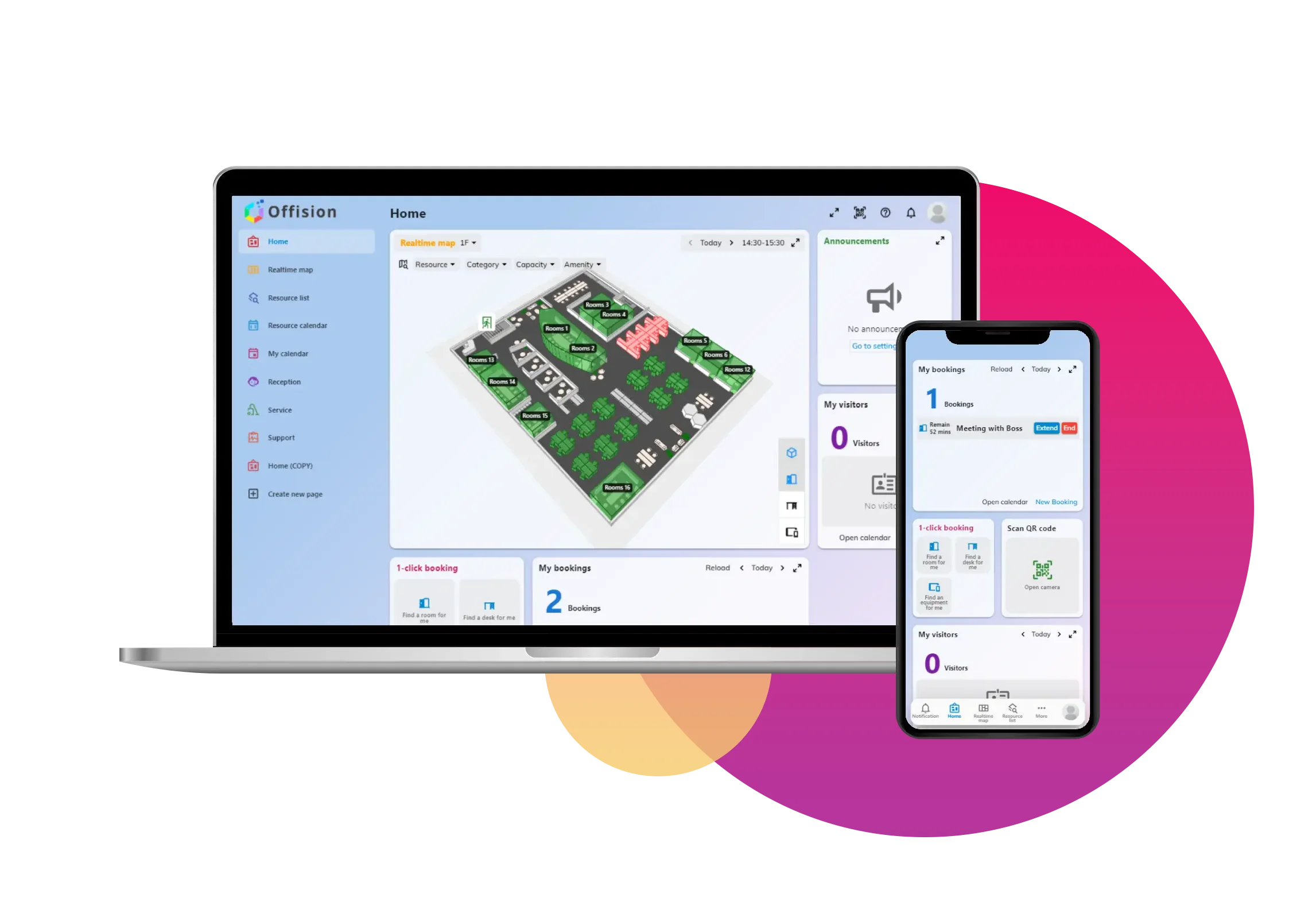
The Add Room Feature in Offision gives administrators the ability to create and organize rooms for user bookings. This feature ensures that all available spaces are efficiently managed and easy for users to locate and book.
Admins can:
- Create Rooms: Add new rooms to the system for users to book.
- Assign Rooms to Floor Plans: Organize rooms visually by linking them to specific locations on a floor plan.
- Add Room Information: Include details like:
- Room size or capacity.
- Features (e.g., projector, whiteboard, seating type).
- Accessibility options or other unique attributes.
By providing detailed information, users can filter through the available rooms to find the one that best suits their needs—whether it’s for a meeting, collaboration, or other activities.
This feature helps organizations improve resource utilization, enabling admins to present rooms clearly and efficiently for users.
Key Benefits:
- Simplifies room management and booking processes.
- Provides detailed room information for user convenience.
- Visually organizes rooms with floor plans for easy navigation.
- Reduces booking conflicts by clearly displaying room availability and features.
Pros
Simplified Room Management
- Admins can easily add rooms and assign them to floor plans.
- Centralized control ensures all rooms are accounted for and organized.
Enhanced User Experience
- Users can quickly find rooms that meet their specific requirements by filtering based on features or capacity.
- Eliminates guesswork when booking a space.
Improved Resource Utilization
- Provides visibility into all available rooms, helping maximize resource usage.
- Reduces the chances of underutilized or overlooked spaces.
Customizable Room Details
- Admins can add detailed information like equipment, seating arrangements, and accessibility.
- Helps users choose the most suitable room for their needs.
Visual Organization with Floor Plans
- Assigning rooms to floor plans makes it easier for users to locate spaces.
- Particularly useful for larger offices or multi-floor buildings.
Reduces Booking Conflicts
- Clearly displays room availability, minimizing double bookings.
- Users can view room features upfront, reducing the need for last-minute changes.
Scalable for Any Organization
- Supports small offices, coworking spaces, and large enterprises with many rooms.
- Flexible enough to accommodate diverse room types and configurations.
Streamlined Booking Process
- Users have all the information they need to make informed booking decisions.
- Saves time for both users and admins by reducing back-and-forth inquiries.
Professional Appearance
- Organized room listings and floor plans enhance the professional image of the booking system.
- Builds trust with users by presenting a polished and efficient system.
Supports Long-Term Planning
- Helps admins track room usage patterns and make data-driven decisions about resource allocation.
The Add Room feature in Offision is a powerful tool for managing shared spaces, offering flexibility and convenience for both admins and users. While it requires careful setup and maintenance, the benefits of streamlined booking, enhanced user experience, and improved resource utilization make it an indispensable feature for organizations of all sizes.

 Neat
Neat
 Crestron