
Offision Automated Resource Booking
Ask us about this feature
Questions about how this works for your team or workplace? Send a quick message and we'll help.
Thank you — we will look into it.
1 Month Free trialWhat is Offision Automated Resource Booking?
Offision’s Automated Resource Booking is designed to simplify how employees interact with workplace resources, ensuring effortless scheduling, reducing conflicts, and enhancing productivity. This feature leverages real-time data, intelligent suggestions, and integrations with existing tools to deliver a seamless booking experience.
Features Overview
Insights and best practices to optimize your workspace
Automated Resource Booking
Overview:
Offision’s Automated Resource Booking is designed to simplify how employees interact with workplace resources, ensuring effortless scheduling, reducing conflicts, and enhancing productivity. This feature leverages real-time data, intelligent suggestions, and integrations with existing tools to deliver a seamless booking experience.
Key Features:
Real-Time Availability Check
Users can instantly view the availability of meeting rooms, desks, and equipment across the office. A visual calendar or timeline ensures clarity, with updates in real time to avoid double bookings.Instant Booking
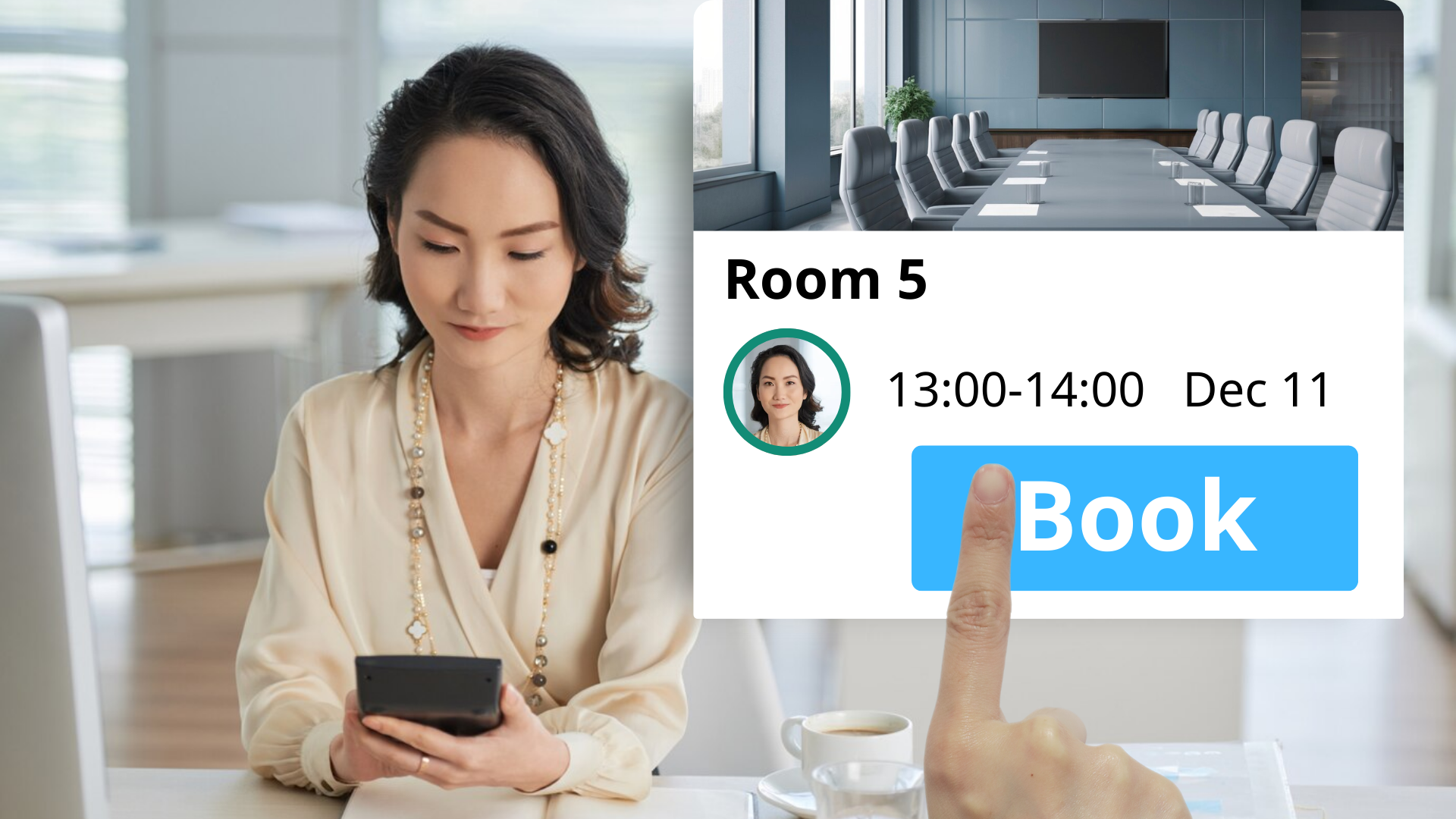
Employees can book resources with a single click via desktop, mobile apps, or booking panels located outside rooms. The system confirms the booking instantly, eliminating the need for manual approvals for standard requests.Recurring Bookings
For weekly meetings or repeated events, users can schedule recurring bookings. The system automatically manages conflicts and provides alternative options if a specific time or room is unavailable.Smart Notifications
Automated reminders and notifications are sent to users to confirm, reschedule, or cancel bookings. Alerts are also triggered for no-shows, ensuring resources are freed up for others.Conflict Management
When scheduling conflicts arise, the system suggests alternative resources or timeslots. Administrators can set priority levels to resolve overlapping bookings automatically.Rule-Based Booking
Admins can configure rules to control access:- Limit bookings by department, team, or individual roles.
- Restrict specific rooms or times for high-priority meetings.
- Automatically approve or deny requests based on pre-defined criteria.
Integration with Calendar Systems
Seamless integration with tools like Microsoft Outlook, Google Calendar, and Teams ensures all bookings sync across platforms, providing employees with unified schedules.Self-Service Kiosks and Mobile Apps
Employees can use intuitive kiosks or apps to search, book, or manage reservations on the go. QR codes or NFC can also be used to check into reserved rooms, enhancing convenience.Advanced Filters and Search
Users can find resources based on specific needs:- Room capacity.
- Equipment (e.g., projectors, video conferencing).
- Preferred locations or layouts.
AI-Powered Suggestions
Offision’s AI suggests the best options for booking based on historical data, user preferences, and resource availability patterns. This feature minimizes the time users spend searching for resources.
Scenario Examples:
Quick Room Booking Before a Meeting:
- An employee opens the Offision mobile app 10 minutes before their meeting.
- The system displays all available meeting rooms nearby.
- They book a room, and the confirmation appears in their calendar instantly.
Resolving a Conflict:
- Two teams try to book the same room at overlapping times.
- The system notifies both teams and offers alternative suggestions.
- The lower-priority booking is automatically rescheduled to an available room.
Recurring Team Meetings:
- A project manager schedules weekly team meetings for 6 weeks.
- The system identifies a room that matches the team size and ensures availability for all 6 dates.
- Recurring invites are sent to all team members via email and calendar integrations.
Last-Minute No-Show:
- A user forgets to check into their reserved room within 15 minutes of the start time.
- The system automatically frees up the room for others to book.
Outcome:
Automated Resource Booking eliminates manual processes, reduces scheduling errors, and ensures optimal use of office resources. This feature not only improves employee experience but also maximizes the efficiency of workplace operations.
Ready to set this up?
Start your free trial today and transform your workspace in minutes.
Configuration steps
Follow these steps
Step 1
Navigate to "Location", and create a building
Step 2
Input name, country or regions, address, and location on Google map
Step 3
Add / edit a floor in the building
Step 4
Navigate to "Map", and click "Map editor" to import / create a floor plan to the floor
Step 5
Navigate to the "Room," "Desk," "Equipment" and "Other resources" to create / edit resources
Step 6
Edit the resources, then set the capacity, location, position, and any other necessary settings
Step 7
Navigate to "Email reminder", and enable the appropriate reminder
Step 8
Navigate to “Basic policy” and create / edit a policy
Step 9
Navigate to “Basic” tab and enable “Require check-in”, "Allow early check-out"
Step 10
Navigate to “Create/Edit booking channel” tab and enable “Allow booking from User APP”
Step 11
Navigate to "System interface" and scroll down to "Home page settings"
Step 12
Enable "Home", "Realtime map", "Resource list" and "Resource calendar"
Step 13
Navigate to "User groups", then create / edit a user group
Step 14
Select "User" permission to the user group
Step 15
Add users to the user group
1 Step 1
Navigate to "Location", and create a building
2 Step 2
Input name, country or regions, address, and location on Google map
3 Step 3
Add / edit a floor in the building
4 Step 4
Navigate to "Map", and click "Map editor" to import / create a floor plan to the floor
5 Step 5
Navigate to the "Room," "Desk," "Equipment" and "Other resources" to create / edit resources
6 Step 6
Edit the resources, then set the capacity, location, position, and any other necessary settings
7 Step 7
Navigate to "Email reminder", and enable the appropriate reminder
8 Step 8
Navigate to “Basic policy” and create / edit a policy
9 Step 9
Navigate to “Basic” tab and enable “Require check-in”, "Allow early check-out"
10 Step 10
Navigate to “Create/Edit booking channel” tab and enable “Allow booking from User APP”
11 Step 11
Navigate to "System interface" and scroll down to "Home page settings"
12 Step 12
Enable "Home", "Realtime map", "Resource list" and "Resource calendar"
13 Step 13
Navigate to "User groups", then create / edit a user group
14 Step 14
Select "User" permission to the user group
15 Step 15
Add users to the user group
Trusted by organizations worldwide
Join hundreds of companies streamlining their workspace management with Offision