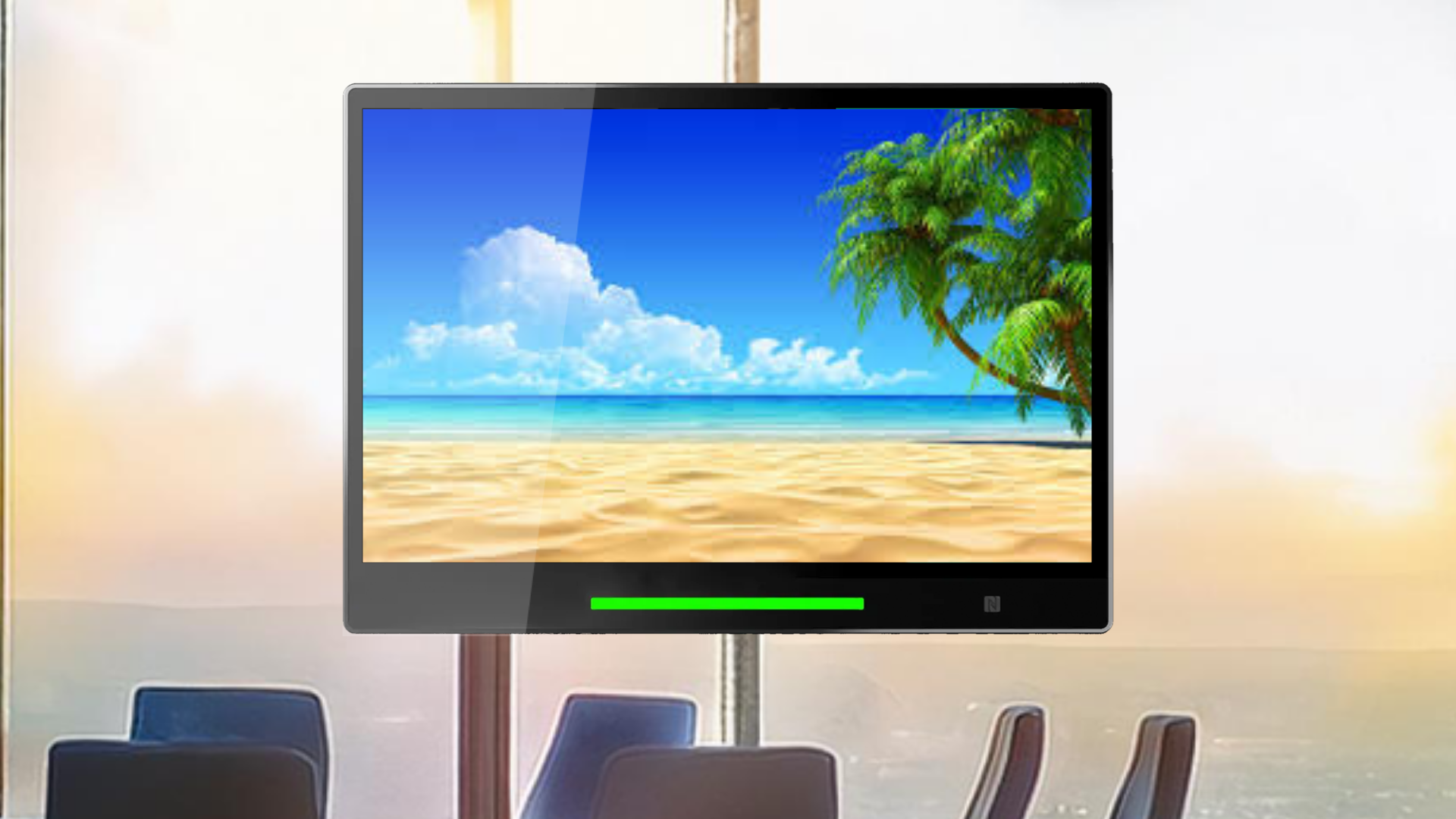
The Booking Panel - Screen Saver feature in Offision allows admins to customize screen saver settings on booking panels. This feature enhances the panel's visual appeal during idle times and provides a polished, professional look. Admins have full control over when the screen saver activates, the images displayed, and how frequently they change.
Key Features:
Idle Time Settings:
Admins can configure how long the panel waits before activating the screen saver after no user interaction.
Customizable Images:
Upload custom images to create a tailored screen saver that represents your brand or business.
Image Flipping Time:
Set specific intervals for flipping between screen saver images to create a dynamic display.
Enhanced Aesthetics:
Keep booking panels visually engaging and professional, even when not actively in use.
This feature is ideal for businesses looking to maintain a sleek and branded appearance while ensuring devices remain energy-efficient during idle times.
Pros:
Improved Aesthetics:
- Screen savers keep booking panels visually appealing during idle periods.
- Custom images allow businesses to showcase branding or promotional content, enhancing professionalism.
Customizability:
- Admins can upload tailored images to suit their business needs.
- Flexible settings allow for adjustments in idle time and image flipping intervals, ensuring a personalized experience.
Energy Efficiency:
- Reduces unnecessary screen activity, potentially extending the lifespan of the booking panel hardware.
- Helps conserve energy by dimming or changing the screen during periods of inactivity.
User Engagement:
- Dynamic image flipping creates an engaging display that attracts attention when the panel is idle.
- Can be used to share important messages, announcements, or marketing visuals.
Easy Configuration:
- Admins can easily set up and adjust the screen saver settings through a user-friendly interface.
- No technical expertise is required to upload images or change settings.
Professional Environment:
- Keeps the workspace looking organized and polished, even when devices are not actively in use.
- Adds a tech-forward touch to the office environment.
The Screen Saver feature in Offision is a simple yet effective tool to enhance booking panel aesthetics and maintain a branded, professional look. While it offers excellent customization options and energy savings, admins must carefully configure settings and update content regularly to maximize its benefits.

 Neat
Neat
 Crestron