Select another country/region to browse the content applicable to your location.

Enabling single sign-on via Google Workspace

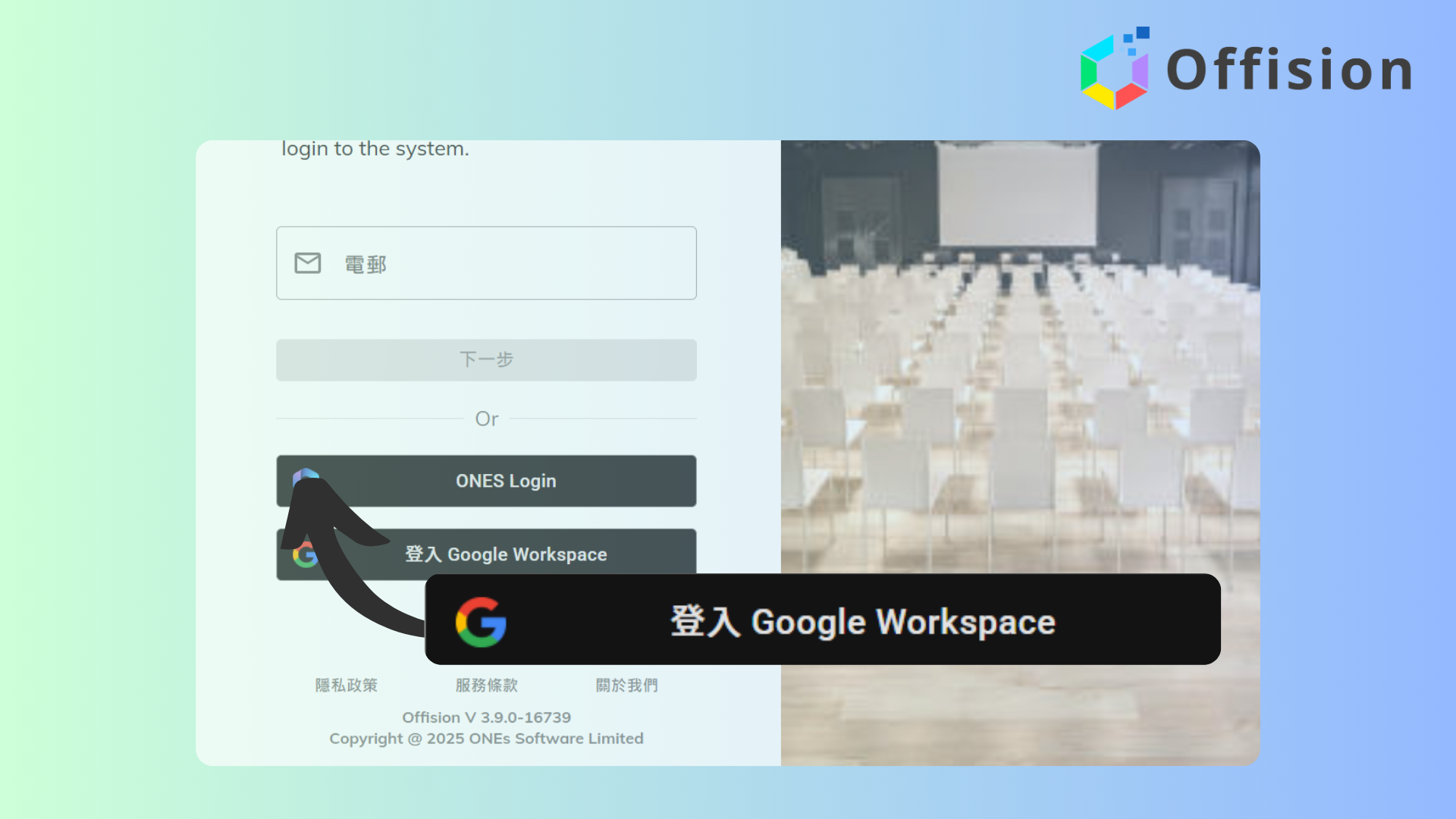
Teams running Google Workspace have the option to enable single sign-on (SSO) for one-click authentication.

Enabling single sign-on via Google Workspace

Google Workspace teams can enable single sign-on (SSO) to streamline authentication, allowing users to access services with one click. By sharing a link to app.offision.com, administrators can easily invite large groups to join. This method, often called "Signing in with Google Workspace," leverages Google Workspace for secure and efficient access management.

Pros:

  1. Simplified Access: One-click SSO eliminates the need for multiple logins, enhancing user experience.
  2. Efficient Onboarding: Sending a single link to app.offision.com enables quick invitations for large groups.
  3. Secure Authentication: Integration with Google Workspace ensures robust security and identity verification.
  4. Time-Saving: Reduces administrative overhead by automating access management.
  5. Scalable: Easily accommodates growing teams or organizations with minimal setup.

Ready to set this up?

Start your free trial today and transform your workspace in minutes.

Configuration steps

Follow these steps

1

Step 1

Navigate to "Integrations" and click "Google Workspace"

2

Step 2

Click "Connect to Google Workspace"

3

Step 3

Input Customer ID

4

Step 4

Click "Connect Offision to your organization by Login via the user account under your organization" and login to your Google Workspace account

5

Step 5

Navigate to "Users" and click "Import user"

6

Step 6

Select "Google Workspace account" and download the sample excel file

7

Step 7

Input email address and user display name to the excel file

8

Step 8

Import the excel file for adding users

Navigate to "Integrations" and click "Google Workspace"

Click "Connect to Google Workspace"

Input Customer ID

Click "Connect Offision to your organization by Login via the user account under your organization" and login to your Google Workspace account

Navigate to "Users" and click "Import user"

Select "Google Workspace account" and download the sample excel file

Input email address and user display name to the excel file

Import the excel file for adding users

Trusted by organizations worldwide

Join hundreds of companies streamlining their workspace management with Offision

30-day Free Trial
No Credit Card
Setup in Minutes
ISO 27001
Get Started Free