Select another country/region to browse the content applicable to your location.

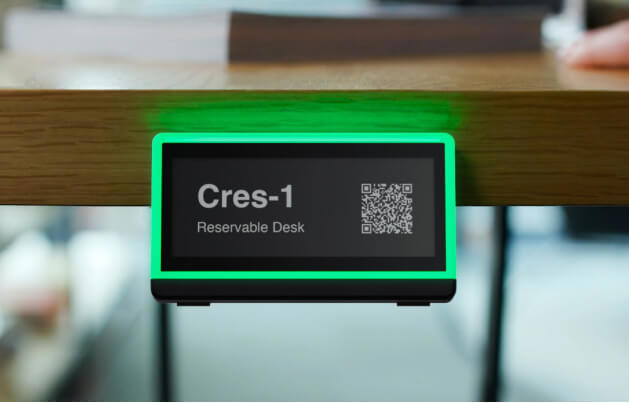
Desk Q - Clearly indicate occupancy with our easy 2-step reservation process

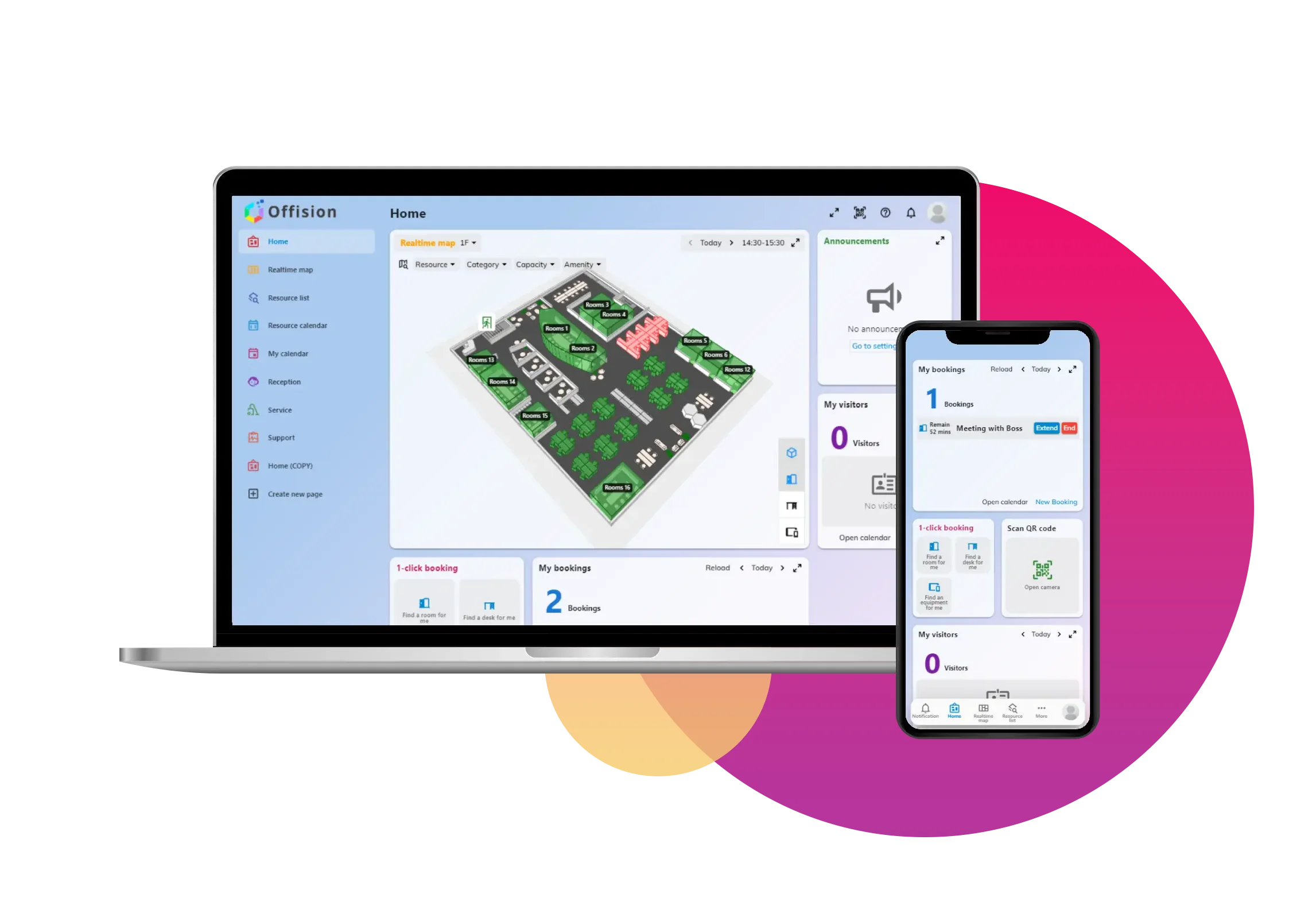
Enhance your workspace management with Offision and Crestron Desk Q. This seamless integration provides clear occupancy indications and an easy 2-step reservation process, ensuring efficient use of your office spaces.

Offision with Crestron Desk Scheduling Solutions - Desk Q
To start booking, scan QR Code on the desk
Confirm the meeting detail on the mobile
Desk reserved

Key Features

  1. Clear Occupancy Indication: Easily see which desks are available or occupied.
  2. 2-Step Reservation Process: Quickly reserve a desk in just two steps.
  3. Seamless Integration: Offision and Crestron Desk Q work together to provide a unified workspace management solution.
  4. Real-Time Updates: Get instant updates on desk availability and reservations.
  5. User-Friendly Interface: Intuitive design makes it easy for employees to find and book desks.

How It Works

  1. Check Availability: Employees can view real-time desk availability through the Offision platform.
  2. Reserve a Desk: Using the 2-step reservation process, employees can select and book an available desk.
  3. Occupancy Indication: Crestron Desk Q provides clear visual indicators of desk occupancy status.
  4. Manage Reservations: Employees can manage their reservations, including making changes or cancellations, through the Offision platform.

Benefits

  1. Increased Efficiency: Reduce time spent searching for available desks, allowing employees to focus on their work.
  2. Optimized Space Utilization: Ensure that office spaces are used efficiently, reducing wasted resources.
  3. Enhanced Productivity: Streamlined reservation process and clear occupancy indications help maintain a productive work environment.
  4. Improved Employee Experience: User-friendly interface and real-time updates make it easy for employees to navigate the workspace.
  5. Scalable Solution: Suitable for offices of all sizes, from small businesses to large enterprises.

Ready to set this up?

Start your free trial today and transform your workspace in minutes.

Configuration steps

Follow these steps

1

Step 1

Navigate to "Tag groups" and add a new tags group

2

Step 2

Select "Crestron" and follow the guildelines to add a tags group

3

Step 3

Click "Add tag", then select the tags which you want to integrate to Offision

4

Step 4

Click the "Change" in the "Resources" column to assgin a resource to the tag

5

Step 5

Click "Batch Download" next to the "Desk Q Placard" to download the placard file for Desk Q, which you can then use to create a booking

6

Step 6

Print out the placard, then insert it into the corresponding Desk Q

Navigate to "Tag groups" and add a new tags group

Select "Crestron" and follow the guildelines to add a tags group

Click "Add tag", then select the tags which you want to integrate to Offision

Click the "Change" in the "Resources" column to assgin a resource to the tag

Click "Batch Download" next to the "Desk Q Placard" to download the placard file for Desk Q, which you can then use to create a booking

Print out the placard, then insert it into the corresponding Desk Q

Trusted by organizations worldwide

Join hundreds of companies streamlining their workspace management with Offision

30-day Free Trial
No Credit Card
Setup in Minutes
ISO 27001
Get Started Free