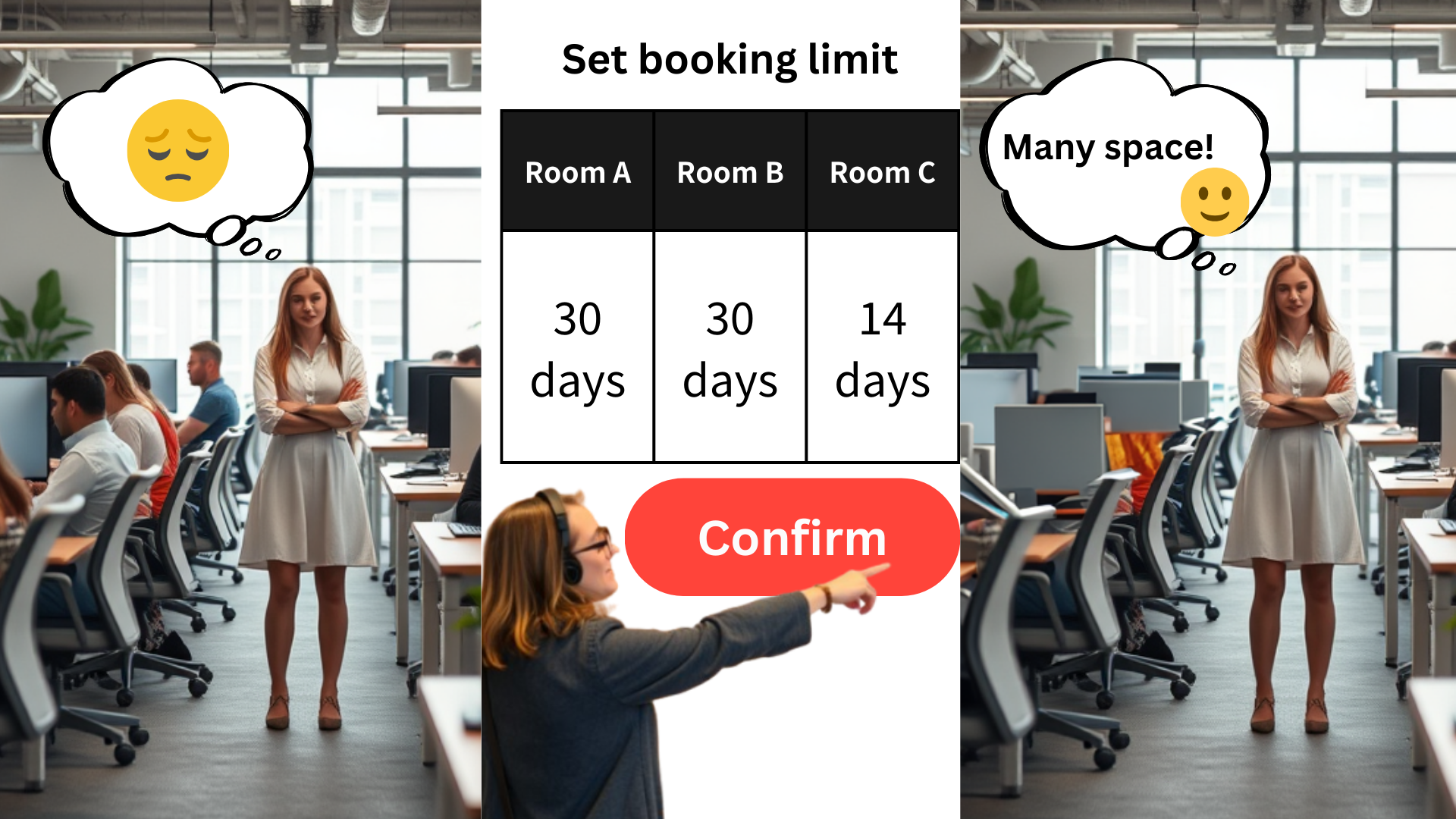
The Set Limits on Booking Date Ranges feature in Offision allows administrators to set restrictions on how far in advance users can pre-book resources. This feature ensures that resources are not locked up excessively far in the future, allowing for more balanced and fair scheduling across all users.
Key highlights of this feature include:
Date Range Restrictions:
Users can only book resources within a specific date range defined by the administrator.
Prevents Long-Term Blocking:
Limits users from reserving resources too far in advance or for extended periods, ensuring better availability for others.
Fair Resource Access:
Encourages equal usage by preventing individuals from monopolizing resources for extended future dates.
Better Scheduling Management:
Offers admins more control over resource planning and ensures that bookings align with organizational needs.
This feature is ideal for managing shared resources in environments where excessive pre-booking could disrupt fair access or create scheduling conflicts.
Pros:
Prevents Resource Hogging:
- Stops users from blocking resources far into the future, ensuring availability for others.
Improved Resource Access:
- Encourages fair and balanced access by limiting how far ahead resources can be reserved.
Better Scheduling Control for Admins:
- Gives administrators more control over resource usage by defining appropriate booking windows.
Avoids Unnecessary Long-Term Reservations:
- Reduces the risk of resources being reserved without actual need, improving overall availability.
Simplifies Resource Planning:
- Easier for admins to manage bookings when users are restricted to shorter, defined date ranges.
Prevents Overcommitment:
- Avoids situations where users make excessive long-term bookings that they may later cancel or modify.
Supports High-Demand Resources:
- Ensures resources in high demand are available for immediate or short-term needs rather than being locked up in advance.
Customizable Limits:
- Admins can set flexible date range limits based on organizational requirements or resource types.
Reduces Calendar Clutter:
- Prevents the booking calendar from being overwhelmed with unnecessary long-term reservations.
Encourages Efficient Booking Behavior:
- Prompts users to plan bookings responsibly within the allowed timeframe.
The Set Limits on Booking Date Ranges feature in Offision helps organizations maintain fair and efficient resource scheduling by restricting pre-booking to defined timeframes. While it simplifies management and ensures broader access, clear communication and appropriate configurations are essential to avoid user dissatisfaction or operational disruptions.

 Neat
Neat
 Crestron