

The admin console will not open inside our own site
Adding your portal to Allowed websites does not make the admin console embeddable. The console refuses every site but its own, always, and no setting changes it — what to do instead.
What happens
A portal page is added to Allowed websites, the embedded user app starts working, and the same portal’s frame around the admin console stays empty. The browser’s developer console says it refused to display. Nothing in Offision reports an error, and adding more entries to the list changes nothing.
Where it comes from
The admin console answers every request with an instruction that only pages on its own address may hold it. That instruction is fixed: it is not read from Security setting, so the choice and the list on that screen never reach the console. The screen names two apps — the user app and the visitor app — and those two are the whole of what it controls.
It is deliberate. The console is where an administrator changes permissions, deletes people and opens doors, and a page that can be framed by another site is a page whose clicks can be steered by that site.
What to do instead
Link to the console, rather than frame it. Copy the Admin Console URL from System URLs, under Marketplace, and put it on the portal page as an ordinary link that opens in a new tab. Administrators reach it in one click and sign in with their own account, exactly as they would otherwise.
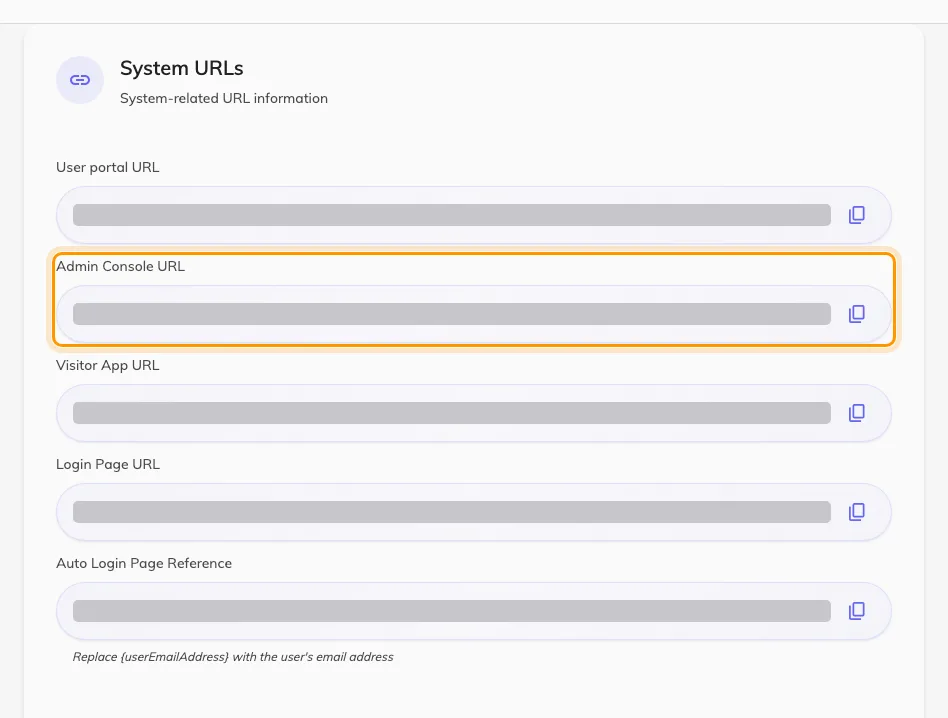
System URLs. The second row is the console address to link to.
If what the portal actually needs to show is a room’s availability or somebody’s bookings, embed the user app instead — that is the app the setting supports, and it is set up in embed Offision in your company portal.