
Direct answer
Hot desking equipment is the mix of desk hardware, furniture and storage, and booking / check-in software that lets people set up quickly at a shared seat and hand it back cleanly when they leave. In 2026, successful flexible floors rarely stop at monitors and docks. They also need a live floor plan, clear check-in rules, and (where useful) panels, kiosks, sensors, or signage so reserved seats become real seats—not ghost bookings.
If people still commute in and find nowhere to sit, the gap is usually policy and systems, not another chair SKU. Start with a consistent plug-and-play desk, then add the ops layer that makes sharing trustworthy.
Key takeaways
- Standardize what stays on every hot desk: display, input, power, dock, and cables people should not carry daily.
- Pair flexible seating with lockers, coat storage, and wipe-down habits—or hygiene and clutter kill adoption.
- Prefer desk booking (reserve before you commute) over walk-up-only hot desking on busy midweeks.
- Check-in options range from app/QR stickers to zone kiosks, e-paper tags, desk panels, and occupancy sensors—buy for proof and density, not novelty.
- One live map plus amenities filters, equipment booking, and lobby signage beats a PDF floor plan taped to the wall.
First, what is hot desking?
Hot desking means people use shared workstations instead of owning one permanent desk. Done well, someone books (or claims) a suitable seat for the work at hand, sets up in minutes, and releases it when they leave.
That is related to—but not identical with—desk booking. Walk-up hot desking (“grab any free chair”) fails when midweek demand spikes. Booking a desk from a live map before the commute reduces that risk. Many hybrid offices also keep some assigned seats for roles that need them. For the model choice, see desk booking vs assigned seating.
Why offices still pursue it
- Capacity — Variable hybrid attendance leaves fixed desks empty on quiet days and scarce on peak days.
- Collaboration — People can sit near the team or project they need that day.
- Flexibility — Employees value choice of neighborhood, amenity, and schedule when the floor supports it.
None of those benefits stick if every morning is a scavenger hunt for a dock, a dongle, or a free seat that was “booked” by someone who stayed home.
Hardware that stays on the desk
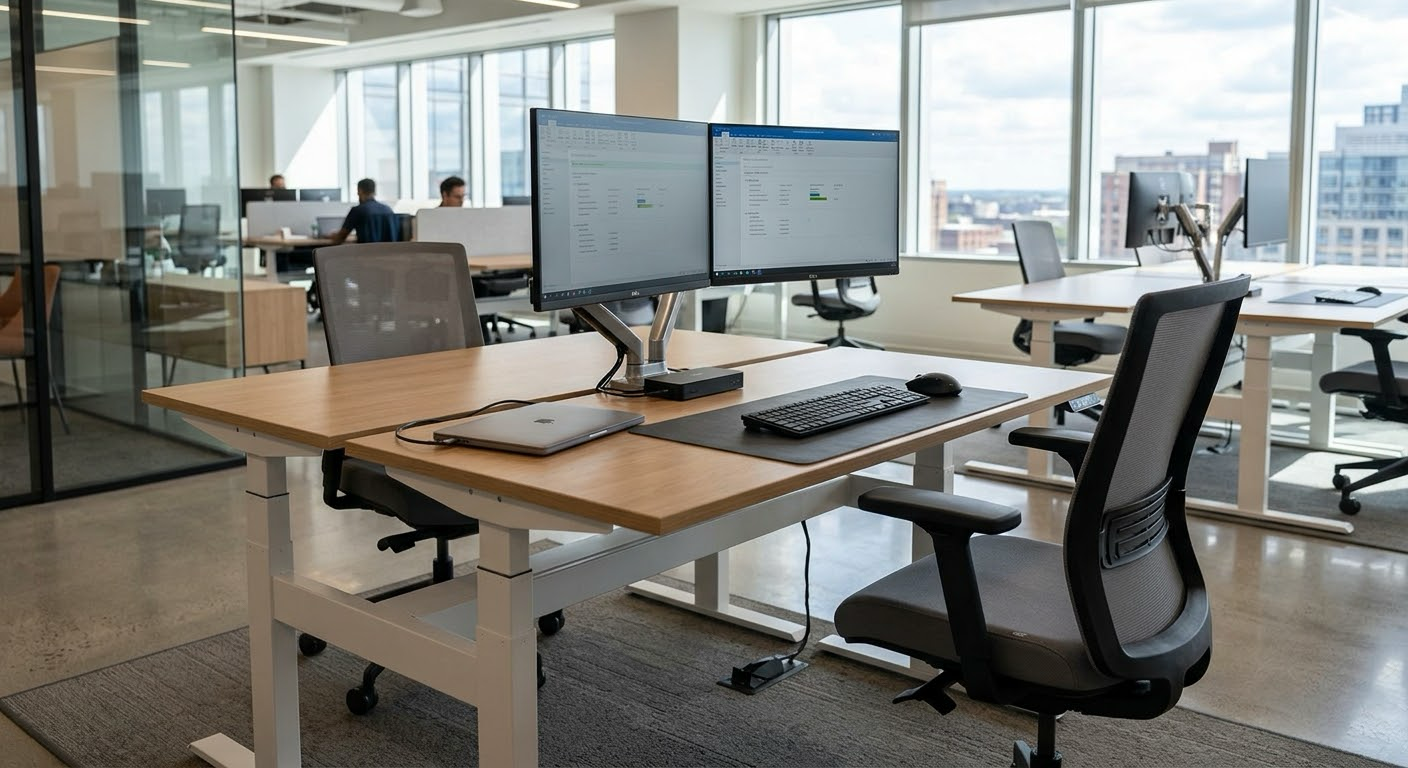
Give every bookable desk the same baseline so setup is muscle memory.
1. Monitor(s)
A consistent single- or dual-monitor setup is the fastest path to “plug in and work.” Match the work: design and data roles may need higher resolution or a second screen; keep those desks filterable as amenities so people book the right type instead of hunting the floor.
2. Keyboard and mouse
Shared peripherals cut cable chaos. If hygiene is a concern, issue personal wireless sets people store in lockers, or stock wipes at each desk. Consistency matters more than brand—IT should be able to swap a failed unit without a ticket storm.
3. Chargers, adapters, and dongles
Do not make people pack every USB-C hub and display adapter for a hybrid day. Stock the desk (or a labeled drawer under it) with the cables your laptop fleet actually uses. One missing adapter becomes a help-desk queue by 9:15.
4. Docking station
A dock turns a laptop into a workstation: displays, Ethernet where needed, and power in one cable. Choose docks that match your OS mix and keep spares. Flexible seating fails when each desk has a different “secret handshake” to get video out.
5. Power within reach
Surface or modular power beats crawling under the desk. Every hot desk should power the laptop/dock and at least one monitor without daisy-chaining someone else’s strip.
Amenity tip: Label dual-monitor, sit-stand, and quiet-zone desks in your booking system so filters match reality—not tribal knowledge.
Furnishings that support flexible seating
6. Sit-stand desks (where the work allows)
Height-adjustable desks help people share one footprint without sharing one posture. Keep a clear default height or quick memory presets so the next user is not resetting for five minutes.
7. Ergonomic chairs
Invest in adjustable lumbar and arm support. Hot desking multiplies chair wear; a cheap chair that fails in six months costs more in complaints than a durable fleet.
8. Lockers or personal storage
Without storage, bags and coats colonize chairs and aisles. Central lockers (or neighborhood lockers) let people leave personal items without claiming a desk as permanent territory.
9. Coat racks and closet space
Assigned-seat offices hide coats under desks. Flexible floors need dedicated hanging space near entries and neighborhoods so the desk surface stays a workspace.
10. Hygiene and reset kits
Wipes (and a light end-of-day wipe habit) keep shared keyboards and surfaces acceptable. Pair with cleaning service workflows if your workplace platform supports service requests on desks or zones.
Software and ops tools that make hot desking work
Hardware alone does not prevent no-shows or midweek chaos. The ops layer is what turns shared desks into a reliable product.
11. Reliable network access
Strong Wi‑Fi (or desk Ethernet through the dock) is non-negotiable. Test bookable zones for signal before you label them “ready.”
12. Interactive floor plan (not a static PDF)
People need to see which desks are free when they need them, where teammates are sitting, and how to get there. A maintained map with live availability beats a printed layout that went stale after the last renovation. For navigation on lobby screens and multi-floor sites, see interactive wayfinding.
13. Desk booking with check-in and auto-release
Booking before the commute is the practical default for hybrid peaks. Require check-in on arrival and auto-release no-shows so seats return to the pool. Offision’s booking layer covers desks alongside rooms, equipment, and parking—with policies for check-in windows and release rules.
14. How people claim the desk (pick for proof and density)
Not every floor needs a panel on every seat. Common setups include:
| Approach | Best when | Proof of presence |
|---|---|---|
| App check-in | Soft launch, low hardware budget | Stronger with GPS / office IP rules |
| Printed QR / sticker | Cheap ubiquity on every desk | Same app path; code is static |
| Zone desk kiosk | One screen serves many desks; “which desk did I book?” | Proves the zone |
| E-paper desk tag | Status readable from the aisle | Daily-changing codes help vs photos |
| Desk panel | Highest assurance; readable across the room | Must be at that desk |
| Occupancy sensor | Auto check-in / check-out with less tapping | Sensor linked as a resource |
Most floors mix options—for example stickers everywhere plus a kiosk at the neighborhood entry, panels only where the record must stand up. Details: choose how people claim a hot desk.
15. Room / desk panels and digital signage
Door or desk panels show status, support check-in, and reduce “is this free?” interruptions. Lobby and floor signage can show a live booking-status map so people orient before they wander. Keep signage on the same data as booking—or the screens lie.
16. Occupancy sensors (optional, high-value on busy floors)
Sensors do not invent utilization stories on their own; linked correctly to a desk or room as a resource, they can drive auto check-in, auto check-out, and extend behavior in policy. That answers “was the desk actually used?” better than calendar holds alone. Offision reads supported third-party sensors rather than requiring proprietary hardware.
17. Amenities filters and equipment booking
Shared monitors and docks solve most days. Specialty gear—projectors, loaner devices, AV kits—belongs in equipment booking so it is reserved, not scavenged. Amenity tags on desks (second screen, sit-stand, quiet area) keep the map and list filters honest.
18. Calendar and identity fit
Employees already live in Outlook, Teams, or Google Workspace. A workplace ops layer should complement that stack—not fight it—especially when Microsoft Places covers part of the desk UX but not the full building (visitors, signage, sensor truth, multi-stack admin). See why M365, Outlook & Places still aren’t enough alone and the broader workplace management software buyer map.
Quick rollout checklist
Use this as a pilot on one floor before a full flip:
- Decide which desks stay assigned vs bookable (neighborhoods help).
- Standardize monitor + dock + power + cables on every bookable seat.
- Add lockers / coat storage and a wipe habit.
- Publish a live map with amenities people can filter.
- Turn on booking + check-in + auto-release; pick claim hardware by zone.
- Add kiosk or lobby map signage where people arrive confused.
- Review no-shows and peak-day fill after two to four weeks; then scale.
Soft next step
If you want desks, rooms, equipment, maps, panels, signage, and check-in policy in one workplace layer—alongside Microsoft 365 or Google Workspace—Offision is built for that hybrid ops job. Start from desk booking and the help center, or map your floor before you buy another wave of chairs.
FAQ
What equipment do you need for hot desking?
At minimum: consistent monitors, input devices, power, docks/cables, ergonomic seating, and personal storage. In hybrid offices, add desk booking software, a live floor plan, and a check-in method so seats release when unused.
Is hot desking the same as desk booking?
No. Hot desking is the shared-seat model. Desk booking is reserving a shared desk (often from a map) before or when you arrive. Booking is usually safer on peak office days.
Do you need a desk panel on every hot desk?
No. Many floors use app or QR stickers plus a zone kiosk; panels go where presence proof and aisle-readable status matter most.
Where do occupancy sensors fit?
Optional. Linked to a desk or room, they can automate check-in/out and improve “actually occupied” signal versus bookings alone.
What about visitors and finding a desk?
Flexible seating without wayfinding pushes questions onto reception. Live maps and lobby wayfinding keep employees and guests moving.
Can you mix assigned and hot desks?
Yes—and many 2026 offices should. Keep true assigned exceptions; make the rest bookable with clear neighborhoods.
Leave a Reply